Guest Requests
On this page
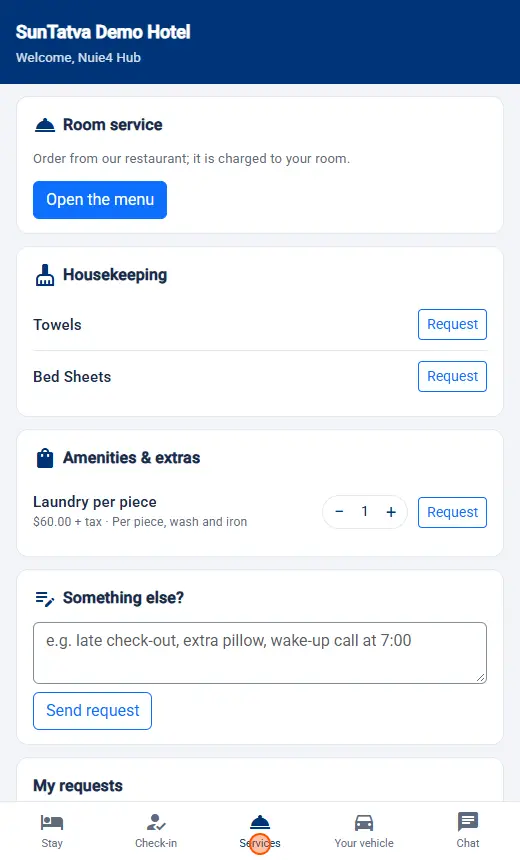
Shows what guests ask for during their stay from their portal page: housekeeping tasks, amenities and chargeable items, room-service orders and free-text requests. You accept, complete or send back each request. Chargeable items are posted to the folio when you accept.
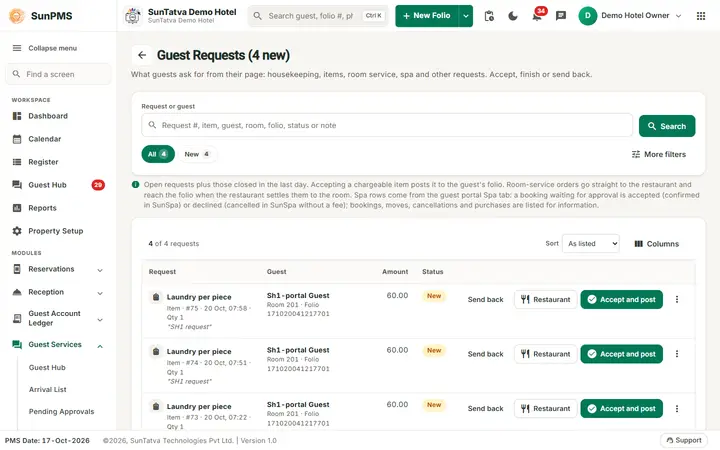
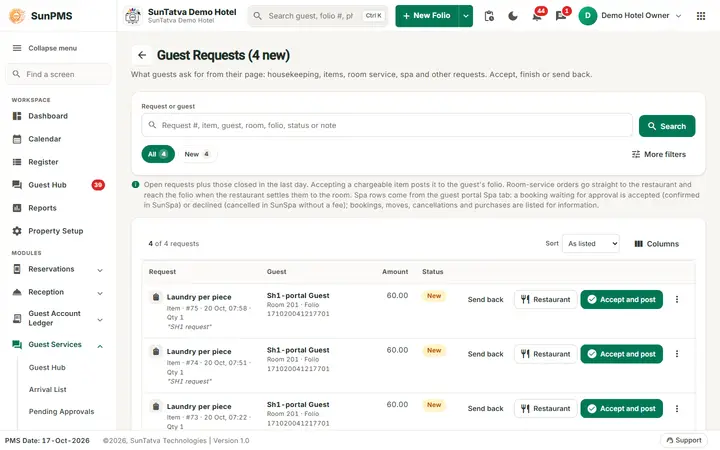
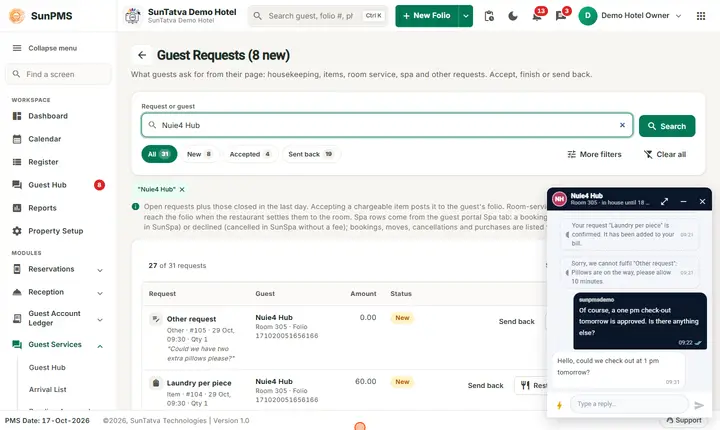
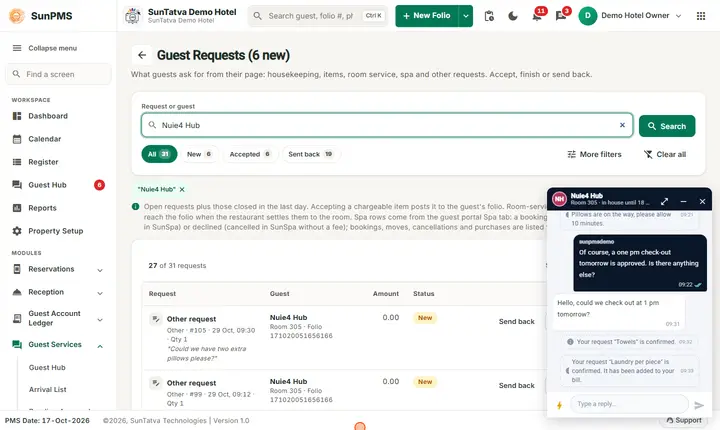
Guest Requests: each row shows the request, the guest, the amount and its status, with Send back and Accept and post.
Before you start
- Licence GUEST_MODULE.
- In Guest Portal Setting you choose which charges (items) and housekeeping tasks the guests may request and which SunPOS restaurant takes room service.
- Guests can request only after check-in.
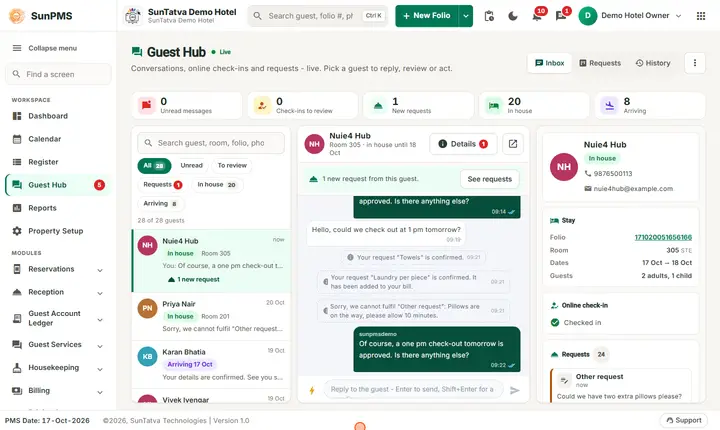
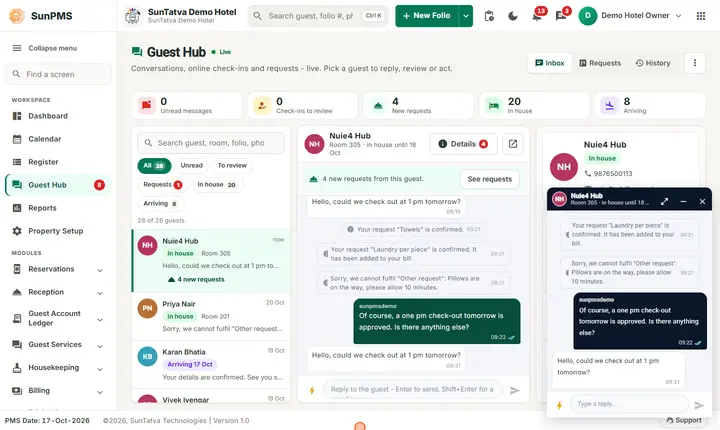
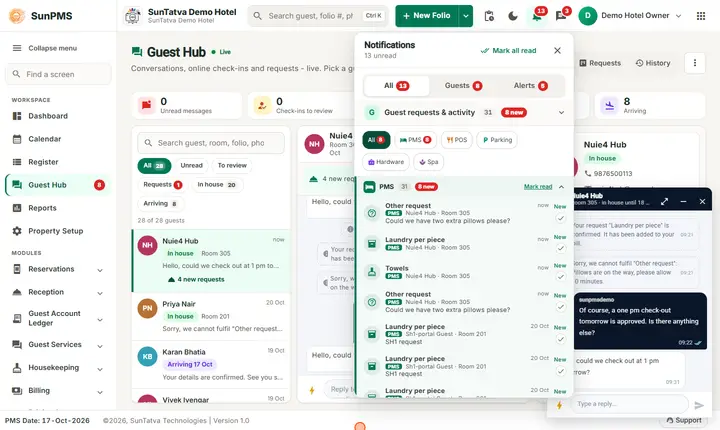
Looking for everything a guest did across PMS, POS, Parking and Hardware? Open Guest Hub > Requests or the notification bell: see Guest Hub. This page is the PMS request list.
Screen layout
Title: Guest Requests (N new). A search card, a help line (open requests plus those closed in the last day; chargeable items are posted to the folio on accepting; room-service orders go to the restaurant; spa rows come from the guest portal Spa tab: a booking waiting for approval is accepted or declined, other spa rows are listed for information), then the list.
| Item | Meaning |
|---|---|
| Request or guest + Search | Search text: request #, item, guest, room, folio, status or note. Enter also searches. |
| Status chips (All and the statuses present, each with a count) | Filter by New, Accepted, Completed, Sent back, Cancelled by guest. Click again to clear. |
| More filters | Type chips (Housekeeping, Item, Room service, Other, Spa, with counts) and a filter box per column. Clear all removes every criterion. |
| Sort, Columns | As listed, Newest first, Room, Status; choose which columns show. |
| Column | Meaning |
|---|---|
| Request | Type icon, item (with quantity), type, request # and date/time, quantity, and the guest's note (for room service the ordered lines) |
| Guest | Guest name, room and folio # |
| Amount | Price (with tax) |
| Status | New, Accepted, Completed, Sent back, Cancelled by guest; room service shows With restaurant with kitchen progress; adds posted to folio |
| Buttons | Send back (spa: Decline), Restaurant (when a SunPOS restaurant is linked), Accept / Accept and post (a chargeable Item with an amount), Mark as done (Accepted) |
The three-dot menu repeats these actions. On a phone each request is a card.
Row menu:
| Action | Shown when |
|---|---|
| Accept / Accept and post to folio | Status New (the second for a chargeable Item with an amount). |
| Send to the restaurant (room delivery) | Status New, a SunPOS restaurant is linked, and the request is not already a room-service order. |
| Mark as done | Status Accepted. |
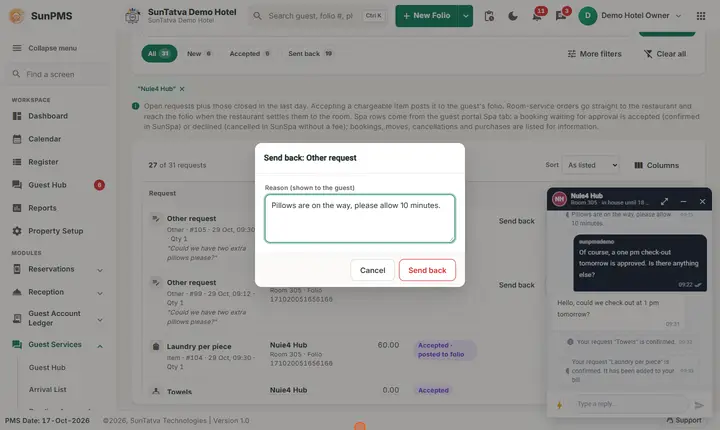
| Send back to guest | Status New. Asks Reason (shown to the guest). |
| Chat with guest | Always. |
How to accept a request
- Open Guest Services > Guest Requests.
- Click Accept (or Accept and post) on the row, or use the three-dot menu.
- Confirm. For a charge the question reads Accept and post
x ; otherwise Accept "- to folio
? - "?
Result: Accepted or Accepted and posted to the folio. The guest is notified. - to folio
How to complete
After the task is done, click Mark as done. Result: Marked as done.
How to send a request to the restaurant
- Row menu > Send to the restaurant (room delivery).
- In the window Send to
- room delivery see what the guest asked for. Filter by category chips or the search box, use + and - to choose menu items, add per-item instructions and a Note for the kitchen. - Click Send to the kitchen.
Result: Sent to
: order . The order follows the kitchen status and reaches the folio when the restaurant settles it to the room. Total shown is before tax.
How to send back
- Send back (or row menu > Send back to guest).
- Enter the Reason (shown to the guest), click Send back. Result: Sent back to the guest.
What happens behind the scenes
- Accepting a chargeable item posts the charge to the folio with invoice reference
GPR-<request id>using the property's tax setup. - Room service orders placed by the guest go straight to the restaurant; they complete automatically when SunPOS settles them, and are declined if the restaurant cancels.
- The list refreshes itself when requests change.
Messages you may see
| Message (exact text) | Why | What to do |
|---|---|---|
| Could not load guest requests. | Load failed | Reload. |
| Accepted / Accepted and posted to the folio / Marked as done / Sent back to the guest | Success | - |
| Tell the guest why (it is shown to them). | Send back without a reason | Type a reason. |
| The request could not be updated. | Server refused | Retry; refresh to see current status. |
| The restaurant menu is not available. | Restaurant link or shift problem | Check the SunPOS link and that a shift is open. |
| The restaurant could not take the order. | POS refused | Read the text; check the POS shift. |
Tips and FAQ
- Q: Where do I choose which items guests can order? A: Guest Portal Setting.
- Q: The restaurant option is missing. A: No restaurant is linked in Guest Portal Setting, or the request is already a room-service order.
- Q: A guest cancelled. A: Status shows Cancelled by guest; nothing posted for a cancelled request.
Screenshots