Guest Portal Setting
On this page
Switch the guest portal on or off, choose which housekeeping tasks and chargeable items guests may request during their stay, and link the SunPOS restaurant that takes room-service orders.
Before you start
- Licence ONLINE_CHECKIN or GUEST_MODULE (otherwise the item is hidden in Settings).
- Housekeeping tasks (Property Setup > Housekeeping Tasks) and Other Charges must exist; this screen only picks from them. Prices and taxes stay where they are defined.
- For room service: licence POS_INTEGRATION, a restaurant in SunPOS linked back to this hotel (SunPOS Settings > PMS Integration), an open shift in SunPOS, and the same owner for both groups.
Screen layout
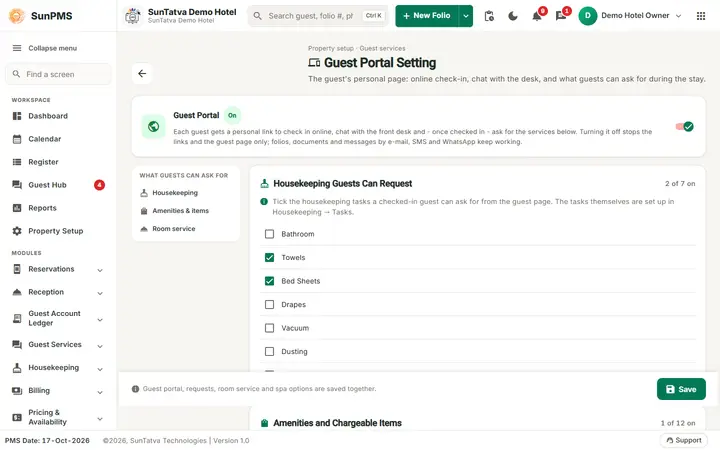
A back arrow returns to Property Setup; the small line above the title reads Property setup · Guest services. If you lack the right, a banner reads View only - changing these settings needs the "Configure Guest Portal" right on your role. and all fields are disabled. A panel on the left, What guests can ask for, jumps to a section (Housekeeping, Amenities & items, Room service, Spa).
| Block / field | What it means | Rules |
|---|---|---|
| Guest Portal (switch with an On / Off chip) | Turns the guest page and links on or off | Off stops links and the guest page only. Folios, documents and messages by e-mail, SMS and WhatsApp keep working. |
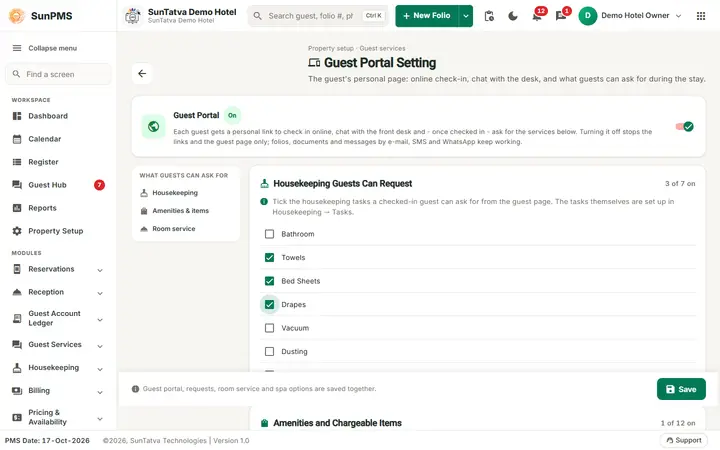
| Housekeeping Guests Can Request ("n of m on") | One check box per housekeeping task | No housekeeping tasks are set up. when none exist. The tasks themselves come from Setup > Housekeeping Tasks. |
| Amenities and Chargeable Items ("n of m on") | One check box per Other Charge, with price and + tax | Rate 0 means free (for example a toiletry kit). Accepting a priced item posts it to the folio with tax. No other charges are set up. when none exist. |
| Room Service (SunPOS Restaurant): 1 Restaurant group | The owner's SunPOS group | Option - none (room service off) - switches room service off. |
| 2 Restaurant | The restaurant in that group | Disabled until a group is chosen. |
| Test connection | Checks that SunPOS accepts room-service orders for the pair | Result shown with a green tick or red error. |
| Spa (SunSpa) | Shown with the SunSpa licence. Show the Spa tab (guests book treatments), Guests can buy spa packages, gift cards and memberships, Guest bookings need the front desk's approval, Guests can move their own treatments to another free time, Payment offered first (Charge to the room or Pay at the spa). | The options apply only while the Spa tab is on. Without a linked SunSpa property the section says so and guests see no Spa tab; the link, charge code and room charges are set in Spa Setting. Bookings, moves, cancellations and purchases always show in Guest Requests and the Guest Hub. |
| Save (bar at the bottom) | Stores everything: portal, requests, room service and spa options | Disabled without the right or while saving. |
If the licence POS_INTEGRATION is missing the block shows Needs the SunPOS Integration licence - the property owner can buy it from Property Setup → Licences. and the lists are disabled.
How to set up the guest portal
- Open Property Setup > Guest Portal Setting (or the Guest Hub three-dot menu > Guest Portal Setting).
- Turn on the Guest Portal switch.
- Tick the housekeeping tasks and chargeable items guests may request.
- Optional: choose Restaurant group and Restaurant, click Test connection and wait for a green result.
- Click Save. Result: snackbar Saved. Guests can now use the services you ticked.
How to switch room service off
Set Restaurant group to - none (room service off) - and Save.
Your vehicle on the guest page (front desk side)
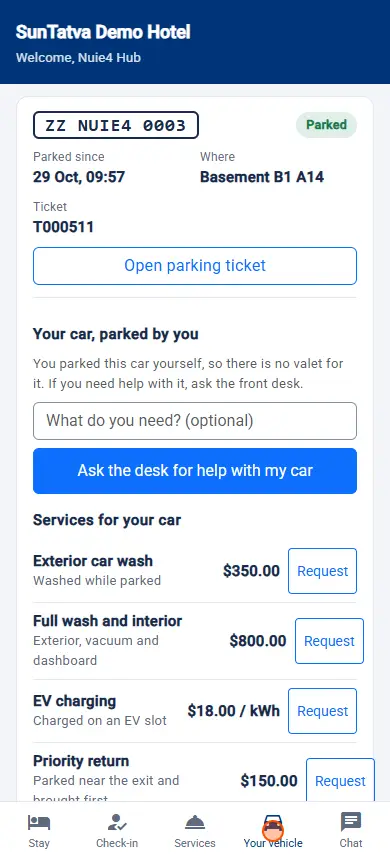
Guests of a hotel with a linked SunParking car park (licence SunParking Integration, Property Setup > Parking Setting) get a Your vehicle tab on their page. It needs nothing in this screen: it is on whenever the portal is on and the parking link and licence are on, and it disappears from every guest page as soon as the link or the licence is removed. What you do at the desk:
- A guest who writes I parked my car on the page sends you a Guest says a vehicle is theirs notification in the notification bell (Guest requests & activity > Parking). Open it, check the car and click Vehicle > Link parking vehicle on the guest's folio. Until you link it the guest sees the car as Waiting for the front desk. See Parking notifications and vehicle linking.
- A guest who presses Request my car on a parked valet car makes the valet bring it, and you get Guest asked for the car in the same bell.
- The parking the guest sees on the page is exactly what SunParking posted to the folio; correct it in SunParking (void, change) and the page follows.
▶ Watch: guest portal, Your vehicle
What happens behind the scenes
Settings are stored per property (GUEST_PORTAL_ENABLED, GUEST_PORTAL_CHARGE_IDS, GUEST_PORTAL_HKTASK_IDS, GUEST_PORTAL_POS_LINK). The room-service link is a pair of SunPOS group and restaurant ids. The PMS asks SunAuth for a SunPOS token to read the menu and place orders; a POS order is charged to the room through the normal POS room-charge posting (see SunPOS room charges).
Messages you may see
| Message (exact text) | Why | What to do |
|---|---|---|
| Could not load the settings. | Load failed | Reload. |
| Saved | Settings stored | - |
| Could not save. | Save failed | Retry. |
| Your SunPOS restaurants could not be listed. | POS lookup failed | Check the SunPOS link and licence. |
| The test failed. | Test connection did not get an answer | Check SunPOS shift and link. |
Tips and FAQ
- Q: Guests see no services. A: Nothing is ticked, or the guest is not checked in yet. Requests open after check-in.
- Q: I switched the portal off; do WhatsApp messages stop? A: No. WhatsApp is separate (WhatsApp setting).
- Q: Room service says the menu is not available. A: Open a shift in SunPOS and check Test connection.
Room service restaurant picker
Under Room Service (SunPOS Restaurant) choose the Restaurant group first and then the Restaurant. Only restaurants of the owner who is signed in are listed, by name. When nothing is listed the page says "No linked SunPOS groups found for your account" (the owner must be a main user of both the hotel group and the restaurant group in SunAuth). Test connection shows whether SunAuth and SunPOS accept the link. The restaurant must link back to this hotel in SunPOS, Settings, PMS Integration.
Screenshots