Guest Hub
On this page
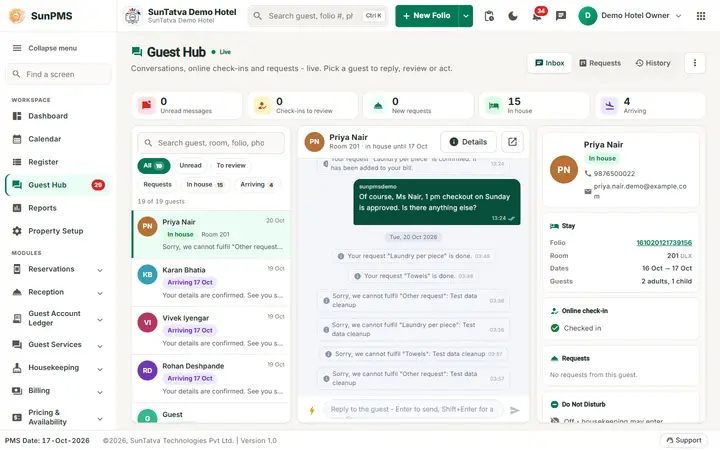
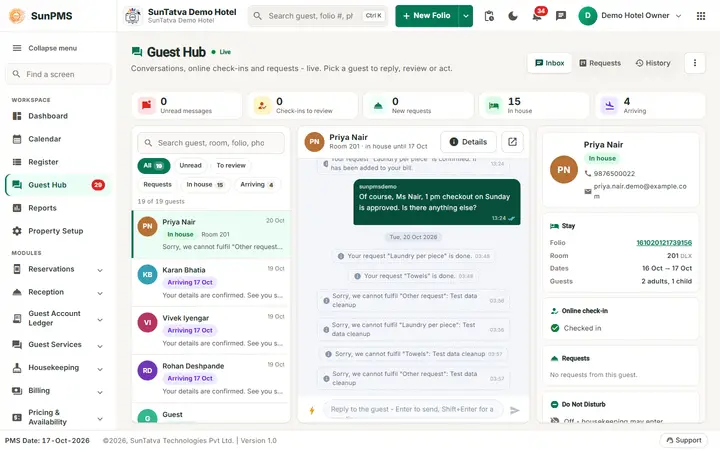
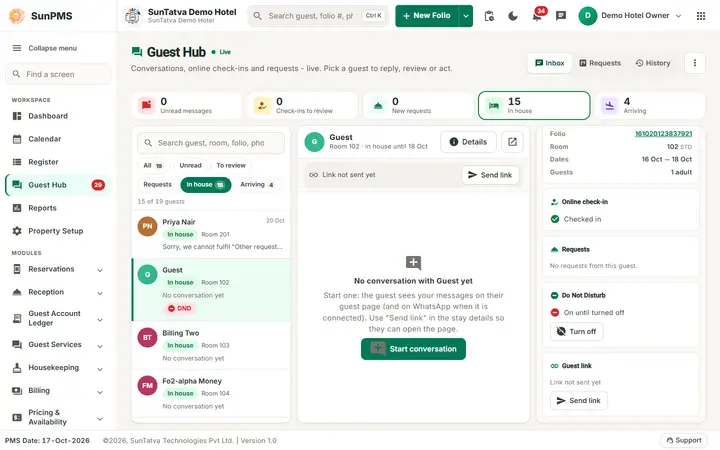
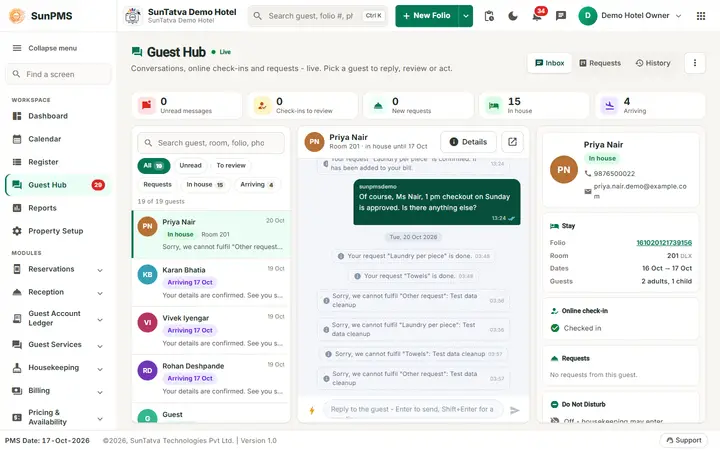
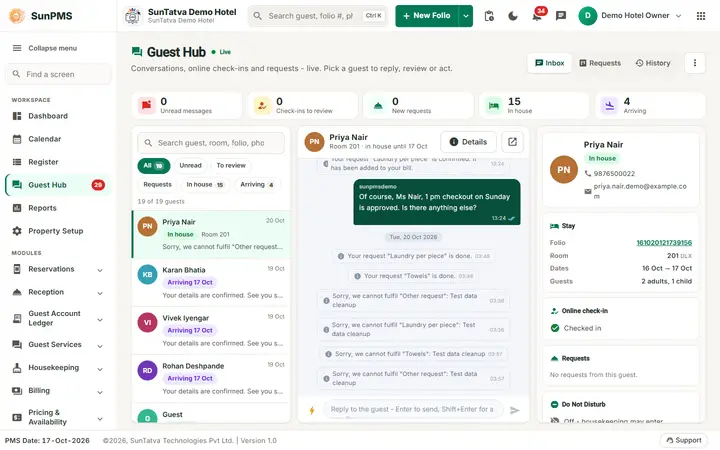
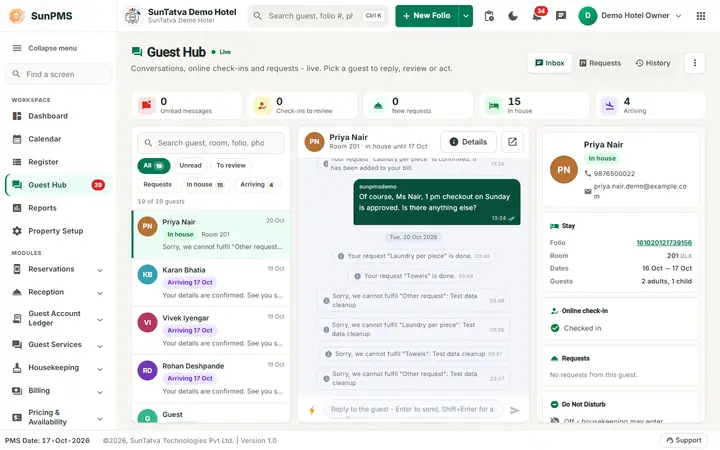
The front desk's control room for guest communication. It shows live counts, an inbox of every in-house guest and arriving guest, the chat with the selected guest, and everything about that guest's stay beside it. A second view shows requests as a board, and a third shows the full message history.
Before you start
- Licence ONLINE_CHECKIN or GUEST_MODULE (see overview).
- The portal is switched on in Guest Portal Setting.
Screen layout
Header and tiles
| Item | Meaning |
|---|---|
| Live dot | The hub refreshes itself when a guest writes, submits or requests. |
| Inbox / Requests / History | The three views (segmented control). |
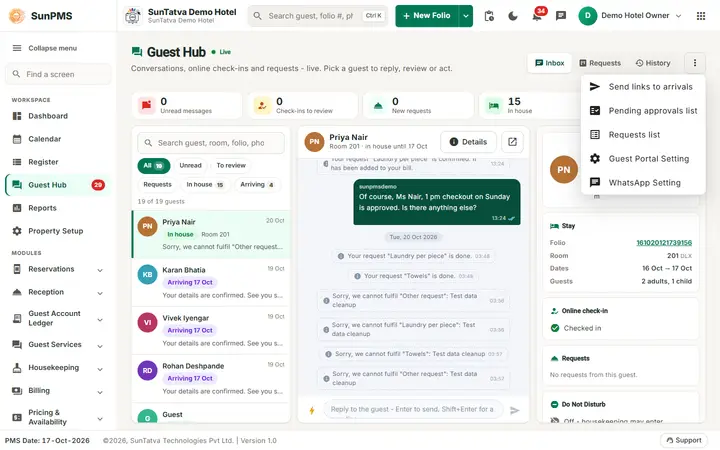
| Three-dot menu | Send links to arrivals (Arrival List), Pending approvals list, Requests list, Guest Portal Setting, and WhatsApp Setting (only with licence WHATSAPP). |
| Tile Unread messages | Count of unread guest messages. Click to filter the inbox to Unread. |
| Tile Check-ins to review | Online check-ins waiting for approval. Click to filter. |
| Tile New requests | Open guest requests. Click to open the Requests view (guest activity by app). |
| Tile In house | Number of in-house guests. Click to filter. |
| Tile Arriving | Number of arriving guests. Click to filter. |
| Tile Spa today | Shown when SunSpa is connected: the hotel guests' spa treatments today. Click to see them in the Requests view. |
Inbox view (three panes; on a phone one pane at a time with back arrows)
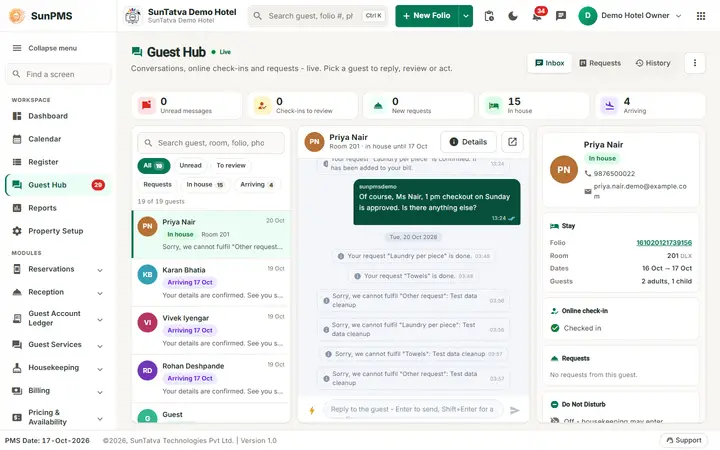
Conversation list. Search box (Search guest, room, folio, phone) and filter chips All, Unread, To review, Requests, In house, Arriving, each with a count; under them "n of m guests". Each row shows avatar (a green dot means the guest uses WhatsApp), name, time since last activity, stay chip (In house or Arriving
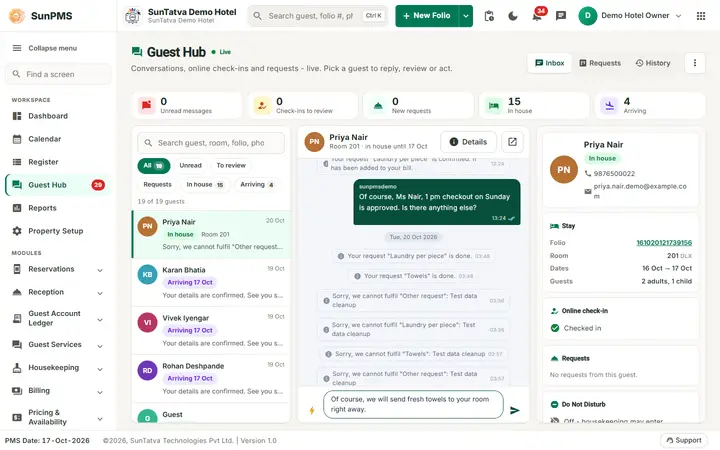
Chat. Header with guest name, status, a Details button (a number on it counts the guest's open requests) and Open reservation. Under the header a "next step" strip appears when something needs you: Online check-in is waiting for your review. with Review check-in, N new request(s) from this guest. with See requests, or the link text with Send link when no link was sent. Below is the conversation. Type a reply; Enter sends, Shift+Enter adds a line. The lightning button inserts a quick reply; Save my text as a quick reply stores your text for next time. Message ticks show delivery (sent, seen by the guest, WhatsApp sent/delivered/read, Not delivered on WhatsApp). A banner under the chat tells how the guest was reached (page open, notified on devices, link sent by e-mail and text, or why not). If there is no conversation yet, Start conversation creates one.
Stay details (the right-hand pane on a desktop, opened with Details on smaller screens; Conversation goes back).
| Card | Content |
|---|---|
| Guest | Name, stay chip, phone and e-mail links. |
| Stay | Folio (opens the reservation), Room, Dates, Guests. |
| Online check-in | Status text: Checked in, Waiting for your review, Approved - ready to check in, Sent back to the guest, Guest opened the link, not submitted yet, Link sent, not opened yet, Not started. Button Review and approve or View submitted details. |
| Requests | The guest's requests with the same actions as the board. |
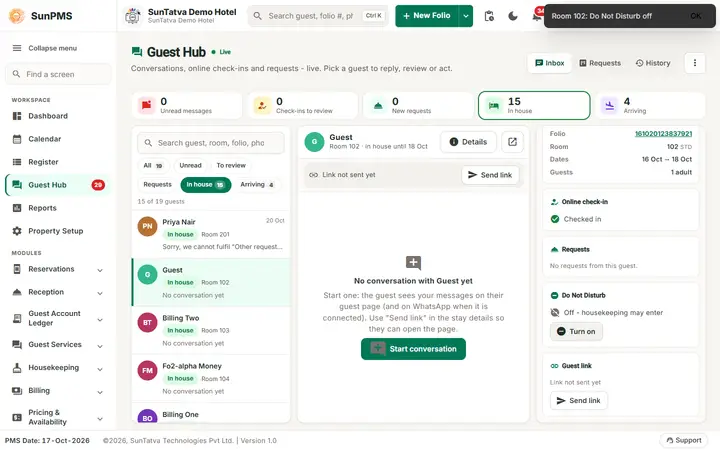
| Do Not Disturb | Shown for in-house guests with GUEST_MODULE. Turn on (Until turned off, For 1 hour, For 3 hours, Until 9:00 am) or Turn off. |
| Guest link | State text (Link disabled, Link not sent yet, Sent 2x to...). Buttons Send link / Send again, Copy, Disable, Enable. Copy and Disable show only to Owners and Administrators. |
Requests view (guest activity by app)
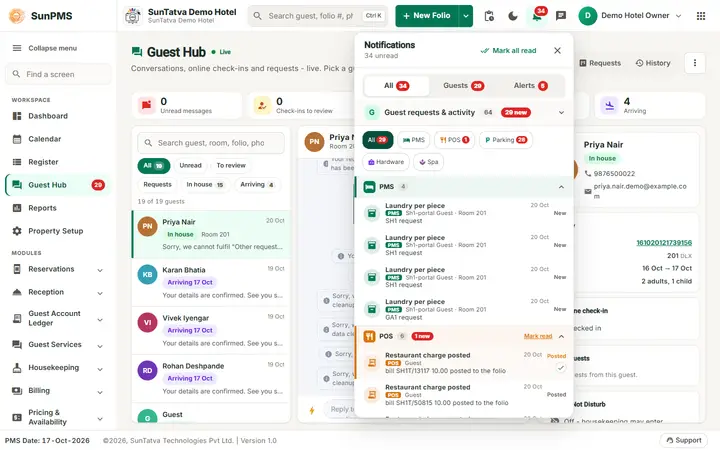
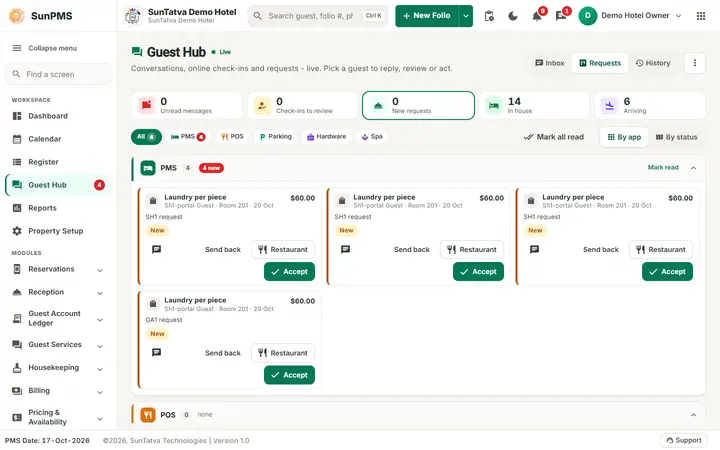
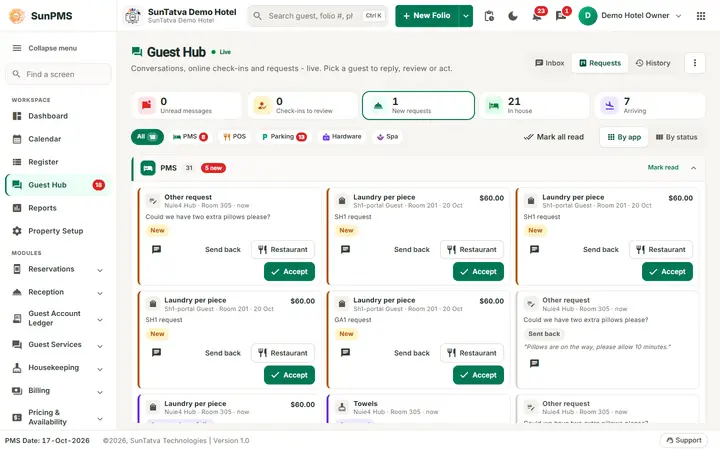
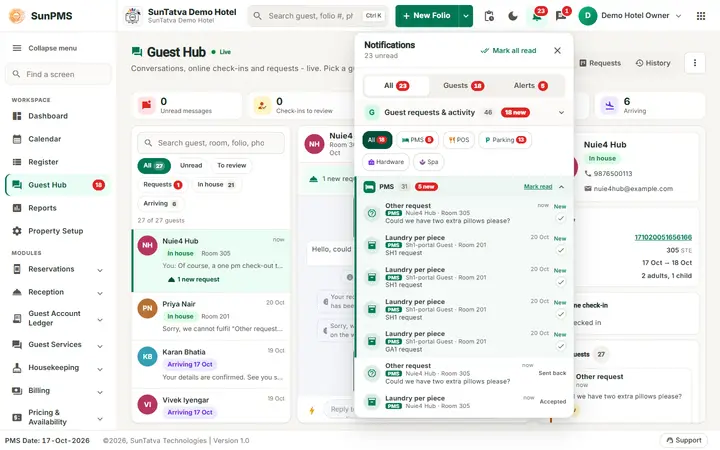
The Requests view is the guest activity board for every connected app. Above it sit the source chipsAll, PMS, POS, Parking, Hardware (each with the number of items still waiting), Mark all read, and the switch By app / By status.
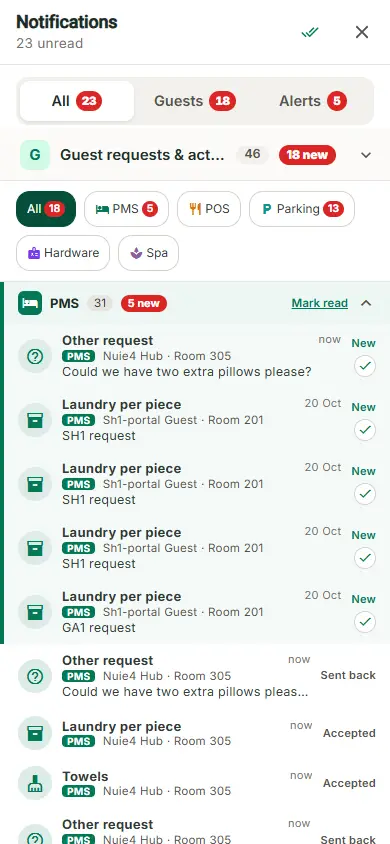
The same sections are in the notification bell (section Guest requests & activity):
On a phone the popup fills the width:
By app (default) groups the items into one section per app. Each section header shows the app icon and colour, the app name, the number of items, a red N new count, and Mark read for that section. Click a header to collapse or expand the section; SunPMS remembers this in your browser. A section with nothing shows its own text (No POS requests, No parking activity, No hardware activity, No PMS requests or messages) and none in the header. Inside a section the items waiting for you come first, then the rest, newest first. On a phone the sections stack as accordions.
| Section | What it lists |
|---|---|
| PMS | Portal requests (housekeeping, items, other), unread chat messages and online check-ins to review. Request cards have the buttons: chat, Send back, Accept, Mark done. |
| POS | Room-service orders placed from the guest page, with the order number and kitchen progress (With restaurant, Preparing, Ready, Delivered), and restaurant bills posted to, updated on or removed from the room folio. Room-service cards keep the Restaurant button. |
| Parking | Guest asked for the car (valet), guest says a vehicle is theirs, vehicle linked / unlinked / needs review, parking charge posted / updated / removed. A click opens the guest's folio on the Vehicle or Charges tab. |
| Hardware | ID scan completed and signature captured on a SunHardware device for the guest's stay. A click opens the folio. |
Every item shows the guest name, room, time, a short text and a status chip (New, Preparing, Posted, Removed, Car requested, Scanned, Signed...). Click an item to open the right place and mark it read; the small tick marks it read without opening.
By status shows four columns: New, In progress, Done (last 24h), Sent back / cancelled, for portal requests and room-service orders. Each card shows the item, guest, room, age, amount and status. Buttons: chat, Send back (asks Why? The guest sees this.), Restaurant (when a restaurant is linked), Accept, Mark done.
History view
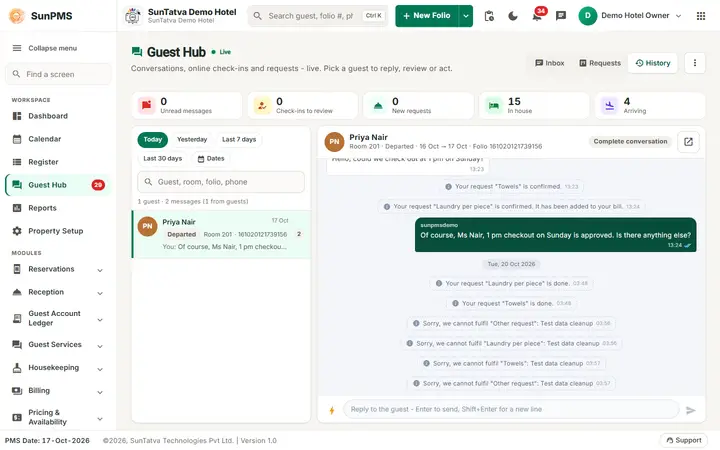
Chips Today, Yesterday, Last 7 days, Last 30 days, Dates (two date pickers), search box, and totals (guests, messages, from guests). Select a guest to read the complete conversation, past stays included.
How to answer a guest
- Open Guest Hub from the side navigation.
- Click the guest in the list (unread ones are bold).
- Type the reply and press Enter. Result: the guest sees it live on their page, or by push, WhatsApp, e-mail or text.
How to review an online check-in from the hub
Select the guest, click Review check-in (chat strip) or Review and approve (Details); see Pending Approvals.
How to turn Do Not Disturb on
- Select an in-house guest and open Details.
- In the Do Not Disturb card click Turn on and pick the duration. Result: the Register and Room Status screens show the DND flag; asking for housekeeping on the guest page turns it off.
What happens behind the scenes
The hub reads the same data as the other Guest Services lists and refreshes itself when a guest writes, submits or requests. Every chat opened from a list docks at the bottom of the page; Open in Guest Hub on a docked chat brings it here.
Messages you may see
| Message | Why | What to do |
|---|---|---|
| Could not start the conversation. | Creating the chat failed | Retry. |
| The message could not be sent. | Sending a reply failed | Retry; check the connection. |
| Saved as a quick reply | Quick reply stored | - |
| Sent to |
Request passed to the restaurant | - |
Tips and FAQ
- Q: How do I message a guest who has no link? A: Select them and click Start conversation; use Send link so they can open the page.
- Q: The WhatsApp item is missing in the menu. A: Licence WHATSAPP is not active.
- Q: Where do I turn on sound? A: In the Guest requests & activity section of the notification bell (the Sound and Desktop alerts switches at its bottom).
Screenshots