Pending Approvals
On this page
Lists the online check-ins that guests have submitted and that wait for you. You compare what the guest typed with the reservation, look at the ID photos and signature, and then approve, approve and check in, or send the submission back with a reason.
Before you start
- Licence ONLINE_CHECKIN.
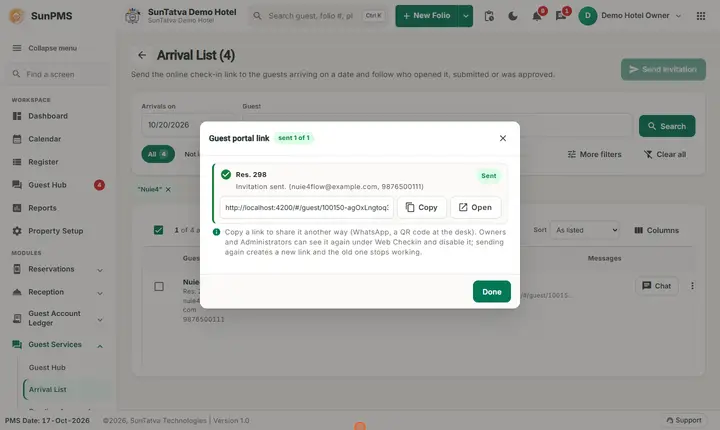
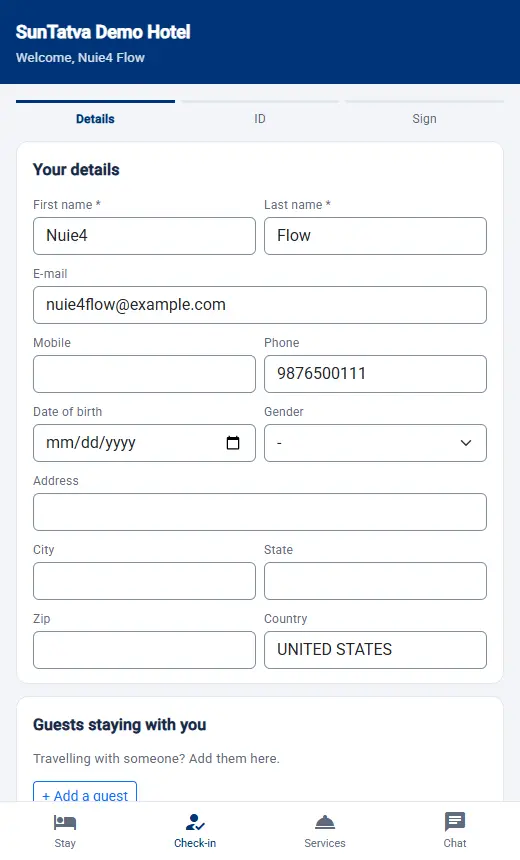
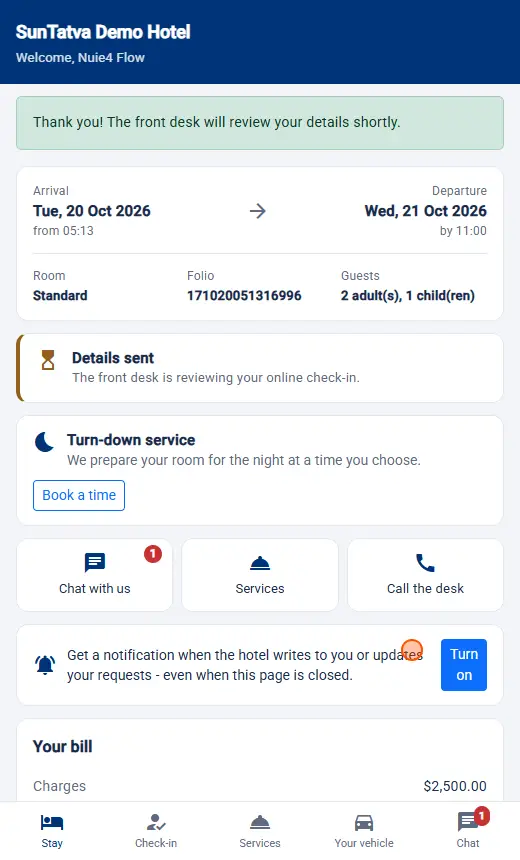
- The guest has submitted online check-in from the link (guest side).
Screen layout
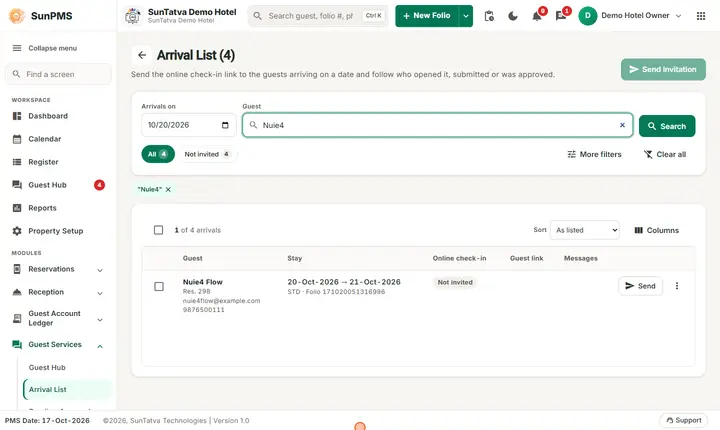
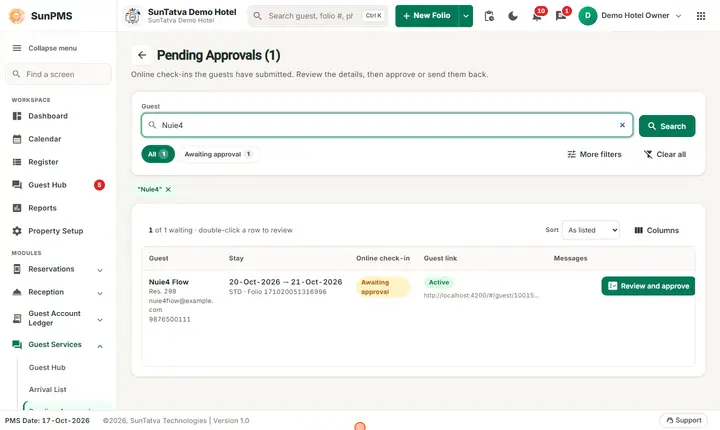
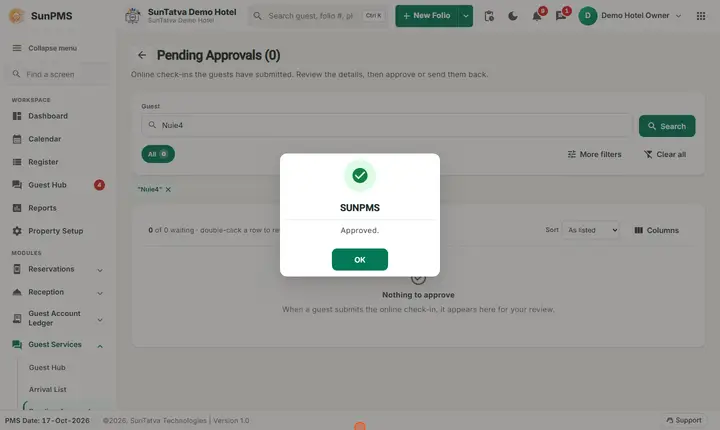
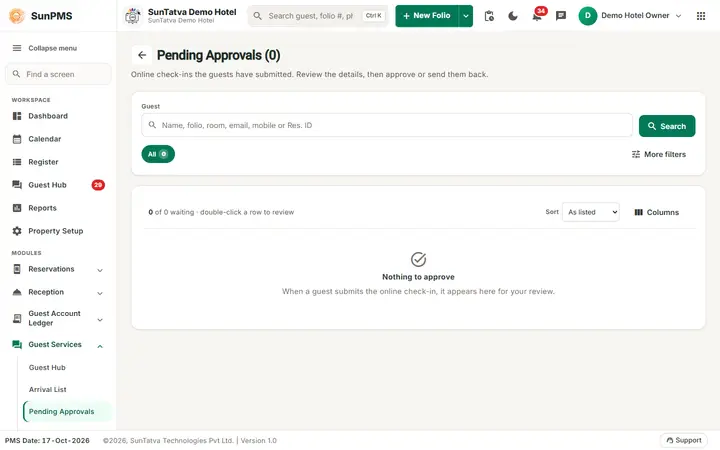
Title: Pending Approvals (N). It is laid out like the Arrival List: a search card (Guest: name, folio, room, e-mail, mobile or Res. ID; Search; an All chip with the count; More filters), then the list "n of m waiting - double-click a row to review" with Sort and Columns. Each row shows the guest (Res. ID, e-mail, mobile), the stay (dates, room type, room, folio), the Online Check-In stage chip, the Guest link state and the Messages count, with a Review button and a three-dot menu. Double-click a row to open the review. When nothing waits the page says Nothing to approve: when a guest submits the online check-in, it appears here for your review.
Row menu: Review and approve, Chat with guest, Copy guest link, Disable link / Enable link (Owners and Administrators).
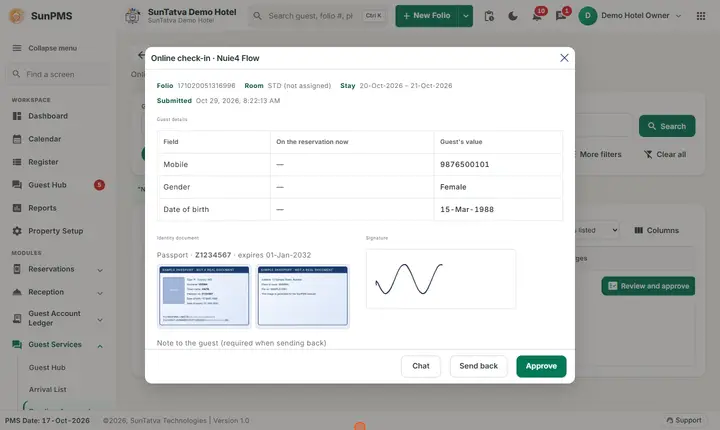
Review window "Online check-in · "
| Section | Content |
|---|---|
| Summary | Folio, Room (or (not assigned)), Stay dates, Submitted time. |
| Status note | For a closed submission: This submission was approved / sent back to the guest / replaced by a newer one. plus the desk note. |
| Guest details | Table Field, On the reservation now, Guest's value. A warning icon on the current value means the desk changed it after the guest submitted (hover shows what the guest saw). If nothing changed: The guest confirmed the personal details already on the reservation. |
| Guests staying with them | Added, edited or removed accompanying guests: Change (Add/Remove), current value, guest's value. |
| Vehicles | Same table for vehicles. |
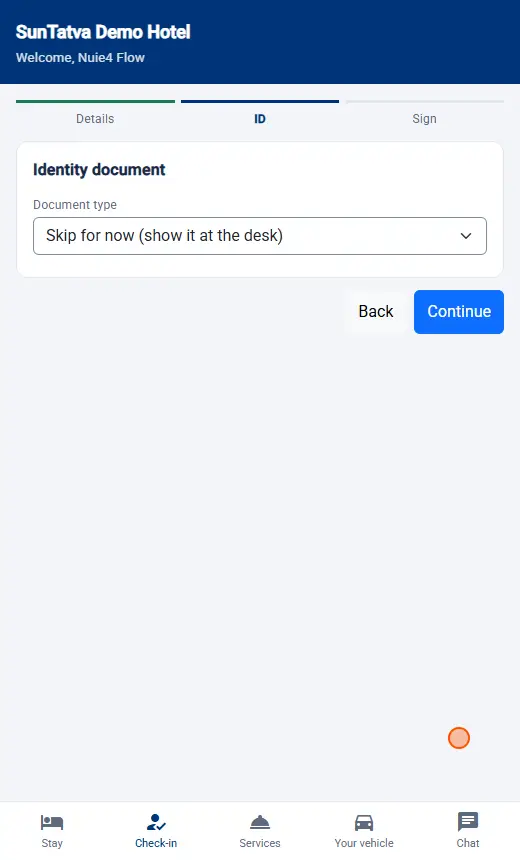
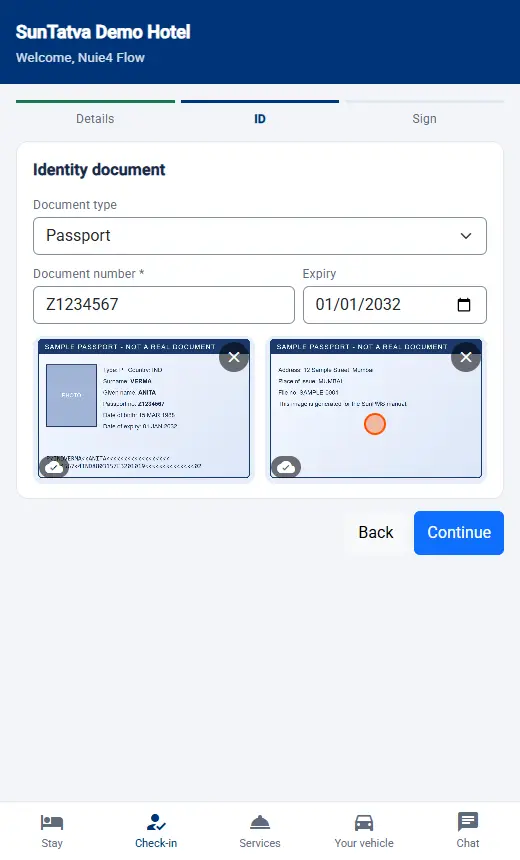
| Identity document | Document type (Driving licence, Identity card, Passport, Other), number, expiry, front and back photos; click a photo to enlarge. |
| Card | Card type, last four digits, expiry, name on card. |
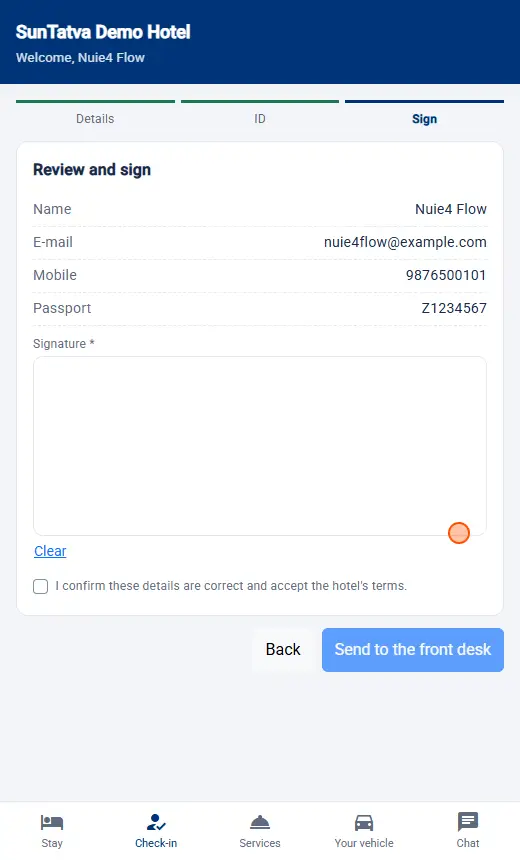
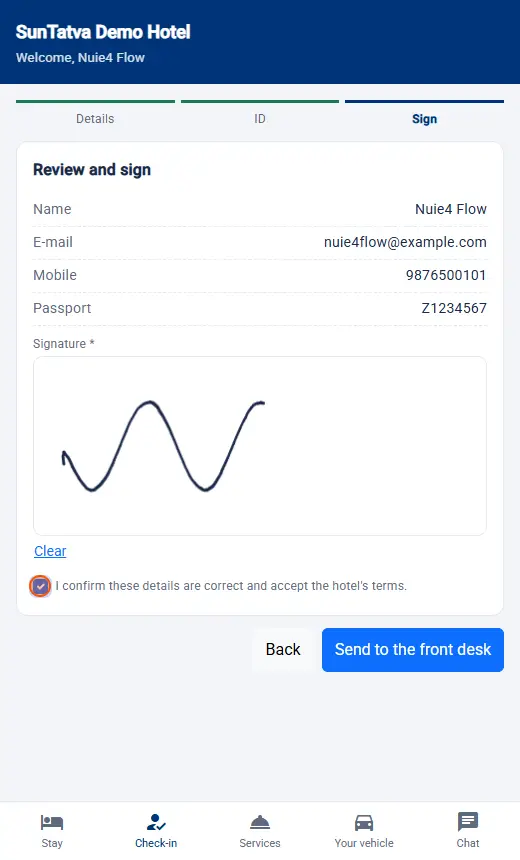
| Signature | The guest's signature image. The text the guest signed is the signing notice of the property (the notice attached to Signpad Notice; if none is attached, the notice of Online Self Check-In). After approval, Show Signature on the folio displays this signature with that text. |
| Note to the guest (required when sending back) | Free text up to 500 characters. |
| Buttons | Chat, Send back, Approve, Approve & Check In |
Approve & Check In is shown only for today's arrivals with a room assigned; otherwise the note Check-in from here is available for today's arrivals with a room assigned. appears.
How to approve
- Open Guest Services > Pending Approvals and double-click the guest.
- Compare each changed field. Check the photos and signature.
- Click Approve (or Approve & Check In).
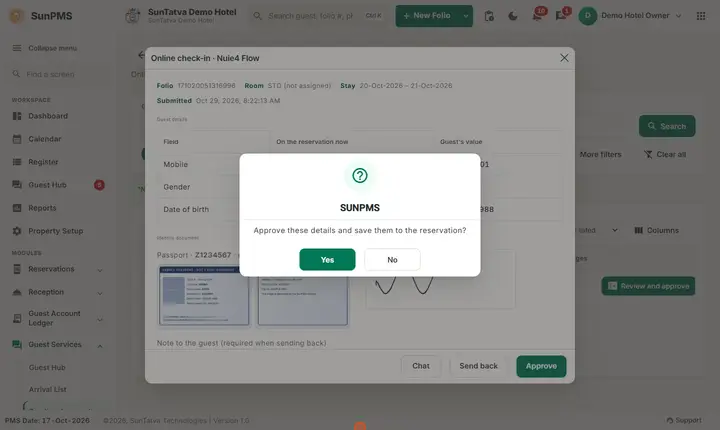
- Confirm Approve these details and save them to the reservation? or Approve these details and check the guest in now? Result: a message from the server confirms (for example that details were saved), the window closes and the row leaves the list.
How to send back
- In the review window type the reason in Note to the guest.
- Click Send back. Result: Sent back to the guest. The guest sees your reason on their page, can fix and resubmit; the status becomes Declined - waiting for guest.
Example: an approval with every field filled
In the video "Online check-in with all details" (reservation of Karan Bhatia) the review window listed Phone, Gender, Date of birth, Address, City, State, Zip and Country, one companion (Add: Neha Bhatia) and one vehicle, then the ID photos and signature. Approve > Yes gave the message "Approved." and the row left the list. The folio then showed the address in Guest Detail.
Phone and Mobile on approval (checked 2026-10-19)
The guest page has two fields, Phone and Mobile. The review window lists each one that the guest changed, and Approve stores them separately: Phone goes to the guest's home phone number, Mobile goes to the guest's mobile number (Guest Detail > Mobile). A field the guest did not change is not touched, so the number the desk typed stays. Test: a reservation with home phone 9812345001 and no mobile; the guest entered Phone 02240001111 and Mobile 9898989898; after Approve the guest holds home phone 02240001111 and mobile 9898989898. Two things matter when you read the lists: the Mobile column of the Arrival List shows the mobile number and, when there is none, the home phone; and the guest page shows the number the desk typed (stored as home phone unless the desk gave it the type Mobile) in its Phone field, so a guest who corrects that number replaces the desk's number by design.
What happens behind the scenes
Approving applies only the fields the guest changed to the live reservation; ID images already sit in document storage and are linked. A card is kept as a token on the guest profile and is not charged. Check-in from the window runs the normal check-in for that room. The guest is notified (push, WhatsApp, e-mail or text).
Messages you may see
| Message (exact text) | Why | What to do |
|---|---|---|
| Submission not found. | The submission no longer exists | Close and reload. |
| Approve these details and save them to the reservation? | Confirmation | Yes/No. |
| Approve these details and check the guest in now? | Confirmation | Yes/No. |
| Could not approve. | Server refused (for example room problem) | Read the detail, fix, retry. |
| Tell the guest what needs to change (it is shown to them). | Send back with an empty note | Type the reason. |
| Could not decline. | Server refused | Retry. |
Tips and FAQ
- Q: A field shows a warning icon. A: Someone edited the reservation after the guest submitted. Approving applies the guest's value over the current one; decide which is right.
- Q: Why is Approve & Check In missing? A: Guest arrives on another day or has no room.
- Q: Can I approve and check in later? A: Yes. Approve now; check in from the reservation when the room is ready.
Screenshots