Arrival List
On this page
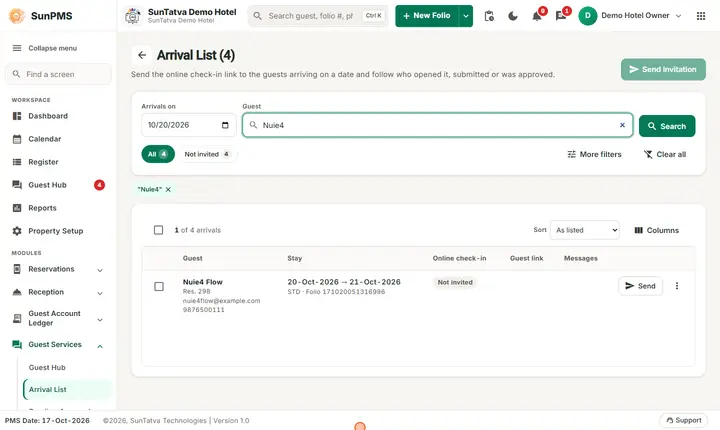
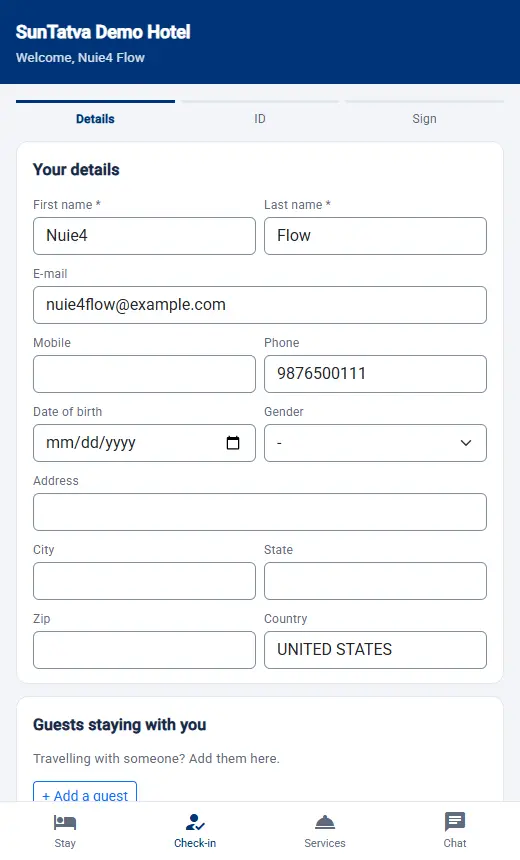
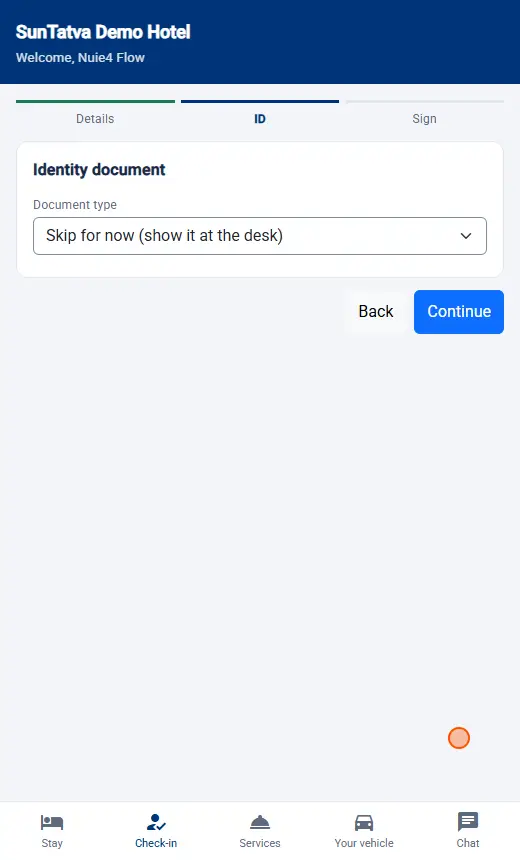
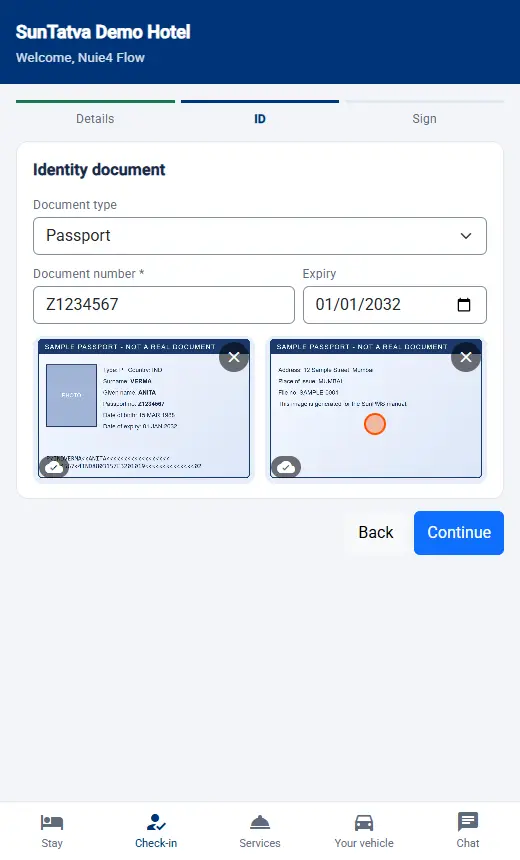
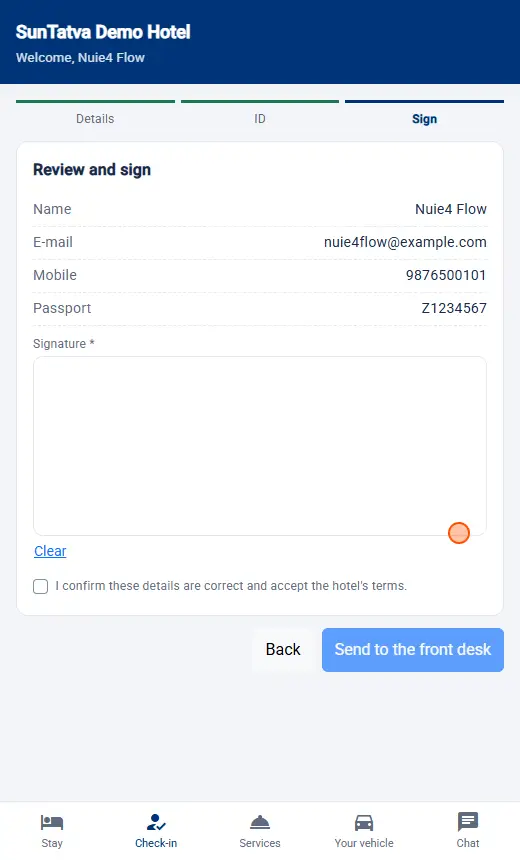
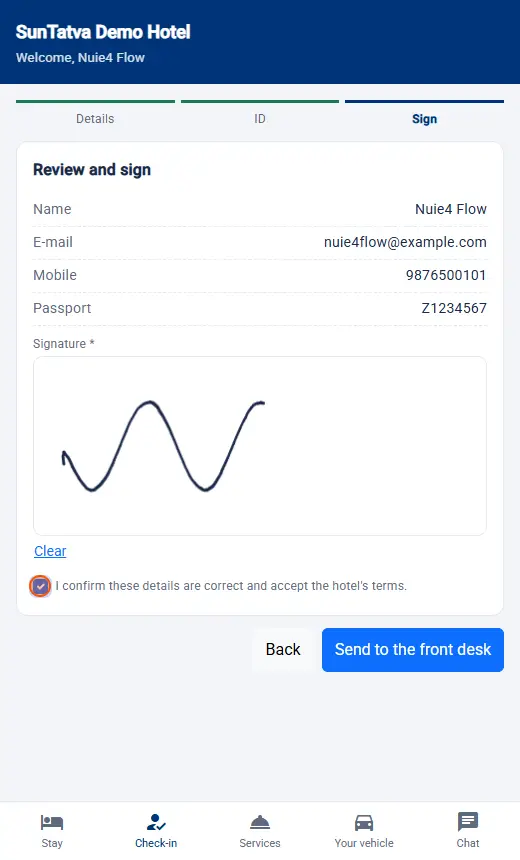
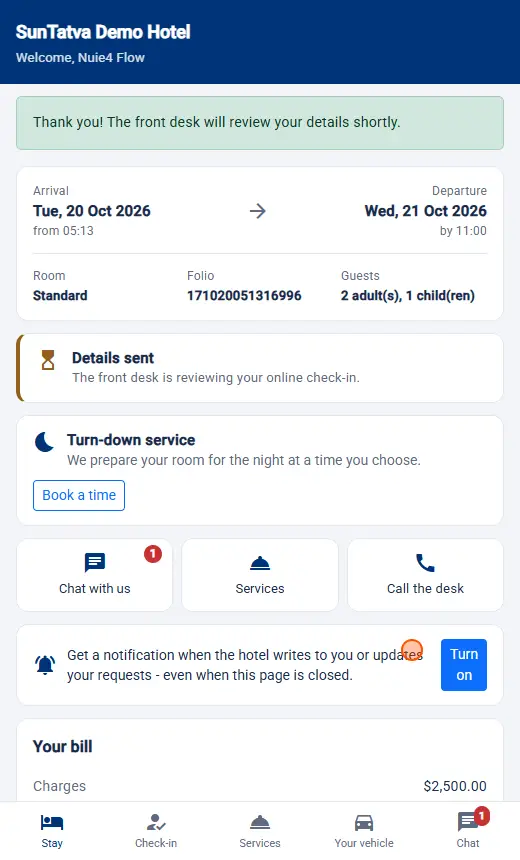
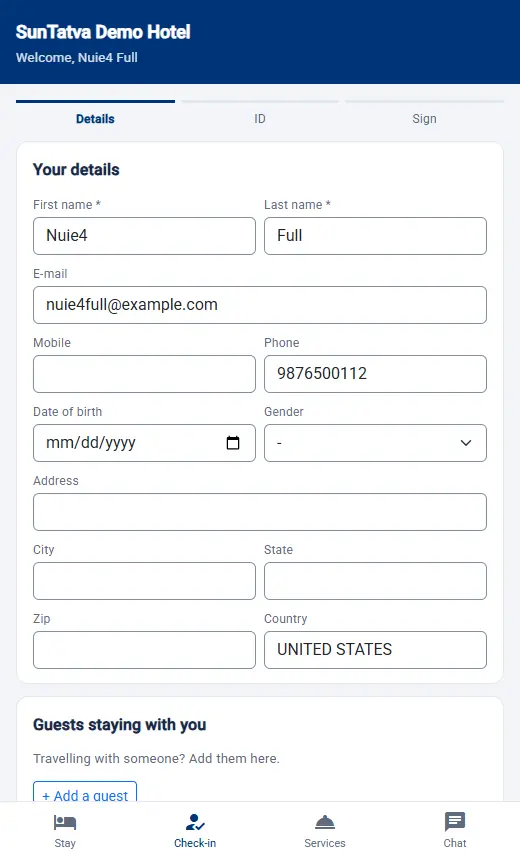
Lists the guests arriving on a chosen date and lets you send them the personal online check-in link by e-mail and text message. Use it each day (or a few days ahead) so guests can check in from their phone before they arrive.
Before you start
- Licence ONLINE_CHECKIN and the portal turned on in Guest Portal Setting.
- Guests need an e-mail address or mobile number on the reservation to receive the link; otherwise copy the link and share it another way.
Screen layout
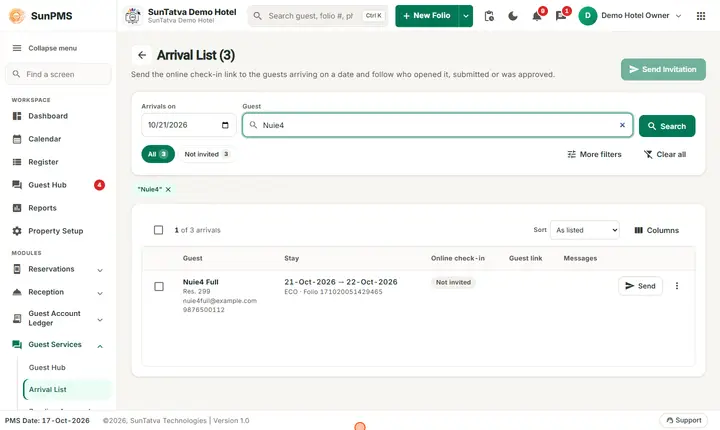
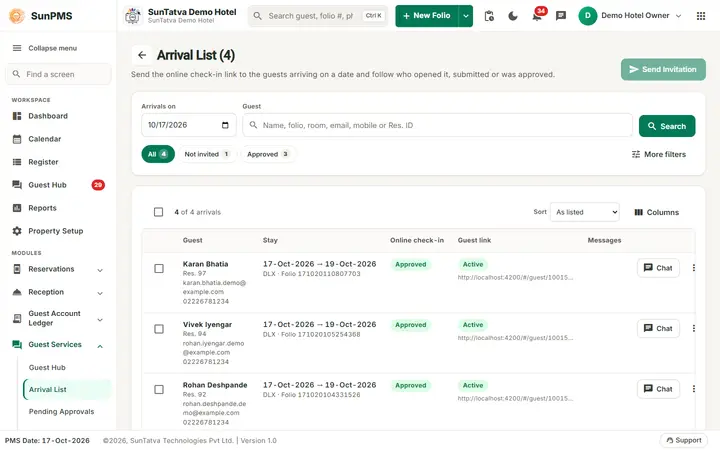
The title shows the count: Arrival List (N).
Search card
| Item | Meaning | Rules |
|---|---|---|
| Arrivals on (date) | Day of arrival to list | Defaults to the PMS date; changing it reloads the list. |
| Guest | Search text: name, folio, room, e-mail, mobile or Res. ID | Enter or Search reloads. |
| Stage chips: All and one chip per stage that exists in the list (for example Not invited, Approved), each with a count | Show only that online check-in stage | Click the chip again to go back to All. |
| More filters (badge) | One filter box per visible column; date and amount columns take =, > or < | Clear all appears when anything is filtered. |
| Send Invitation (top right) | Sends links to every ticked row | Disabled when the list is empty. |
Results ("n of m arrivals", select-all check box, Sort: As listed, Guest name, Room, Online check-in; Columns chooses the columns). On a phone each arrival is a card.
| Column | Meaning |
|---|---|
| Guest | Name, with Res. ID, e-mail and mobile below it (as chosen in Columns). |
| Stay | Date In -> Date Out, room type, room, folio # and # of guests. |
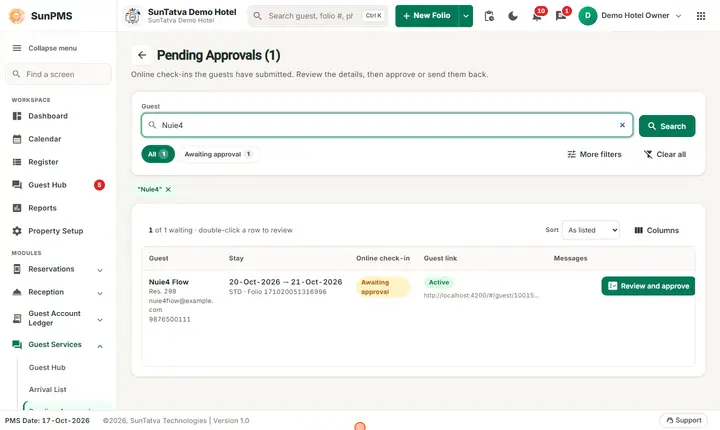
| Online Check-In | Stage chip: Not invited, Invited, Link opened, Awaiting approval, Approved, Declined - waiting for guest, Link disabled; with · In-house when checked in. |
| Guest link | Active or Disabled; the link itself shows for Owners and Administrators. |
| Messages | N new unread guest messages and the guest's WhatsApp number. |
| Action button | Review (a submission waits), Send (no link yet) or Chat (a conversation exists). |
Row menu (three dots):
| Action | When shown |
|---|---|
| Review submission | When the guest has submitted. |
| Chat with guest | When a conversation exists. |
| Send invitation / Resend invitation (new link) | Always; the label depends on whether a link exists. |
| Copy guest link | When a link is known (Owners and Administrators, or sent in this session). |
| Enable link | Owners/Administrators, link disabled. |
| Disable link | Owners/Administrators, link active. |
How to send invitations
- Open Guest Services > Arrival List in the side navigation.
- Pick the date in Arrivals on and click Search if needed.
- Tick the guests (or use one row's Send button or menu > Send invitation).
- Click Send Invitation.
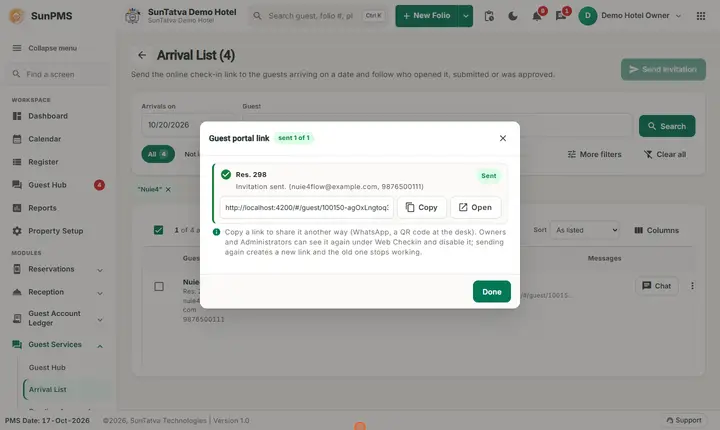
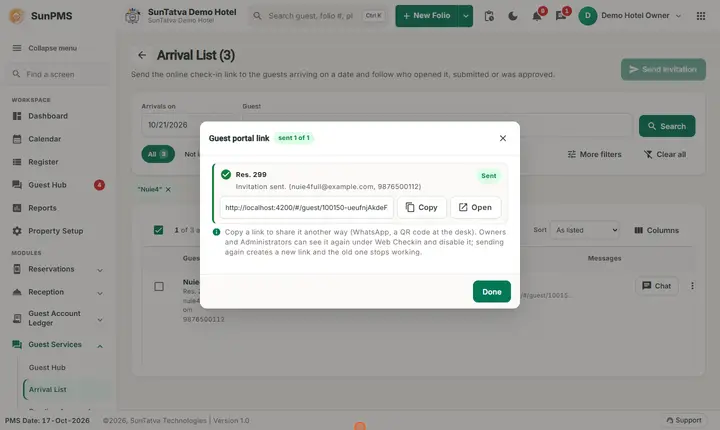
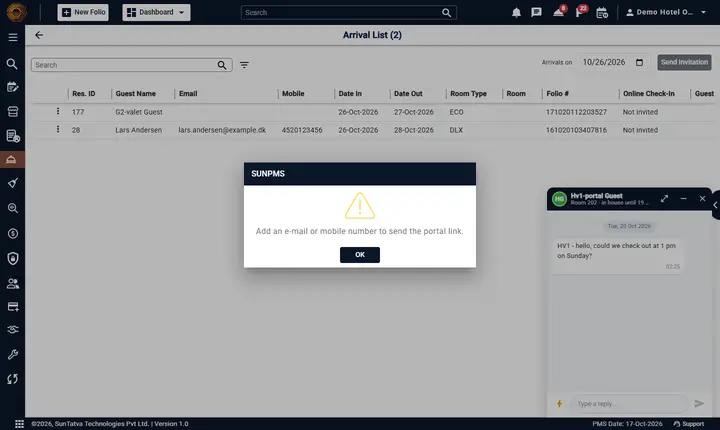
- The window Guest portal link · sent X of Y lists each reservation with a tick (sent) or warning and the reason, the address it went to, and the link with Copy and Open buttons. Click Done. Result: the guest receives a message with the link. The row shows Invited. If a guest has neither an e-mail address nor a mobile number, a message box says Add an e-mail or mobile number to send the portal link. and that guest gets no link (the same message appears when you send from the Guest Hub or the folio).
How to disable a link
Row menu > Disable link > confirm Disable this guest's link? It stops working immediately; you can enable it again later. A bar shows Link disabled. Enable link reverses it (Link enabled).
What happens behind the scenes
Each send creates a fresh link and invalidates the old one. The link is sent by e-mail and SMS; with WhatsApp connected it also goes on WhatsApp. The list refreshes itself when a guest opens, submits or writes.
Messages you may see
| Message (exact text) | Why | What to do |
|---|---|---|
| The guest link could not be sent. | The server refused the invite | Retry; check the e-mail and mobile on the reservation. |
| Add an e-mail or mobile number to send the portal link. | The ticked reservation has neither an e-mail address nor a mobile number, so no link is made (when several are ticked the message adds how many; the others still get their link). | Open the reservation, add the e-mail or mobile number in Guest Details, save, and send again. |
| Could not load the list. | Loading failed | Reload the page. |
| Disable this guest's link? It stops working immediately; you can enable it again later. | Confirmation | Yes/No. |
| Link disabled / Link enabled | Done | - |
| Could not disable the link. / Could not enable the link. | Failed | Retry. |
Tips and FAQ
- Q: Does Send Invitation with nothing ticked do anything? A: No; tick at least one guest.
- Q: I resent and the guest says the first link broke. A: Correct: each send replaces the previous link.
- Q: Can I send links on the reservation screen? A: Yes, the e-mail menu there has Guest Interface Link.
Screenshots