
Credit Card Reservation Authorization (grid page)
On this page
This is the current Billing menu page for charging or holding the card that is stored on arriving reservations, for many reservations at once. A hotel uses it mostly for prepaid OTA bookings that come with a virtual card, or to collect the balance before arrival. It is the grid version of the Reservation Authorization tab of the older tabbed screen (Credit Card Authorization); the integration chapter explains the same page from the gateway side (Reservation Authorization).
Before you start
- The primary guest of each reservation has a credit card document with a token saved through the payment gateway (Payment Gateway). Reservations without a token fail.
- A payment type of the Credit Card category exists (Payment Type) and an exchange rate marked as the base currency exists (Exchange Rate).
- You have an open shift if shifts are on (Shift Start and End); the payment is stamped with it.
Screen layout
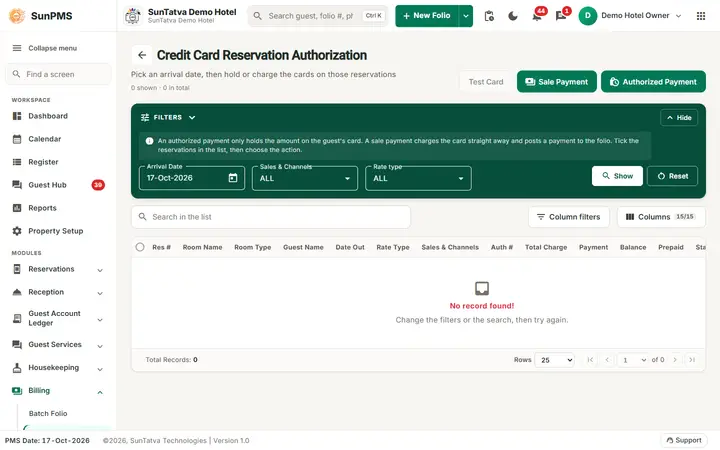
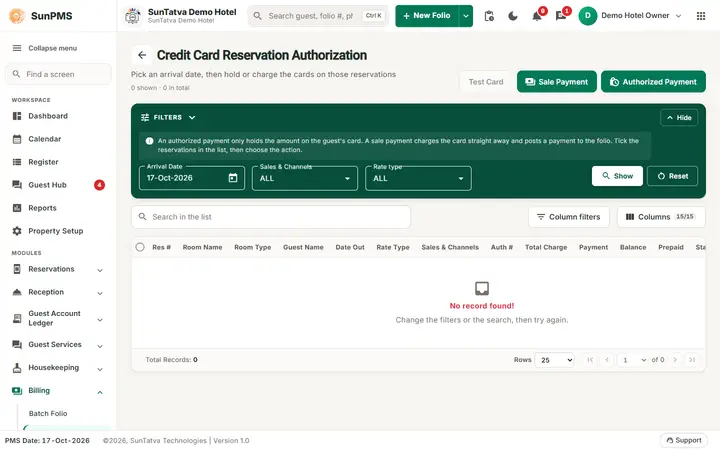
The list is empty until you press Show for an arrival date that has card guarantees.
This screen uses the standard search-first list layout: a dark Filters band on top, then a full-width table with Search in the list, a column filter button, Columns, sortable headings and a paging bar (rows become cards on phones). The common parts are explained in Search-first list screens; the fields and columns specific to this screen are listed below. Filter panel ("Apply filters to narrow down the Data")
| Filter / button | What it means | Rules |
|---|---|---|
| Arrival Date | Day of arrival to list. | From the PMS date up to 13 days later. Changing it does not reload; click Show. |
| Sales & Channels | Sales & Channels filter. | Default ALL. |
| Rate type | Rate type filter. | Default ALL. |
| Show | Loads reservations arriving that day that still owe money and have a card on file. | Reservations that already have an authorization or sale payment are not listed. |
| Reset | Sets the date back to the PMS date, filters back to ALL and reloads. |
Buttons above the list
| Button | What it does |
|---|---|
| Test Card | Disabled in this version. |
| Sale Payment | Charges the card now: a normal card payment (status UnAuthorized = sale) is added to the folio. |
| Authorized Payment | Places a hold (an Authorized payment). The hold is not revenue until it is converted at check-out or released. |
There is no Charge For choice on this page: the amount is always the full balance, that is room and other charges plus taxes minus discount minus payments already made, in the base currency. (The tabbed page also offers One Night and Custom.)
List columns: a tick box, Res #, Room Name, Room Type, Guest Name, Date Out, Rate Type, Sales & Channels, Auth #, Total Charge, Payment, Balance, Prepaid (Yes/No), Status, Credit Card (masked card number), Report To OTA. Each column has a small filter box; Res # and Guest Name can be sorted; a search box above the list searches all columns. Status shows a green tick for success and a red cross for failure while a run is going. Report To OTA shows a link for reservations that came from a channel manager.
How to charge or hold the cards
- Choose Arrival Date and, if needed, Sales & Channels and Rate type, then click Show.
- Tick the reservations. The header box selects the page. Clicking on a row itself selects only that row.
- Click Sale Payment or Authorized Payment.
- Confirm: "Selected
(s) will be charged for balance amount. Are you sure you want to continue?" (the guest title follows your property setting, for example Guest). - The rows are processed one after another. The row status changes to Running, then Success or fail. On success the approval code appears in Auth #.
- When all rows are done, a window says Process completed successfully. (it says so even when some rows failed; check each row). The list reloads without the rows that were completed. Result: a card payment is added to each successful reservation. For a prepaid reservation the payment is saved as hidden on the folio display (it still counts in the balance).
How to report an invalid card to the OTA
- For a reservation that came through the channel manager, click Report To OTA in its row.
- Result: Credit card reported to OTA successfully. and the link changes to Reported so it cannot be sent twice.
What happens behind the scenes
- For each row the PMS loads the reservation, finds the primary guest's card document with a gateway token, builds one card payment (payment type of the Credit Card category, base currency, today's PMS date, current time and your shift) and saves it, which calls the gateway (Payment Gateway).
- A hold stays on the guest's card until it is released after check-out (Credit Card Release Authorization) or converted on the folio.
- Night audit can collect prepaid guest payments by itself when "Auto collect prepaid guest payment" is on (Night Audit Setting).
Messages you may see
| Message (exact text) | Why it appears | What to do |
|---|---|---|
| Please select atleast one or more |
Sale Payment or Authorized Payment with nothing ticked. | Tick at least one row. |
| Selected |
Confirmation. | Yes to start. |
| Process completed successfully. | The run ended. | Check the Status of each row. |
| Credit card reported to OTA successfully. | Report To OTA worked. | None. |
| (server error text) | Loading the list, exchange rate or payment type failed. | Reload; contact support if it repeats. |
Tips and FAQ
- Q: A row shows a red cross. A: The guest has no tokenised card, the processor declined it, or the gateway key is missing. Open the reservation and check the card document and the Payment tab.
- Q: What is the difference between Sale and Authorized? A: Sale collects the money now; Authorized only holds it.
- Q: I need to charge only one night. A: Use the tabbed Credit Card Authorization screen, which has Charge For, or take the payment on the folio.
- Q: The reservation I want is not listed. A: It does not arrive on the chosen date, has no balance, already has an authorization or sale payment, or has no card on file.