
Reservation Sync
On this page
Reservation Sync is one page with three tabs, Sync Reservation, Sync Statistics and Sync Inventory, that push data again to a partner interface (a webhook), for example a revenue-management or reporting tool. It is used when the partner missed data, when a new partner is connected, or after a long outage. The same work is done by the three separate pages in the Sync group, which is where staff normally go (Sync overview); this tabbed page is the older all-in-one version and is described a second time in Sync Reservation/Statistics/Inventory (tabbed page).
Before you start
- At least one interface is set up and active in Webhook. The Interface drop-down lists the property's interfaces (duplicates removed).
- You know which data the partner is missing (reservations, daily statistics or inventory).
Screen layout
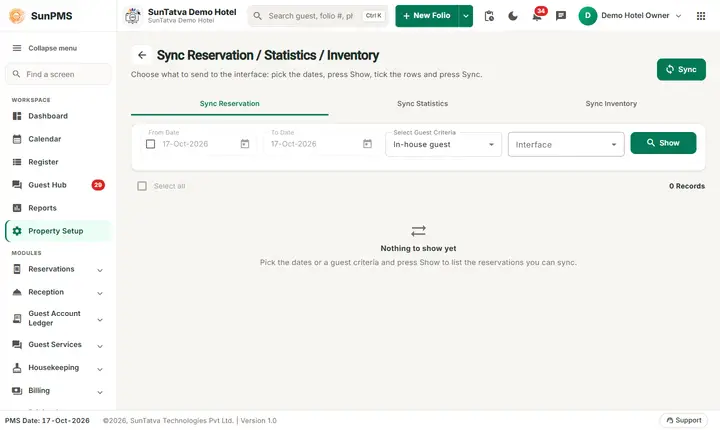
The page title is Sync Reservation / Statistics / Inventory with a back arrow and the line "Choose what to send to the interface: pick the dates, press Show, tick the rows and press Sync." The Sync button is in the header; below it three tabs Sync Reservation, Sync Statistics and Sync Inventory each hold their own fields, a Show button and a list (with an empty-state message while nothing is listed).
Tabs
Sync Reservation
| Field / column | What it means | Rules |
|---|---|---|
| From Date with tick box | Start of a date range. | Disabled until the tick box is on. Dates before the earliest allowed date are not selectable. |
| To Date | End of range. | Same tick box. |
| Select Guest Criteria | In-house guest, Today's Arrival, Future Arrival, Today's Checked-Out. | Disabled while the date tick box is on; the date range then decides which folios are sent. Default is In-house guest. |
| Interface | The partner that receives the data. | Required before Sync. |
| Show | Lists the matching folios. | |
| List | A tick box per row (header box selects all), Guest Name, Folio No, Room, Room Type, Date In, Date Out, Total Charges, Payments, and the count of records at the foot. | The list is a preview only. Show lists folios by the guest criteria; the tick boxes do not limit what Sync sends. |
Sync Statistics
Fields From Date, To Date, Interface and Show. The list has the columns Today Date, Revenue, Room Sold with a tick box per day. Show loads the days around the PMS date (up to 364 days either side) and overwrites the two date boxes.
Sync Inventory
Fields From Date, To Date (default: the PMS date plus 364 days), Interface and Show. The list has Today Date, Total (rooms) and Total Available per day, with a tick box per day.
The Sync button in the header always acts on the tab you are looking at.
How to sync
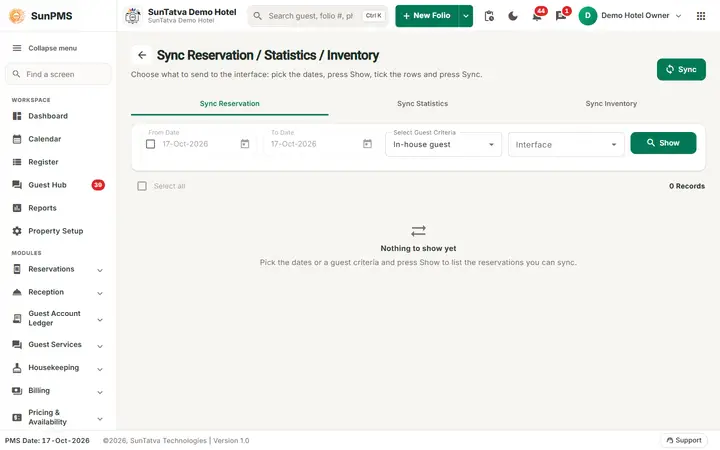
The three tabs of the combined screen; the first tab is open.
- Choose the tab, then the dates or guest criteria and the Interface.
- Click Show to preview the data. The tick boxes are for your own checking; Sync sends everything that matches the dates or the guest criteria, not only the ticked rows.
- Click Sync and answer Yes to the question for that tab: "Are you sure you want to sync reservations?", "Are you sure you want to sync statistics data?" or "Are you sure you want to sync inventory for the selected interface?". Result: Reservation sync successfully., Statistics sync successfully. or Inventory sync successfully. The partner receives the data in the background; it can take a few minutes.
What happens behind the scenes
- The PMS sends the data to the partner's webhook address exactly as it does on a normal change; nothing is changed inside the PMS.
- Sync sends by the date range (when the tick box is on) or by the guest criteria, together with the chosen interface; the ticked rows are not passed.
Messages you may see
| Message (exact text) | Why it appears | What to do |
|---|---|---|
| Please select webhook interface type. | Sync pressed without an interface (shown as a warning since 2026-10-18; failures are shown in the error style, no longer green). | Choose an Interface first. |
| Error while sync reservation. / Error while sync Statistics. / Error while sync inventory. | The request failed on the server or the partner address. | Retry; check the interface in Webhook settings. |
| Something went wrong. | Loading the folio, statistics or inventory list failed. | Reload the page and try again; contact support if it repeats. |
| Reservation sync successfully. / Statistics sync successfully. / Inventory sync successfully. | The data was queued. | None. |
Tips and FAQ
- Q: I cannot find this page in the menu. A: The menu entry is off. Use the Sync group pages, or ask support to open this address.
- Q: The Interface list is empty. A: No interface exists; create one in Webhook.
- Q: Can I resend just one guest? A: Not from this page: Sync sends every folio that matches the criteria or dates. Narrow the date range to the stay dates to limit the number sent.
- Q: Does this update OTAs? A: No. OTAs are updated through the channel manager (CRS Bulk Update); this page serves webhook interfaces.