
Monthly Owner Statement
On this page
A hotel that manages rooms for individual owners sends each owner a monthly statement: the opening balance, what the owner's rooms earned, what was charged against them and what was paid. In SunPMS this is the Monthly Owner Statement Report, one of three owner reports in the Monthly and Room report groups.
Important: the address page is a placeholder
The address #/owner-statement/<number> (old address #/monthly-owner-statement/<number>, which redirects) opens a page with the title Monthly owner statement, the line "A month-by-month statement of what a room owner has earned and been paid." and the message "This screen is not available yet. Monthly owner statements will appear here once it is released." It is a placeholder inside the program and has no fields or buttons. Use the report described below instead.
Before you start
- Room owners exist (Room Owner) and rooms are assigned to them (Owner Room Assignment). Without owner data the owner reports are not listed at all.
- Your role has the report privilege (Monthly Owner Statement Report, Monthly Owner Report or Room Owner Report), ticked in Assign Report Privileges.
- Extra Income / Extra Expense entries for an owner's room must name that Room (Extra Income and Extra Expense); otherwise the amount cannot be linked to the owner.
- Night audit has run on the last day of the month, because the month's owner balance is stored then.
The three owner reports
| Report (title shown) | Where | What it gives |
|---|---|---|
| Room Owner Report | Room Reports tab | Owners and their rooms. |
| Monthly Owner Report | Monthly Reports tab | One line per owner for the month. |
| Monthly Owner Statement Report | Monthly Reports tab | The statement lines of the owners for the month. |
How to run the Monthly Owner Statement Report
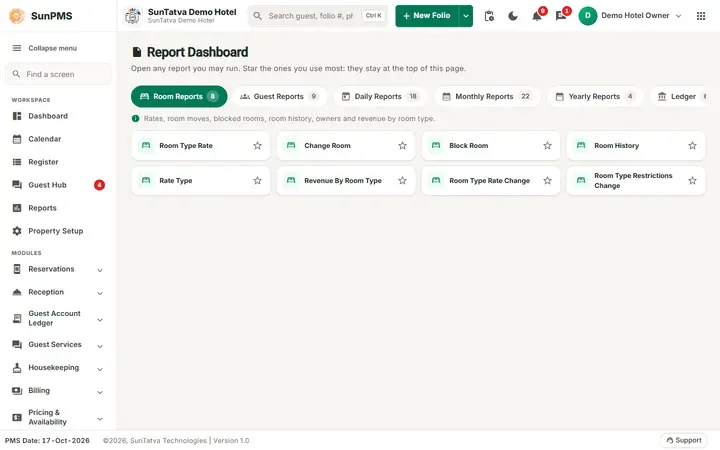
- Click Reports in the top bar, open the Monthly Reports tab (or search the report finder) and click Monthly Owner Statement.
- The filter panel now shows the owner controls: choose the Room Owner (or --ALL--), set the month with From Date / To Date, and for the Room Owner Report use the Show Room Details and Show Deleted Records switches; the Monthly Owner Report has a With Other Charge switch. Click Show. Result: the report shows the owner block (owner name, Opening Balance, Payment), the list of the owner's rooms, and the folio detail lines with Date, Particular, folio number or description, Revenue and Expense.
- Use Export > PDF, Excel or Email (PDF) to send it to the owner. Details of the export menu are in the Reports overview.
What happens behind the scenes
- On the last day of each month, night audit adds up the owner's room revenue, other charges, extra income and expense, payments made to the owner, licence fee % and management fee % (from the owner set-up) and the balance carried forward. The closing balance becomes next month's opening balance.
- Reports only read this data; they never change it.
Messages you may see
| Message (exact text) | Why it appears | What to do |
|---|---|---|
| No record found! | No owner data for that owner and month, or night audit has not yet run for month end. | Check the owner, month and year; run night audit for the last day. |
| Email sent successfully. | Email (PDF) was clicked. | The mail goes to the property e-mail address; check the inbox, see Reports overview. |
Tips and FAQ
- Q: The menu has no Monthly Owner Statement. A: Either no room owner exists in the property, or your role lacks the report privilege.
- Q: Can I record a payment to an owner on a Utility page? A: Not in this version: the Room Owner Payment page is also an empty placeholder (Room Owner Payment).
- Q: The statement does not show my extra expense. A: The entry had no Room selected, so it was not linked to the owner.