Owner Room Assignment
On this page
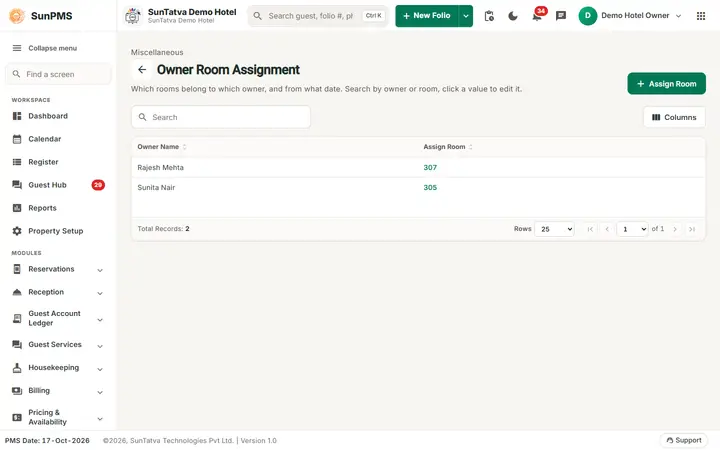
This screen links each room owner to the rooms he or she owns. The assignment decides whose statement a room's income appears on. Each owner has one assignment record that holds all of his or her rooms.
Before you start
- Create the owner in Room Owner and the rooms in Room.
Screen layout (list)
| Element | Meaning |
|---|---|
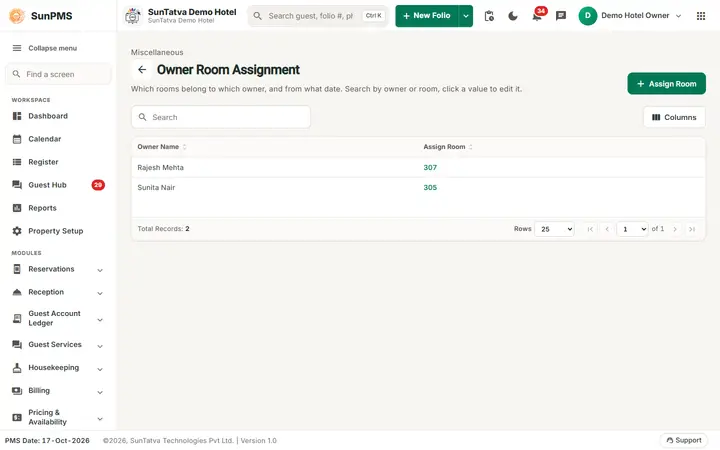
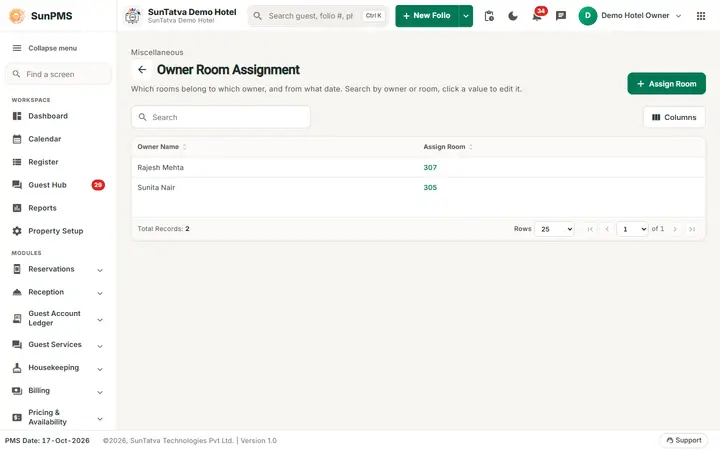
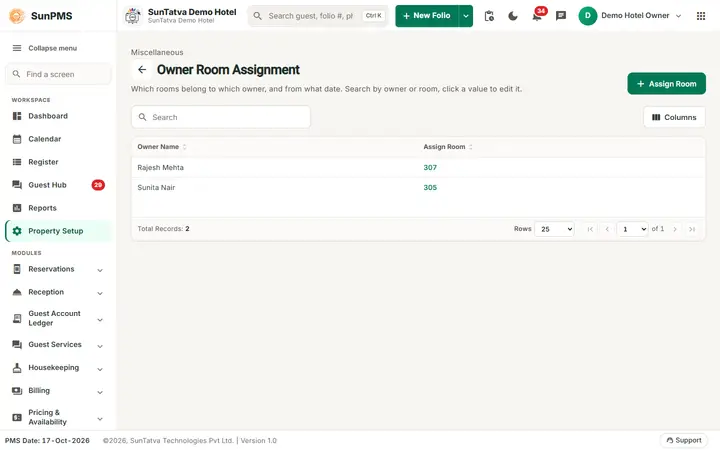
| Search | By owner name or assigned rooms. |
| Assign Room (button, top right) | Opens the window. The page line reads "Which rooms belong to which owner, and from what date." The small grey line above the title reads MISCELLANEOUS. |
| Owner Name | Owner. |
| Assign Room column | Comma list of the assigned rooms (room names, for example 307). Click it to edit the assignment (Edit Assign Room). |
Screen layout (window)
| Field | Meaning | Rules |
|---|---|---|
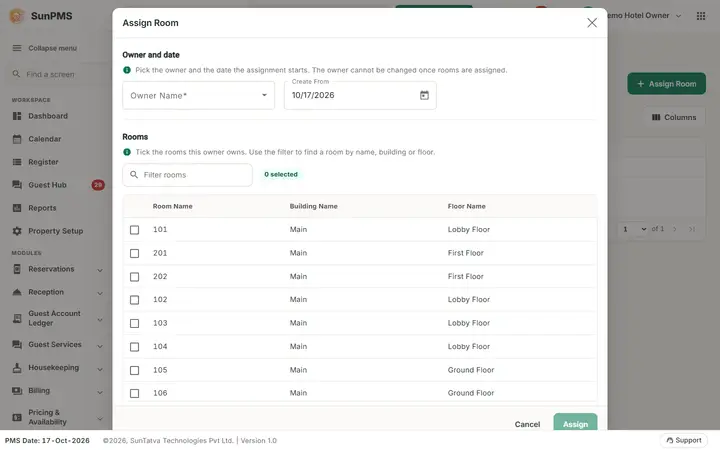
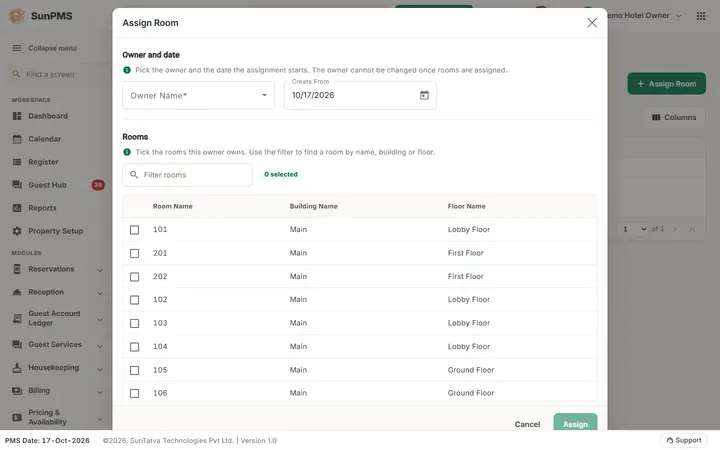
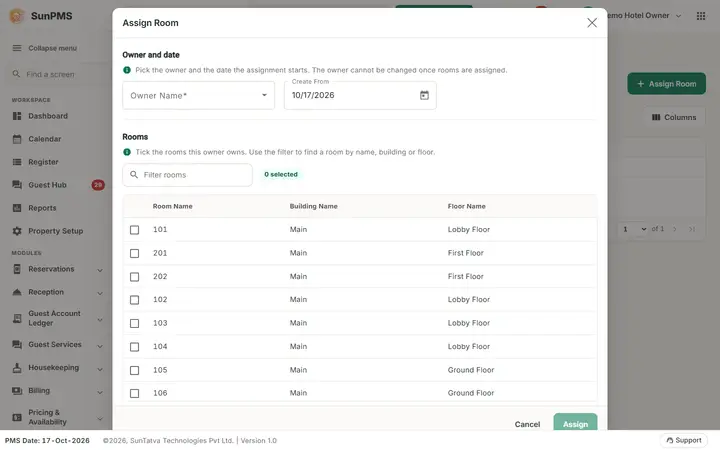
| Window section Owner and date ("Pick the owner and the date the assignment starts. The owner cannot be changed once rooms are assigned."): Owner Name | The owner. | Required. Lists only active owners that do not already have an assignment (so each owner appears once). Locked when editing. |
| Create From | Date from which the assignment applies. | Cannot be later than the PMS date. Default = PMS date. |
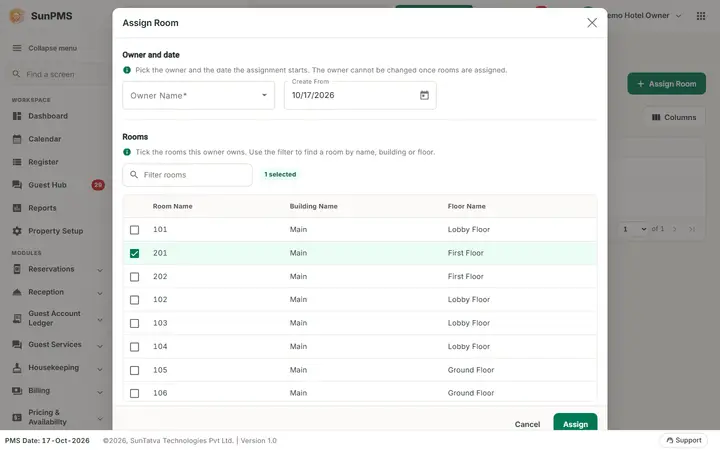
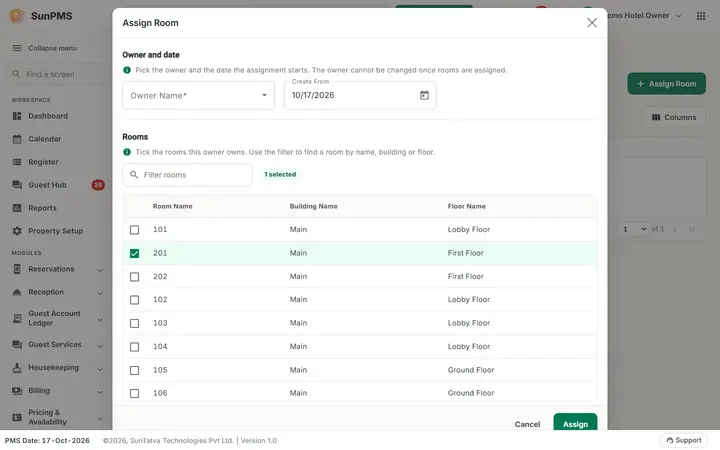
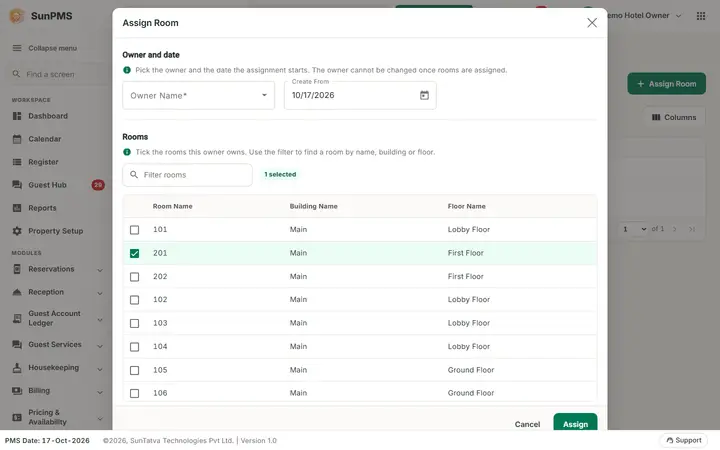
| Section Rooms ("Tick the rooms this owner owns. Use the filter to find a room by name, building or floor.") Room table | Tick box, Room Name, Building Name, Floor Name, with a filter box. | Shows rooms available for assignment (rooms not owned by someone else, plus this owner's rooms). |
| Assign | Saves. | Enabled only after you tick or untick a room. |
| Cancel, Delete | Delete only when editing. |
How to assign rooms
- Click Assign Room.
- Choose Owner Name.
- Tick the rooms the owner owns.
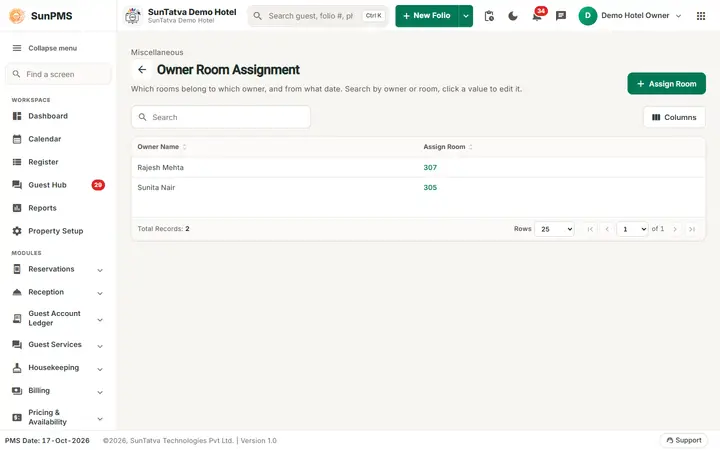
- Click Assign. Result: Room assign successfully. and the owner appears in the list.
How to change an owner's rooms
- Click the room names in the Assign Room column.
- Tick or untick rooms (the Assign button becomes active after you change a tick).
- Click Assign. Message: Room assign updated successfully.
How to remove an assignment
Open the assignment, click Delete, confirm Are you sure want to delete this Assign Room? Message Owner Assignment deleted successfully. The owner returns to the Owner Name list.
What happens behind the scenes
The assignment feeds Room Owner Payment and Monthly Owner Statement. Deleting stamps the assignment inactive; old statements keep their rooms.
Messages you may see
| Message (exact text) | Why it appears | What to do |
|---|---|---|
| Please select Owner. | No owner chosen. | Choose one. |
| Please select Rooms. | No room ticked. | Tick at least one. |
| No record found! | No owner without assignment, or no rooms free. | Create an owner or free rooms first. |
Tips and FAQ
- Q: My owner is missing from the drop-down. A: He already has an assignment: edit it from the list. Inactive owners are also hidden.
- Q: I opened an assignment and Assign is greyed. A: Tick or untick a room first; the button needs a change.
Current behaviour (checked 2026-10-18)
- Assign, edit (untick or tick rooms, Assign again, message Room assign updated successfully.) and Delete all work and the data survives a reload of the page. Rooms already assigned to one owner are no longer offered to another owner; an owner who has an assignment is no longer offered in the Owner Name list.
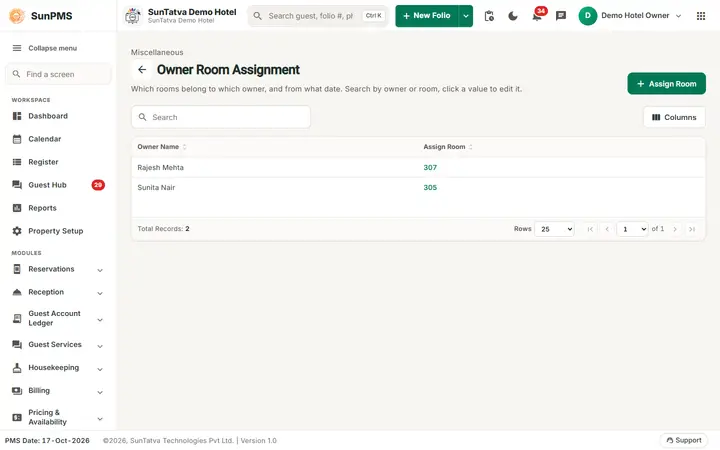
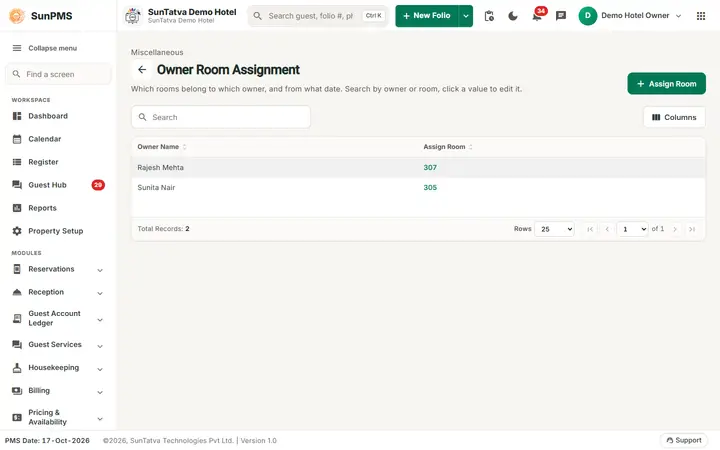
- The Assign Room column here and the Assign Rooms column on the Room Owner list show the room names (checked 2026-10-24: Rajesh Mehta 307, Sunita Nair 305 on the demo hotel).
- When the list is empty the screen first shows the message box No record found.; click OK.
After Assign. The window closes, the owner row shows the assigned room names in the Assign Rooms column, and the rooms disappear from the list offered to other owners. Removing an assignment returns the rooms to the list. The screenshots of the saved and removed states are not included because they would change a real owner's statement data.
Screenshots