Extra Income and Extra Expense
On this page
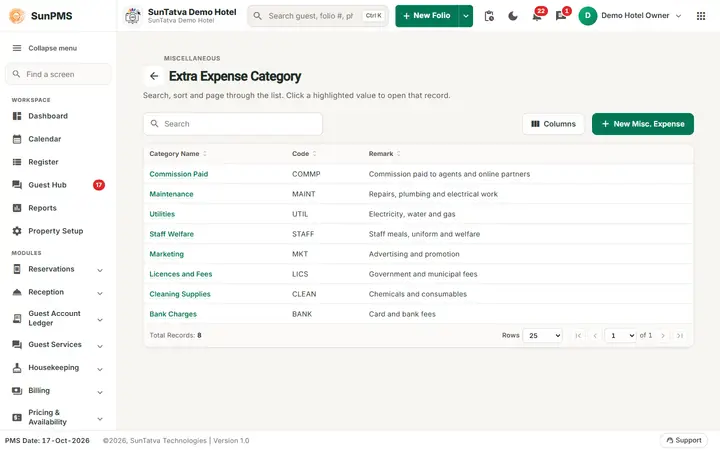
Record money that comes in or goes out of the hotel but is not a guest folio payment: for example selling scrap, receiving a refundable donation, paying a plumber from the cash drawer. Entries appear in cashier shift totals and in the income/expense reports. The two screens are identical except for the labels (Paid By on income, Paid To on expense).
Before you start
- Create categories in Extra Income Category / Extra Expense Category (Property Setup masters).
- Payment types and exchange rates must exist.
- For card payments: a SunPG API key must be generated; for Extra Income paid by card you can pick a payment Device or add a card.
Screen layout
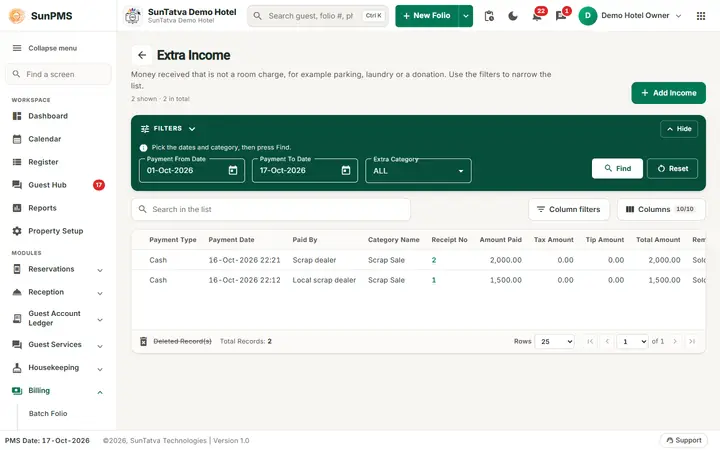
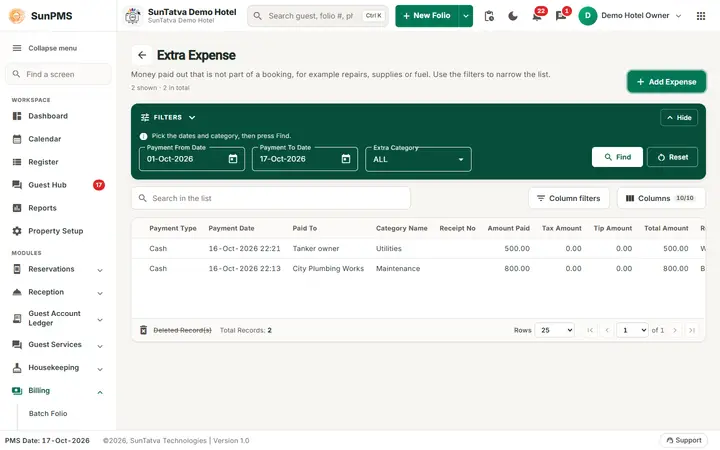
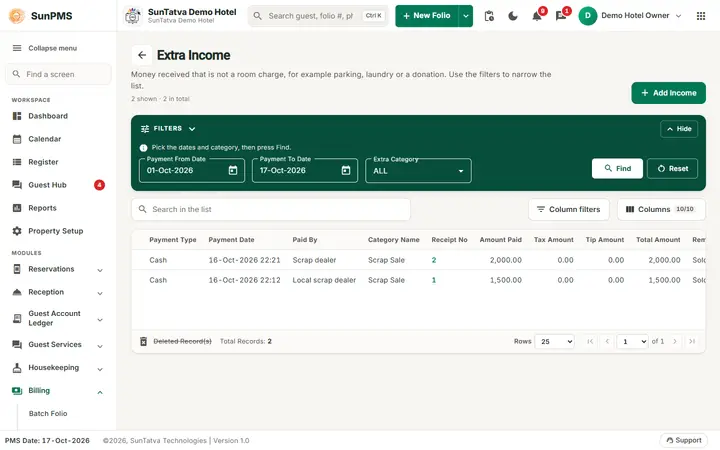
This screen uses the standard search-first list layout: a dark Filters band on top, then a full-width table with Search in the list, a column filter button, Columns, sortable headings and a paging bar (rows become cards on phones). The common parts are explained in Search-first list screens; the fields and columns specific to this screen are listed below. Filter panel:Payment From Date (default first of the month), Payment To Date (PMS date), Extra Category, Find, Reset. Grid columns: Payment Type, Payment Date, Paid By (income) / Paid To (expense), Category Name, Receipt No (click to open), Amount Paid, Tax Amount, Tip Amount, Total Amount, Remark. Deleted records are struck through with a delete icon (shown only when the setting "Display deleted payment" is on). Button:Add Income / Add Expense (each disabled without its own add privilege: income or expense).
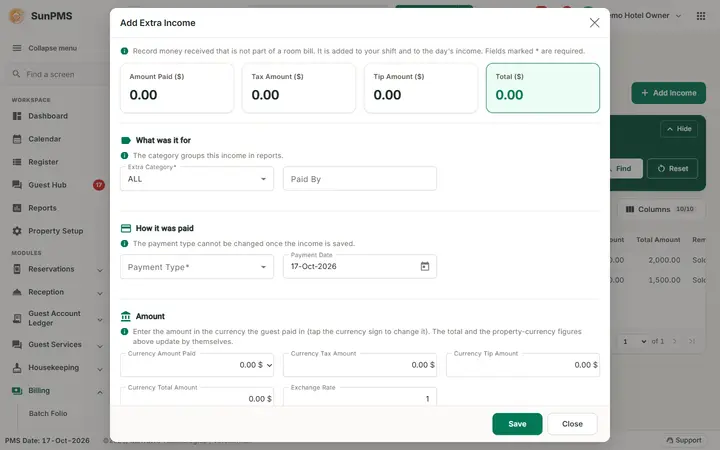
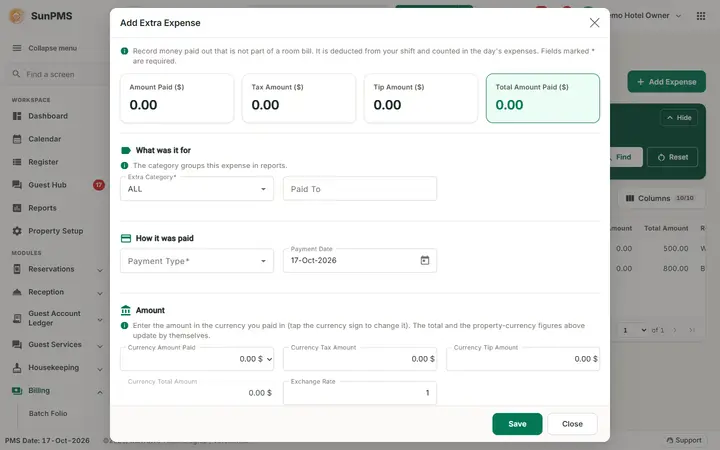
Add / Edit window
| Field | Rules |
|---|---|
| Extra Category | Required. |
| Paid By / Paid To | Required, up to 500 characters. |
| Payment Type | Required. Cannot be changed when editing. |
| Device, Number, Valid Till, Name (income, card types) | Appear for Credit Card payment types: choose a terminal device, or add a card with the card button. |
| Payment Date / Payment Time | Payment date defaults to the PMS date; time is the clock time when created. |
| Currency Amount Paid, Currency Tax Amount, Currency Tip Amount, Currency Total Amount | Enter in the chosen currency; click the currency menu to switch. |
| Exchange Rate | Read only. |
| Room | Optional. Pick a room (owned rooms show the owner's name) to charge the entry to a room owner. --N/A-- for none. |
| Amount Paid / Tax Amount / Tip Amount / Total (base currency) | Calculated, read only. |
| Remark | Up to 1000 characters. |
| Receipt No | Income: pre-filled with the next number. Expense: you may type one; if you leave it empty, the system sets the receipt number to the expense id when you save (before 2026-10-18 the Extra Expense list showed an empty Receipt No). Up to 100 characters. |
| Save, Close, Delete (existing records only) |
How to add an entry
- Click Add Income (or Add Expense).
- Fill the fields above.
- Click Save. The form clears so you can add the next one; click Close when finished.
How to edit or delete
- Click the Receipt No link to edit. For card payments the amounts, date and device become read-only.
- Delete asks "Are you sure want to delete this Extra Income?" on the income screen and "...Extra Expense?" on the expense screen. Deleting a record already deleted removes it permanently.
Messages you may see
| Message | What to do |
|---|---|
| Please select Extra Income Category. / Extra Expense Category. | Choose a category. |
| Please enter Payer Name. / Recipient Name. | Fill Paid By / Paid To. |
| Please enter Payment Type. | Choose a payment type. |
| Please enter Amount. | Amount is zero. |
| Please enter valid Paid Amount. / Tax Amount. / Tip Amount. | Use numbers with the allowed decimals. |
| Please select Device or add a Credit Card first. | Card type selected without device or token. |
| Generate the PG API Key before making a card payment. | Set up the gateway. |
| Credit card payment is failed... | Gateway declined. |
What happens behind the scenes
- Entries are tied to the open shift; the shift-end screen counts income as money in and expense as money out (Shift End).
- With a Room selected, entries count in the room owner's monthly statement (Room Owner Payment).
- Tax and tip are stored separately in the report.
Screenshots