Extra Income Category
On this page
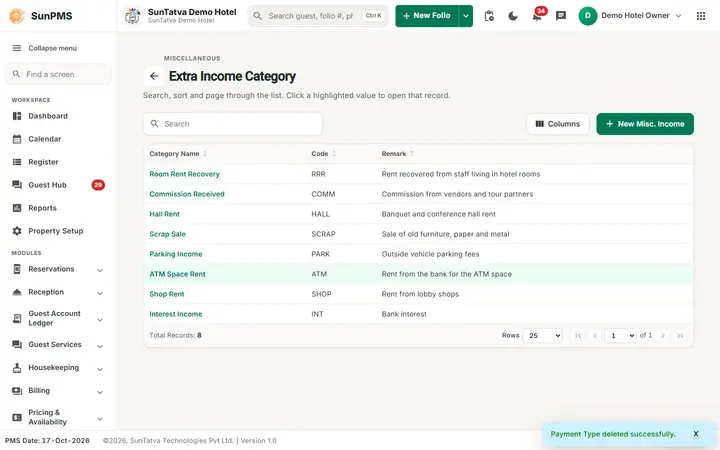
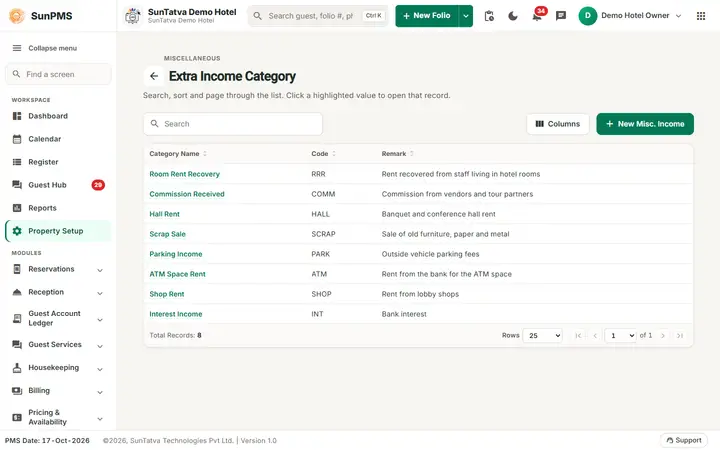
Extra Income Category is the list of headings (categories) under which the hotel records income that is not a room or folio charge: scrap sale, commission received, hall rent. Staff pick one of these categories when they post an entry on the Extra Income page.
Before you start
- Nothing is needed. The list is empty in a new property.
Screen layout
This screen follows the common master layout described in Property Setup (section "Master screens: one pattern"): a header with the back arrow, the title, a one-line explanation and the main button on the right; a Search box and a Columns button above a sortable table; a footer with Total Records, Rows and page buttons; and an add / edit window with Delete (left, only when editing), Cancel and Save. Specific to this screen:
| Element | Meaning | Rules |
|---|---|---|
| Search | Filters by category name or code. | |
| New Misc. Income (top right) | Opens the window (Add Extra Category). The small grey line above the title reads MISCELLANEOUS. | |
| Category Name column | Click the highlighted text to edit (Edit Extra Category). | |
| Code column | Short code. | |
| Remark column | Note. | |
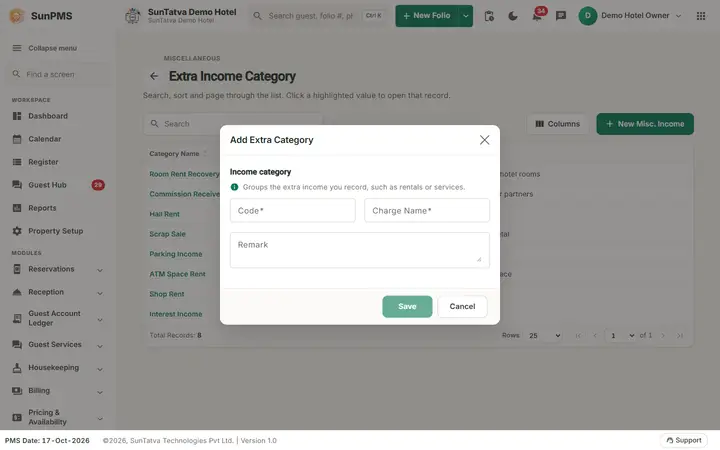
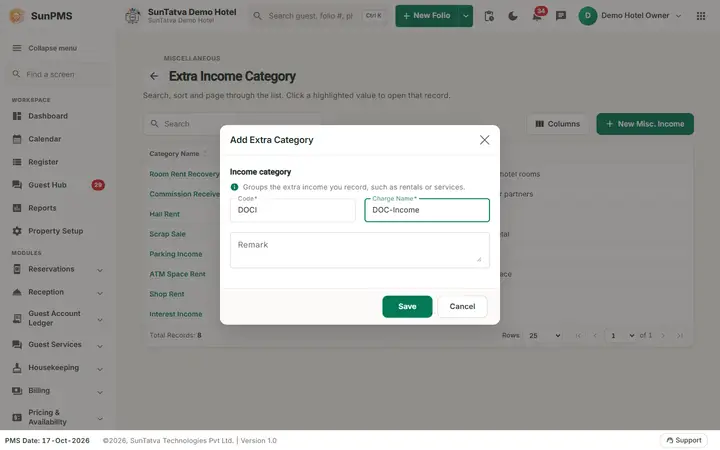
| Window section Income category ("Groups the extra income you record, such as rentals or services."): Code | Short code. | Required, short length. |
| Charge Name | Category name (saved as the Category Name). | Required, up to 100 characters, unique. |
| Remark | Note. | Up to 500 characters. |
| Save, Cancel, Delete | Delete only when editing. |
How to add a category
- Click New Misc. Income.
- Type Code and Charge Name; add a Remark if wanted.
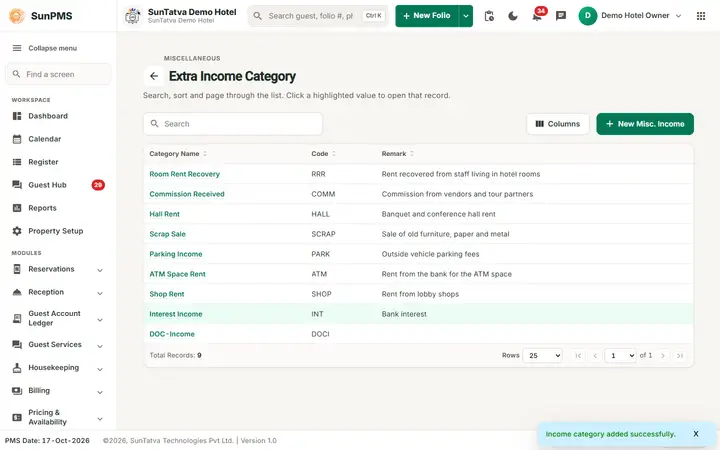
- Click Save. Result: Income category added successfully. The window stays open with an empty form for another entry.
How to edit
Click the category name, change values, Save. Message Income category updated successfully.
How to delete
Open the category, Delete, confirm Are you sure want to delete this Extra Income. Message Extra Category deleted successfully. The category becomes inactive and is no longer offered on the Extra Income page; old entries keep it.
What happens behind the scenes
Categories of income and expense share one table, separated by a type (income = 1, expense = 2). The category is stored on every Extra Income entry and used in the extra income reports.
Messages you may see
| Message (exact text) | Why it appears | What to do |
|---|---|---|
| Please enter Code. | Code empty. | Type a code. |
| Please enter Extra Income Category Name. | Name empty. | Type a name. |
| Record Already Exist. | Duplicate. | Rename. |
| Income category added successfully. / Income category updated successfully. | Success. | None. |
Tips and FAQ
- Q: Where do I post the income itself? A: On the Extra Income page (Billing / Audit menu), not here.
Screenshots