
FAS Integration and FAS Settings
On this page
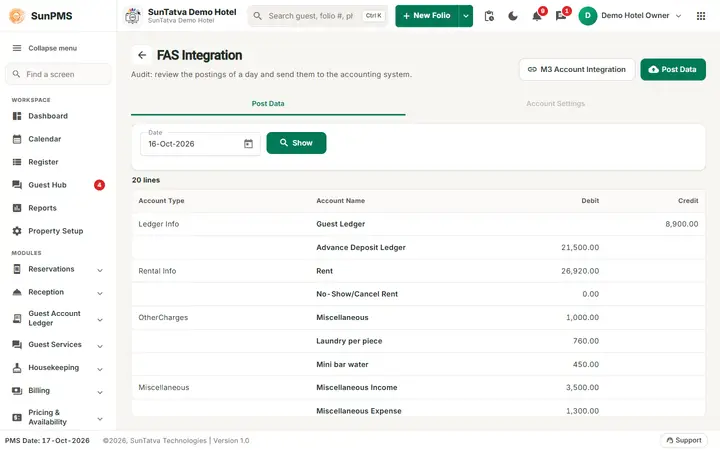
FAS (Financial Accounting System) is the accounting package that receives your daily hotel figures. Currently the supported choice is M3 Accounting Systems. Each day SunPMS summarises revenue, taxes, payments and ledgers into debit and credit lines and posts them to the accounting system. FAS Settings connects the accounting system; FAS Interface previews and posts the data; M3 Account Integration maps PMS accounts to your accounting codes.
Before you start
- Choose the accounting system in FAS Settings (below). While it is N/A, the FAS Interface menu is hidden, and if you open the address you are sent back to your last view.
- For M3: map accounts in M3 Account Integration. The "Other Charge Categories" must be flagged to post to FAS in their setup.
- Night audit for the day to post must be done.
FAS Settings screen
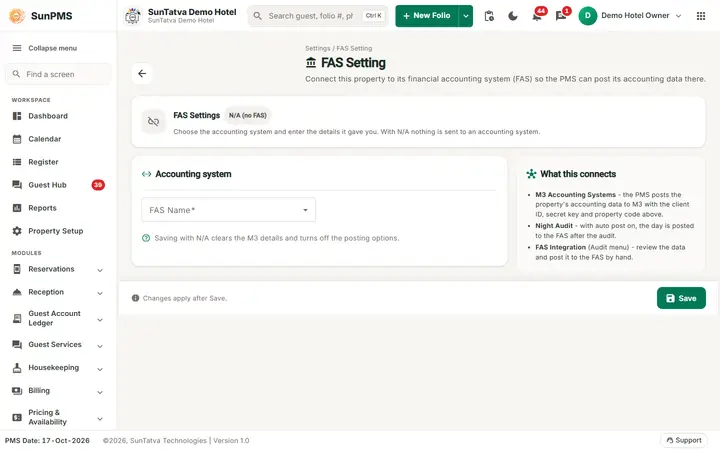
With N/A (no FAS) nothing is sent to an accounting system.
Title FAS Setting (path Settings /).
| Field | Meaning | Rules |
|---|---|---|
| FAS Name | Accounting system: N/A or M3 Accounting Systems | Required. |
| Client ID | Credentials given by the accounting provider | Required for M3. |
| Client Secret Key | Secret given by the provider | Required for M3. Keep private. |
| Property Code | Your property's code at the provider | Required for M3. |
| Customer Name | Customer short name at the provider | Required for M3. |
| Source System | PMS or POS | Required for M3. |
| Post Statistical Data To FAS | Also send room/guest statistics | When ticked, the Statistics column shows on the FAS Interface. |
| Auto Post To FAS on Night Audit | Posts automatically when the night audit finishes | |
| Save | Stores the settings |
M3 fields appear only when M3 Accounting Systems is chosen. Messages: Please enter required Details. (a required field is empty), FAS Settings Updated. (saved), Something went wrong. (load failed).
FAS Interface screen
Title Audit / FAS Integration. Tabs: Post Data and Account Settings (the second tab is disabled).
Post Data tab:
| Item | Meaning |
|---|---|
| Date | Business date to post. Default: yesterday. Cannot be after the PMS date minus one day (max = PMS date at load). |
| Show | Loads the figures for the date. The screen also loads them when opened. (Before 2026-10-17 the page failed on load with "column cdr.checkinid must appear in the GROUP BY clause"; fixed, needs the updated API.) |
| Columns | Account Type (shown once per group), Account Name, Debit, Credit, and Statistics (only with Post Statistical Data To FAS). |
| Last row Total | Sum of debit and credit. They should be equal. |
| M3 Account Integration (link, bottom left) | Opens the mapping screen. Shown only when the accounting system is M3. |
| Post Data (bottom right) | Posts the shown data. Disabled when the list is empty. |
Positive amounts appear as credit, negative as debit. Statistics lines (room counts) appear only in the Statistics column.
How to post a day to the accounting system
- Open Billing > FAS Interface.
- Pick the Date and click Show.
- Check that Total debit equals credit and each line has an Account Name.
- Click Post Data. Result: Data Posted.
How to connect M3
- Open Property Setup > FAS Settings, set FAS Name to M3 Accounting Systems.
- Fill Client ID, Client Secret Key, Property Code, Customer Name, Source System.
- Click Save (FAS Settings Updated.).
- Map accounts in M3 Account Integration.
- Optional: tick Auto Post To FAS on Night Audit.
What happens behind the scenes
The PMS groups the day's postings (rent, no-show and cancellation revenue, other charge categories, taxes, payment types, ledgers and statistics) and converts them with your mapping to accounting account codes. Posting sends the lines to M3 and logs the result per day.
Messages you may see
| Message (exact text) | Why | What to do |
|---|---|---|
| Data Posted. | Post succeeded | - |
| (server error text) | Post or load failed | Read the text. A common cause is an unmapped account; open M3 Account Integration. |
| Please enter required Details. | FAS Settings incomplete | Fill all M3 fields. |
| FAS Settings Updated. | Saved | - |
Tips and FAQ
- Q: I cannot see FAS Interface. A: FAS Name is N/A, or you lack access. Set it in FAS Settings.
- Q: Can I post the same day twice? A: Posting again resends the figures; confirm with the accountant whether M3 replaces or adds.
- Q: What is the disabled Account Settings tab? A: Reserved for future use (Location ID, Daily/Monthly posting).
- Q: Why is Statistics missing? A: Tick Post Statistical Data To FAS in FAS Settings.