
M3 Account Integration
On this page
A mapping table that tells SunPMS which account code in your M3 accounting system belongs to each PMS account (rent, taxes, each payment type, each charge category, ledgers and statistics). Without the mapping, the daily FAS posting has no accounts to post to.
Before you start
- FAS Name is M3 Accounting Systems in FAS Settings. The link on the FAS Interface page is shown only then.
- Tax master, payment types and other charge categories exist. Other charge categories must be set to post to FAS to appear in the list.
Screen layout
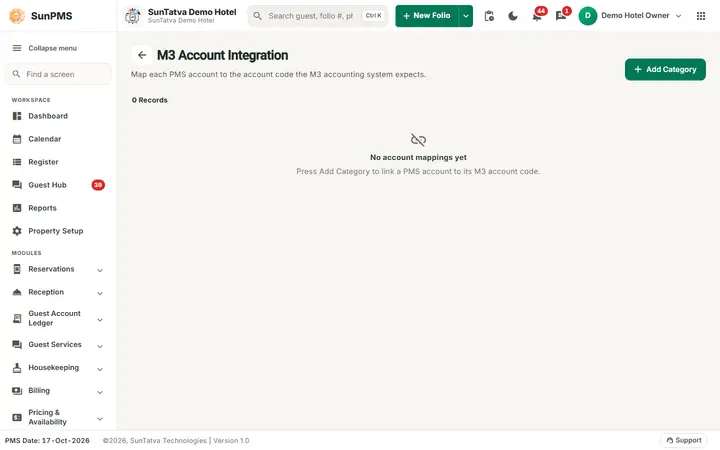
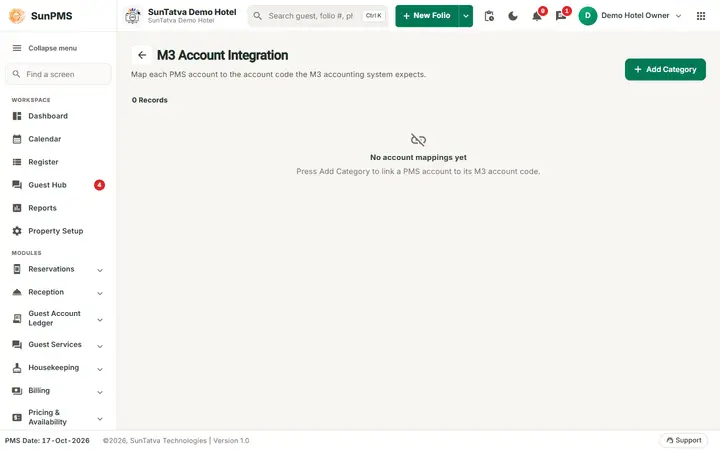
With no mappings the list shows No account mappings yet.
Page title Fas Configuration / M3 Integration.
| Column / button | Meaning |
|---|---|
| Edit (pencil) | Opens the entry for editing. |
| Delete (bin) | Removes the entry after confirmation. |
| PMS Account | The PMS account being mapped. |
| Account Code | Your code in M3 (max 10 characters). |
| PMS Account Category | The group of the PMS account. |
| Account Type | Transaction, Ledger, Segments or Statistics. |
| Add Category | Opens the Set Integration dialog. |
| Footer | "N Records". |
Set Integration dialog
| Field | Choices and rules |
|---|---|
| PMS Category | Journal item (rent and revenue lines), Ledger Info, Other Charges, Tax, PaymentType. |
| PMS Account | Depends on the category. Journal item: Rent, No-Show/Cancel Rent, Extra Income, Extra Expense, No-Show Reservation Revenue, Canceled Reservation Revenue, BusinessSource Opening Balance, Round Off, Adult, Children and the statistics lines (Total guests, Arrival rooms, Departure rooms, No-Show rooms, Vacant Ready, Occupancy Clean, Occupancy Dirty, Vacant Dirty and others). Ledger Info: Guest Ledger, Account Receivable Ledger, Group Account Ledger, Advance Deposit Ledger, InHouse Account Ledger, POS Creditor Posting. Other Charges: your charge categories. Tax: your taxes. PaymentType: your payment types. |
| Account Type | Transaction, Ledger, Segments, Statistics. |
| Account Code | Required, up to 10 characters. |
| Buttons | Save (adds and keeps the dialog open; only when adding), Save & Close, Close. |
Guest and room names in the statistics lines use your property's own words for guest and room.
How to map an account
- Open FAS Interface and click M3 Account Integration.
- Click Add Category.
- Choose PMS Category, PMS Account and Account Type.
- Type the Account Code from your accountant.
- Click Save & Close (or Save to add another). Result: the row appears in the grid.
How to edit or delete
Click the pencil, change the fields and Save & Close. Click the bin and answer Yes to Are you sure you want to delete this Account Setting? to remove.
What happens behind the scenes
The mapping is stored per property. When FAS data is posted, each PMS account line is replaced by its account code and account type. Deleting a mapping is a soft delete.
Messages you may see
| Message (exact text) | Why | What to do |
|---|---|---|
| Please enter Account Code. | Save with an empty code | Type the code. |
| Are you sure you want to delete this Account Setting? | Delete confirmation | Yes/No. |
| (server error text) | Load or save failed | See below. |
Tips and FAQ
- Q: Which category is rent? A: Journal item > Rent.
- Q: Can two PMS accounts share one code? A: The screen does not forbid it; ask your accountant.
- Q: The PMS Account list is empty for Other Charges. A: No charge category is flagged to post to FAS.