
HouseKeeping Task
On this page
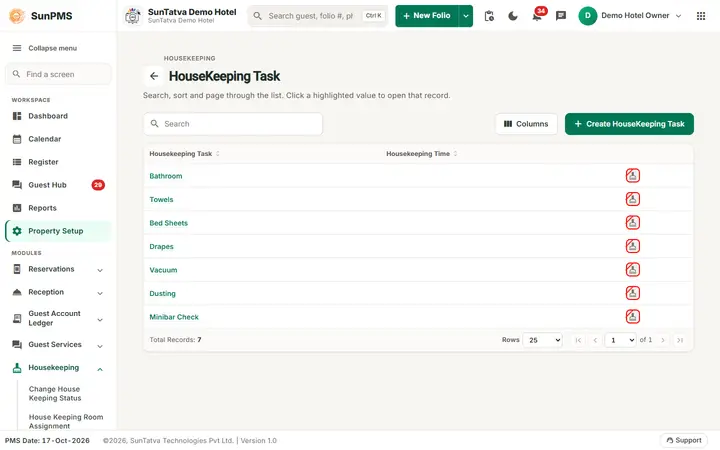
A housekeeping task is one cleaning duty (Bathroom, Towels, Bed Sheets, Drapes, Vacuum, Dusting). Tasks are assigned to housekeepers or groups, and the housekeeping screens show which tasks are done for each room.
Before you start
- Tasks only describe duties. People and groups are set up in HouseKeeping Group and Member Assignment.
- A new property comes with six tasks: Bathroom, Towels, Bed Sheets, Drapes, Vacuum, Dusting.
Screen layout (list)
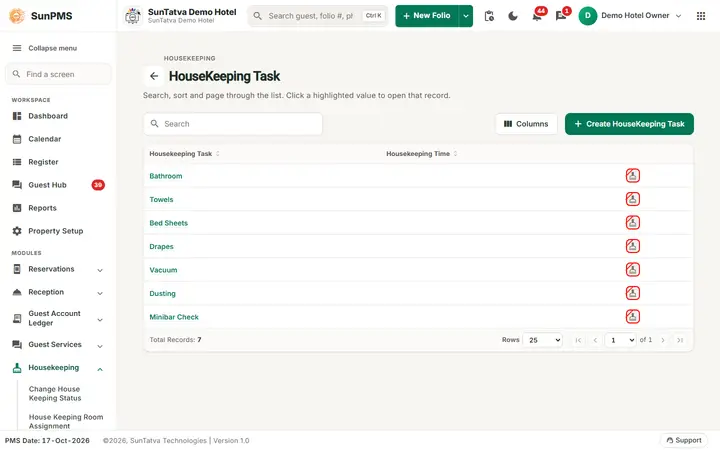
The task list of the demo hotel.
This screen follows the common master layout described in Property Setup (section "Master screens: one pattern"): a header with the back arrow, the title, a one-line explanation and the main button on the right; a Search box and a Columns button above a sortable table; a footer with Total Records, Rows and page buttons; and an add / edit window with Delete (left, only when editing), Cancel and Save. Specific to this screen:
| Element | Meaning | Rules |
|---|---|---|
| Search | By task name. | |
| Create HouseKeeping Task (top right) | Opens Create Housekeeping Task. | Hidden without the Add Task privilege. The small grey line above the title reads HOUSEKEEPING. |
| Housekeeping Task | Click the highlighted name to edit (Edit HouseKeeping Task). | |
| Housekeeping Time | The time stored for the task. | |
| Last column | Broom icon = Apply on Vacant Dirty (crossed when No). |
Screen layout (window)
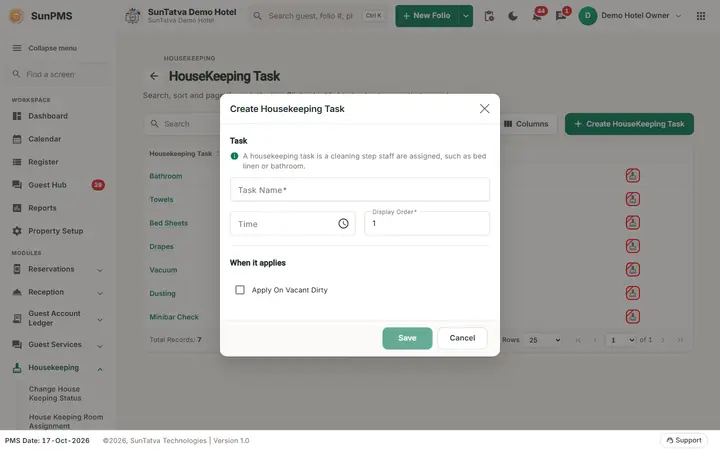
The window opened by Create HouseKeeping Task.
| Field | Meaning | Rules |
|---|---|---|
| Window section Task ("A housekeeping task is a cleaning step staff are assigned, such as bed linen or bathroom."): Task Name | Name of the duty. | Required, up to 100 characters, must contain a letter or digit, unique. |
| Time | Time value for the task. Click the clock icon to pick (24-hour). | Optional. |
| Display Order | Position in lists. | Whole number up to 3 digits, default 1. New tasks are created active (the window has no Active tick box). |
| Apply On Vacant Dirty (section When it applies) | The task is automatically listed for rooms whose status is Vacant Dirty. | Default off. |
| Save | Saves. | Shown only with the Edit Task privilege (this also applies when you add a new task). |
| Delete | Deactivates the task. | Only when editing and with the Delete Task privilege. |
| Cancel | Closes. |
How to add a task
- Click Create HouseKeeping Task.
- Enter Task Name, optional Time, Display Order and tick Apply On Vacant Dirty if needed.
- Click Save. Result: message House Keeping Task saved successfully. The window stays open with an empty form for the next task.
How to edit
Click the task name, change, Save. The same success message appears.
How to delete
Open the task, Delete, confirm Are you sure want to delete House Keeping Task? Message House Keeping Task deleted successfully.
What happens behind the scenes
Active tasks appear in housekeeping room assignment and the housekeeping report. Tasks flagged Apply On Vacant Dirty are pre-selected when a room becomes Vacant Dirty after check-out. Deleting makes the task inactive; old assignments keep it.
Messages you may see
| Message (exact text) | Why it appears | What to do |
|---|---|---|
| Please enter House Keeping Task Name. | Name empty. | Type it. |
| Please enter Valid House Keeping Task Name. | Name has no letters or digits. | Use real text. |
| Record Already Exist. | Duplicate. | Rename. |
| House Keeping Task saved successfully. / House Keeping Task deleted successfully. | Success. | None. |
Tips and FAQ
- Q: I can open a task but there is no Save button. A: You lack the Edit Task privilege; ask the owner to update your role.