Notice Setup
On this page
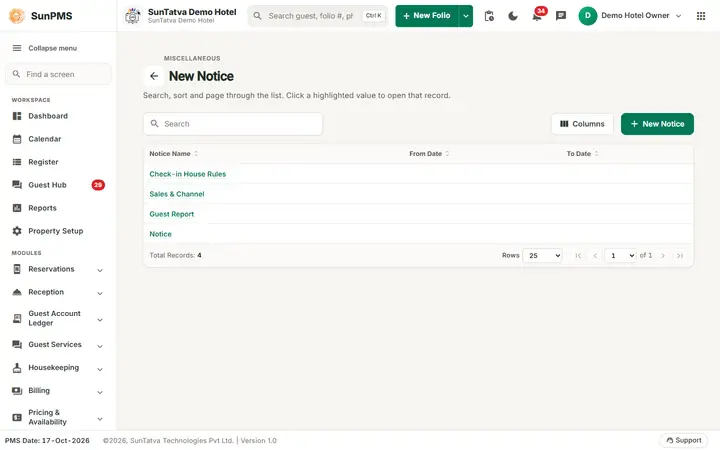
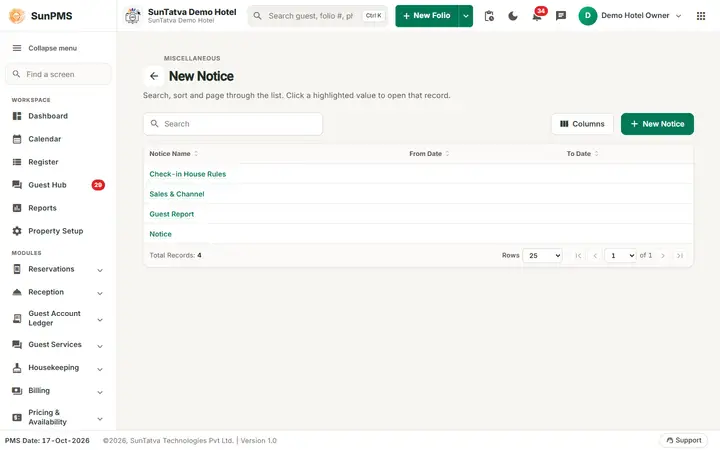
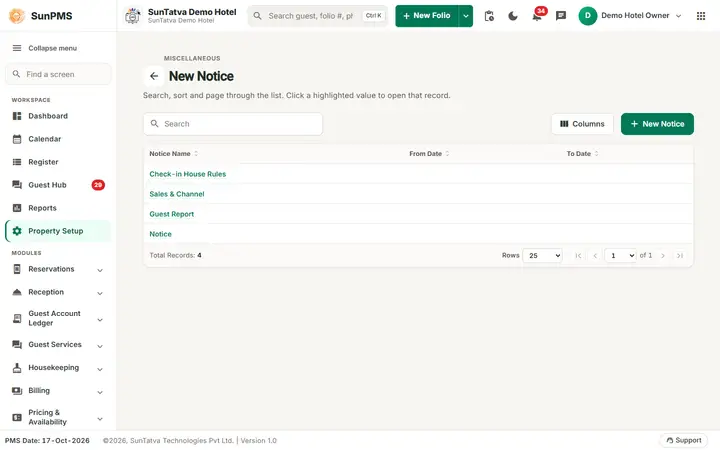
A notice is a block of formatted text (house rules, terms and conditions, a seasonal message) that PMS prints on documents such as the registration card, reservation confirmation, folio or guest report. You write the text once, drop in live fields such as the guest name or arrival date, and choose where the notice is attached. The menu card is Notice Setup; the list page is titled New Notice.
Before you start
- Decide which printouts or e-mails the notice belongs to (the "Notice Attached With" list in the window).
- A new property already has three notices: Notice, Sales & Channel and Guest Report.
- The folio documents of a Sales & Channel have their own events in Notice Attached With: Sales & Channel Folio and Sales & Channel Detail Folio (listed in the Reservation and Check-In groups; Sales & Channel Folio is also listed in the E-Mail Body group). Tick the one whose printout should carry the notice.
Screen layout (list)
This screen follows the common master layout described in Property Setup (section "Master screens: one pattern"): a header with the back arrow, the title, a one-line explanation and the main button on the right; a Search box and a Columns button above a sortable table; a footer with Total Records, Rows and page buttons; and an add / edit window with Delete (left, only when editing), Cancel and Save. Specific to this screen:
| Element | Meaning |
|---|---|
| Search | By notice name or dates. |
| New Notice (top right) | Opens Add Notice. (The page itself is titled New Notice too; the small grey line above reads MISCELLANEOUS.) |
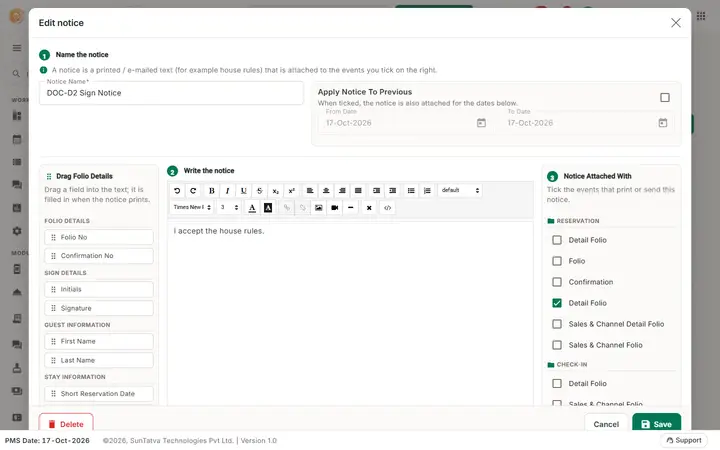
| Notice Name | Click the highlighted name to edit (Edit notice). |
| From Date, To Date | The date range the notice is valid for; blank means always. |
Screen layout (window)
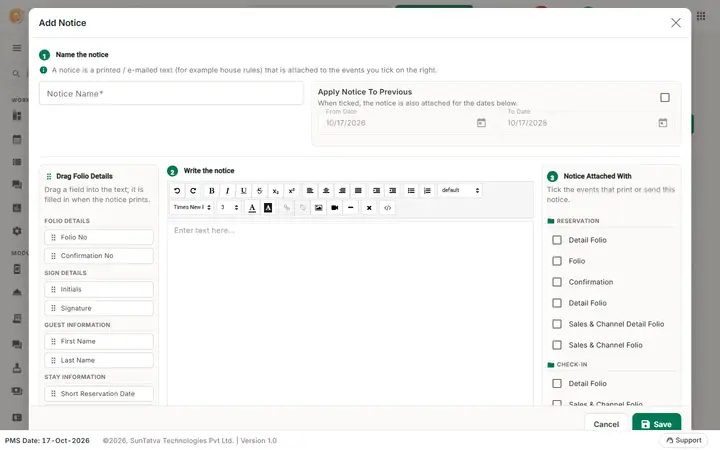
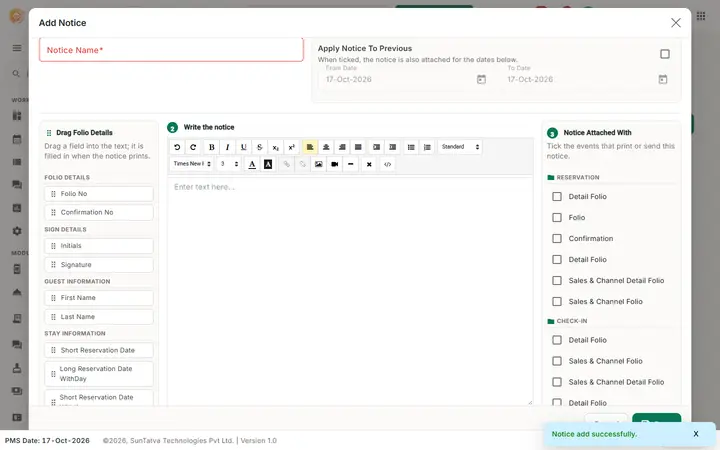
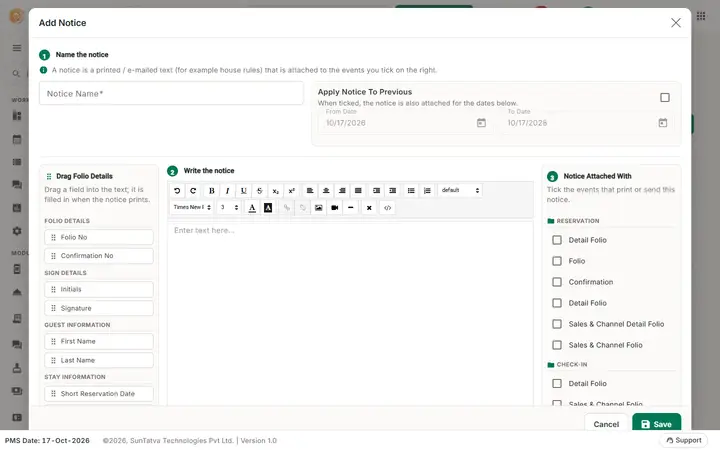
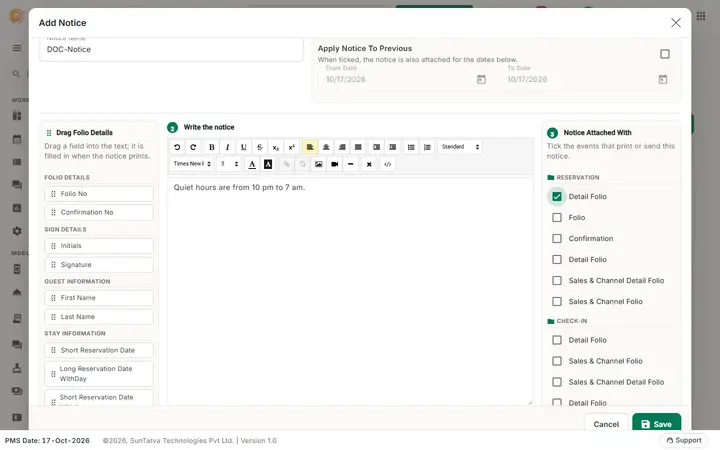
The window is built in three numbered steps: 1 Name the notice ("A notice is a printed / e-mailed text (for example house rules) that is attached to the events you tick on the right."), 2 Write the notice (the editor, with the Drag Folio Details panel beside it: "Drag a field into the text; it is filled in when the notice prints.") and 3 Notice Attached With ("Tick the events that print or send this notice.").
| Field | Meaning | Rules |
|---|---|---|
| Notice Name | Name. | Required, limited length. |
| Apply Notice To Previous (tick box, hint "When ticked, the notice is also attached for the dates below.") with From Date and To Date | Makes the notice valid only between two dates. | Dates are disabled until you tick the box. From Date cannot be before the PMS date; To Date cannot be before From Date. |
| Drag Folio Details panel | Fields you can drag into the text: Folio Details (Folio No, Confirmation No), Sign Details (Initials, Signature), Guest Information (First Name, Last Name), Stay Information (reservation, arrival and departure dates in short / long / with-time forms, No of Nights, Total Adult, Total Child, Total Pet), Room Information (Room No, Room Type, Smoking, Non Smoking, Pet Friendly, Handicapped), Charges Payment Information (Total Rental, Total Tax, Total OtherCharge, Total SaleTax, Total Discount, Total Authorization, Total Amount, Balance Amount), PMS Date Details (Short PMS Date, Long PMS Date WithDay). | Drag an item into the text box; it becomes a tag replaced by the real value when printed. |
| Text editor | Rich-text editor (bold, lists, fonts...). | Placeholder "Enter text here...". |
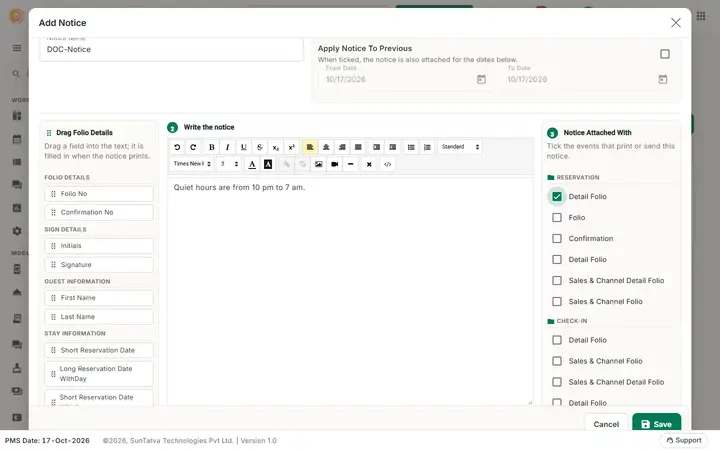
| Notice Attached With | Check boxes grouped by category (for example reservation, check-in, folio documents). | The notice prints only where its box is ticked. |
| Save, Cancel, Delete | Delete only when editing. |
How to add a notice
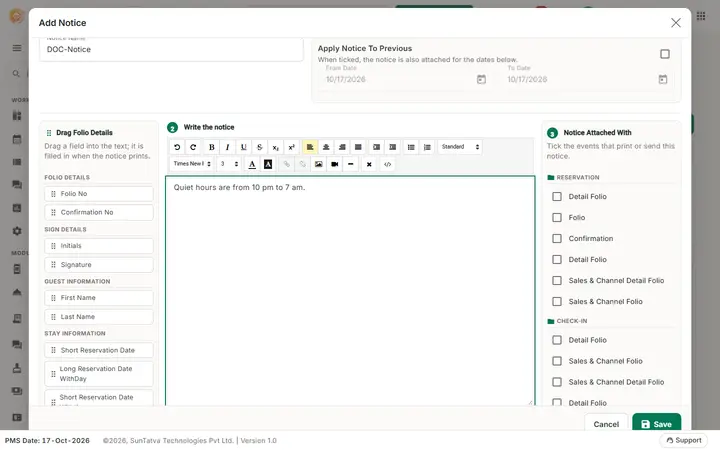
- Click New Notice.
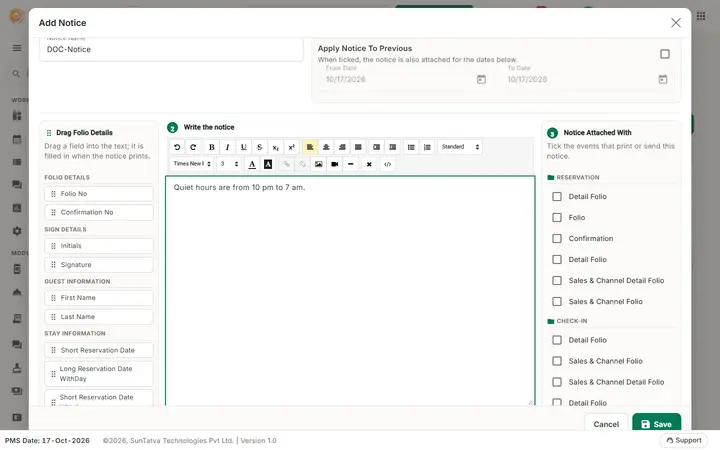
- Enter Notice Name.
- Optional: tick Apply Notice To Previous and set From Date and To Date.
- Type the text; drag the fields you need into it.
- In Notice Attached With tick every document that must show it.
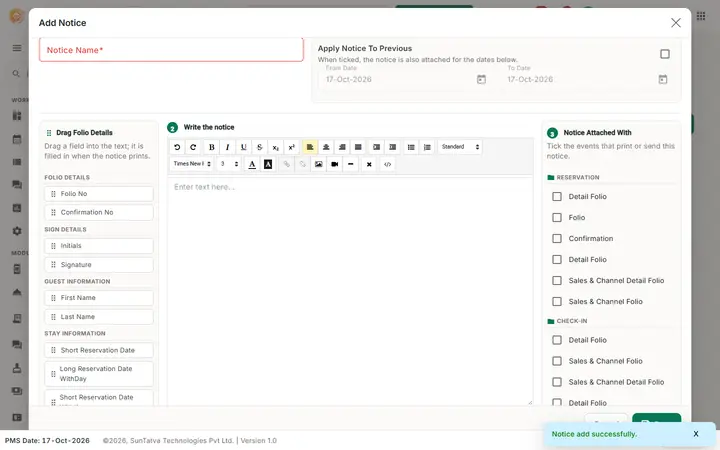
- Click Save. Message: Notice add successfully.
Rules when attaching
- One document can carry only one always-on notice. If you tick a document that already has a notice without dates, PMS asks Are you sure want to replace this Notice; Yes moves it to this notice, No unticks it.
- With dates, ranges must not overlap an existing dated notice on the same document: PMS shows Event apply on other notice for selected date range. and unticks the box.
How to edit
Click the notice name, change text, dates or attachments and Save. Message: Notice update successfully.
How to delete
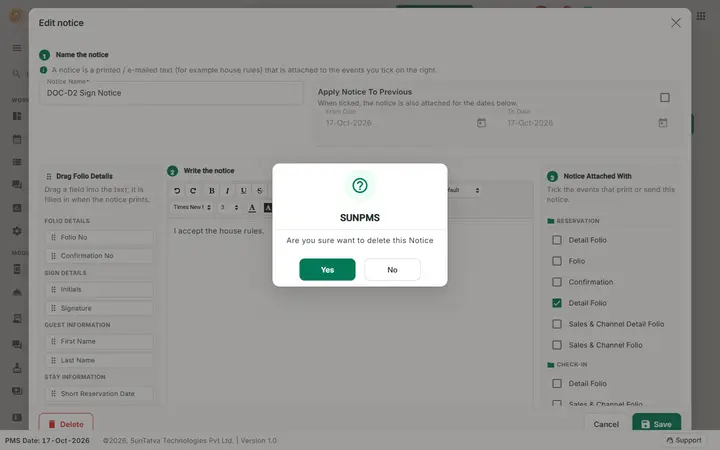
Open the notice, Delete, confirm Are you sure want to delete this Notice. Message: Notice delete successfully.
Deleting a notice also removes it from every event it was attached to (for example Signpad Notice), so nothing keeps pointing at it and the Notice screen no longer asks to replace it. If it was the signing notice and no other notice is attached to Signpad Notice, guests sign without text until you attach another one; the online guest page then falls back to the notice of Online Self Check-In. Signatures already given keep the text they were signed against.
What happens behind the scenes
When a document is printed or e-mailed, PMS finds the notice attached to it for the current date, replaces the tags with the guest's values and appends it. The check-in screen also lists the notices that apply to the stay.
Messages you may see
| Message (exact text) | Why it appears | What to do |
|---|---|---|
| Please enter Notice Name. | Name empty. | Type it. |
| To date must be greater than from date. | From is after To. | Fix the dates. |
| Event apply on other notice for selected date range. | Overlapping dated notice. | Pick another range or untick. |
| Are you sure want to replace this Notice | The document already has an undated notice. | Yes or No. |
| Record Already Exist. | Same notice name. | Rename. |
Tips and FAQ
- Q: My dragged field prints as text. A: Drop it inside the editor, not outside, so it becomes a tag.
- Q: How do I run a notice only in December? A: Tick Apply Notice To Previous and set the From / To Date.
Signature and notice (one flow)
The notice the guest signs is the notice attached to the event Signpad Notice (category SignaturePad). It is the only notice text used for signing on the folio screen, in a group, on a signature pad, on a phone or tablet (SunHardware has no notice of its own) and in online check-in. Date ranges choose the active one. Editing the text later does not change signatures already given: the text signed is stored with each signature. If nothing is attached to Signpad Notice, guests sign without terms. See Signature and notice flow.
On the folio. A saved notice that is attached to Folio or Detail Folio prints at the end of the printed folio, with the folio fields (Folio No, Guest name, dates) filled in; a notice that includes the Signature field shows the signature box.
Screenshots