Housekeeping Mobile - Room detail
On this page
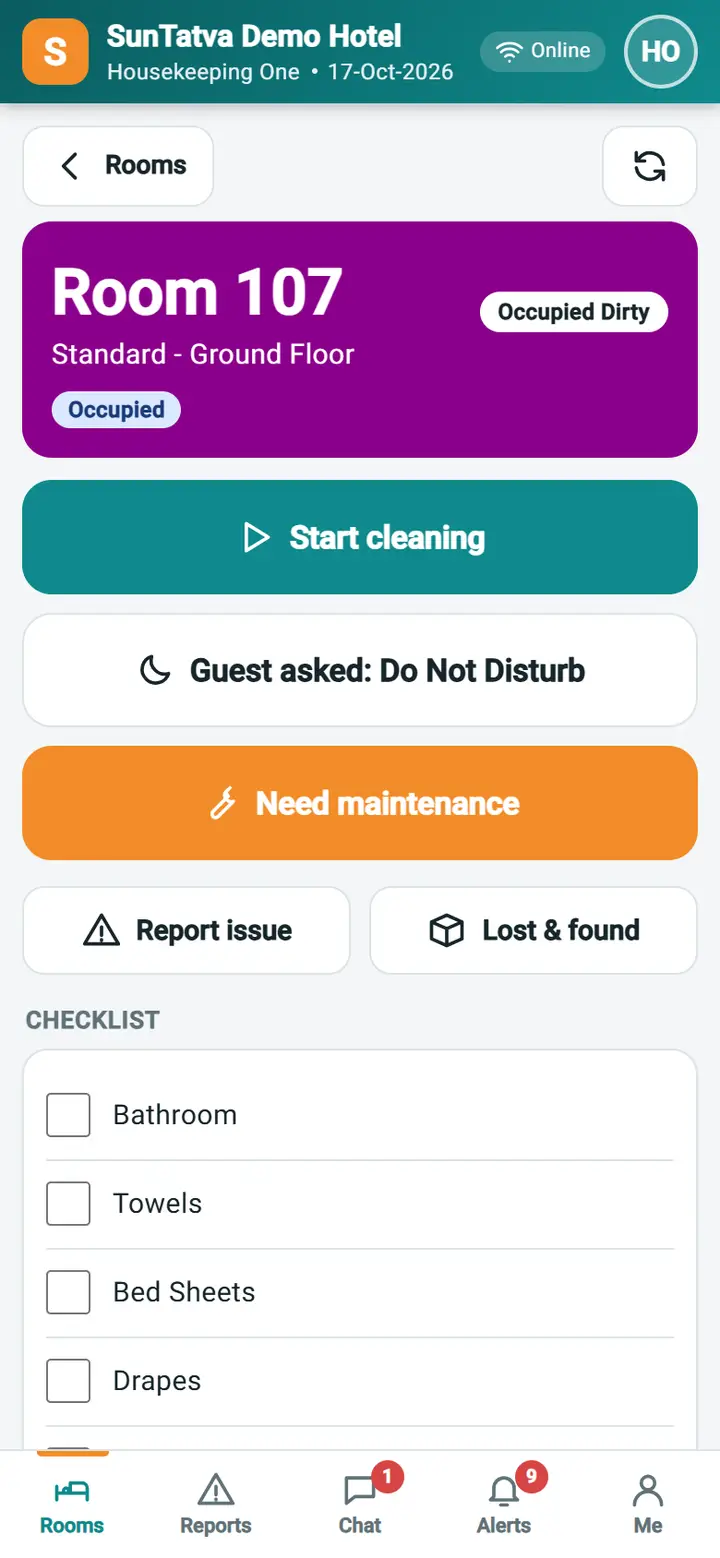
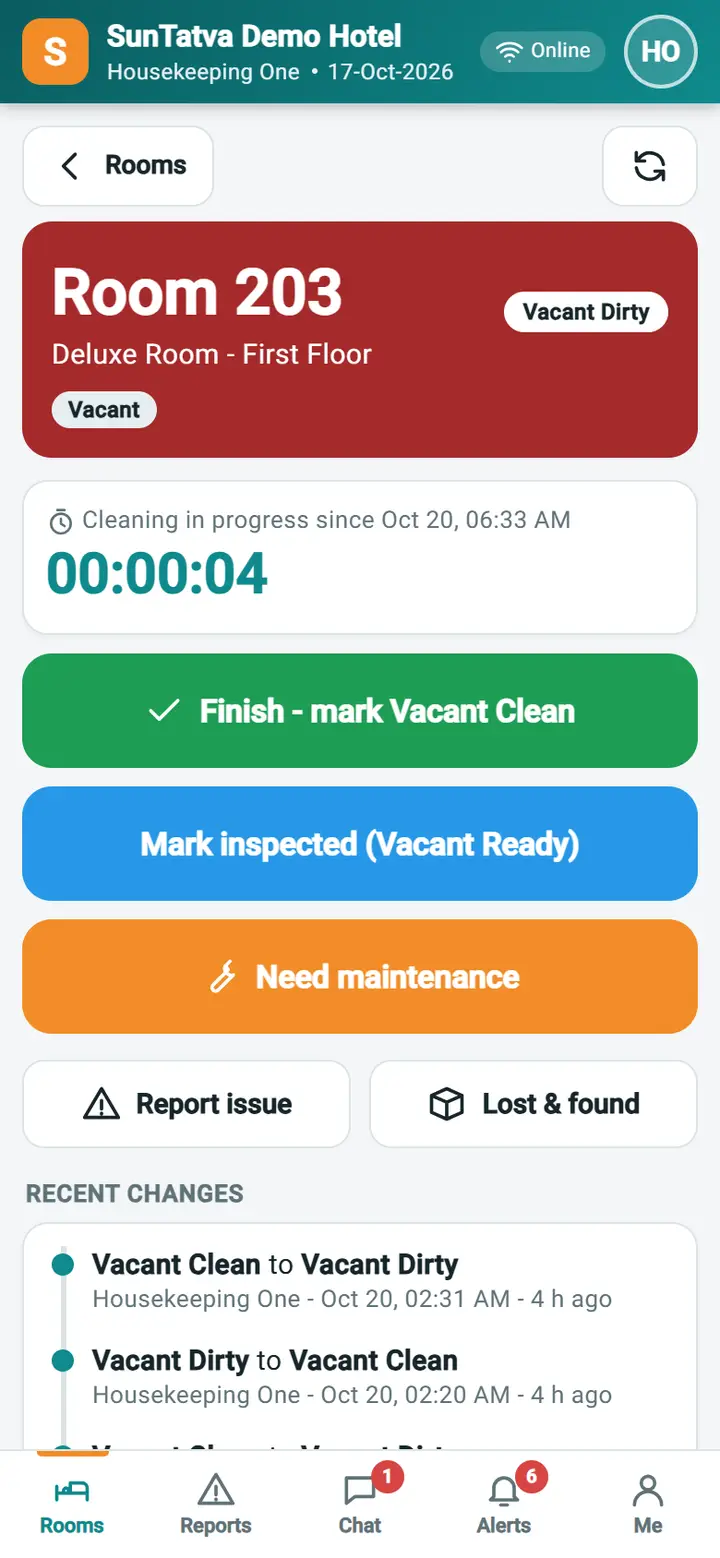
Everything about one room for the person standing in it: the status, big buttons for what can be done next, the cleaning timer, the checklist, open issues and recent changes.
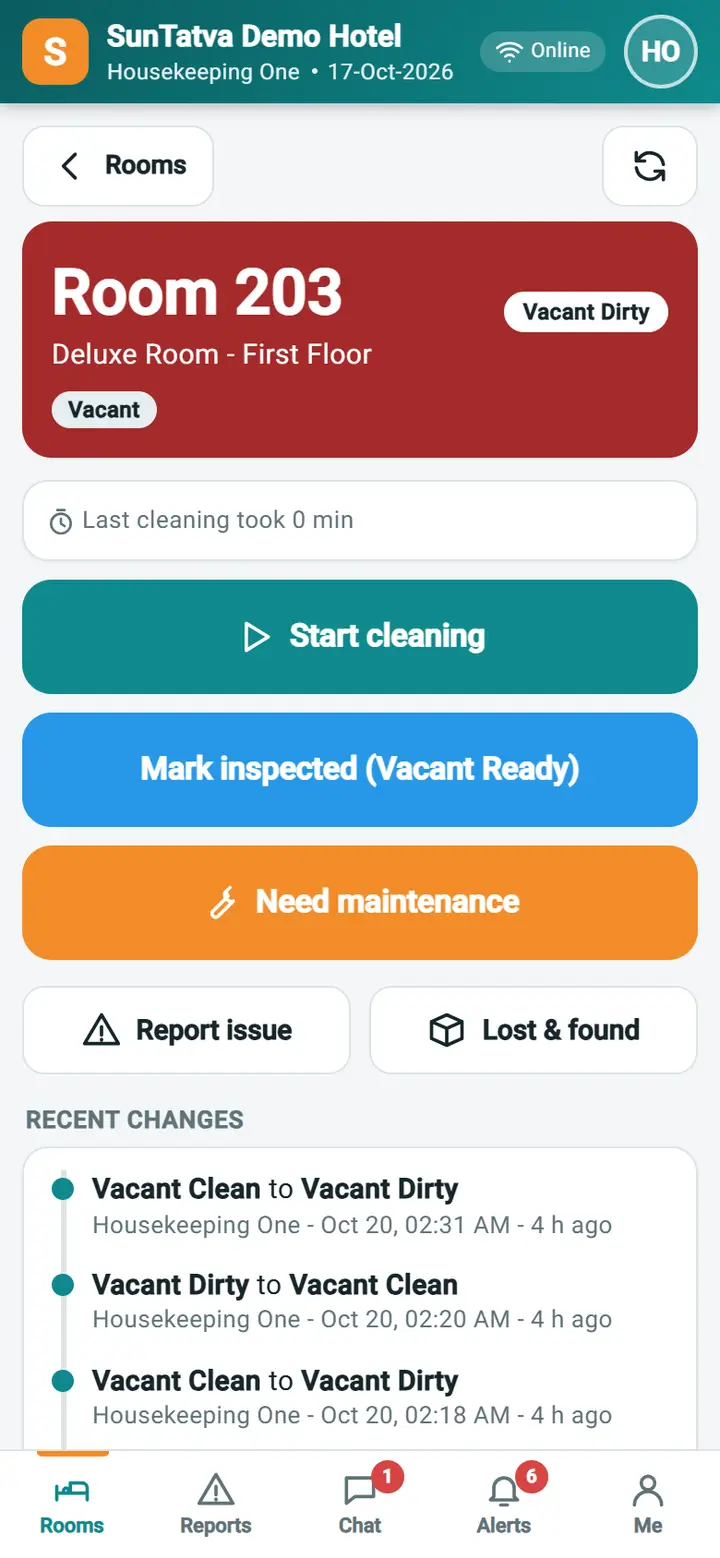
Screen layout
| Item | Meaning |
|---|---|
| Coloured header | Room number, type, floor, current status, tags (Occupied / Vacant, Departure today, Arrival today, Do not disturb, Priority: same-day turnover) and the front-desk note |
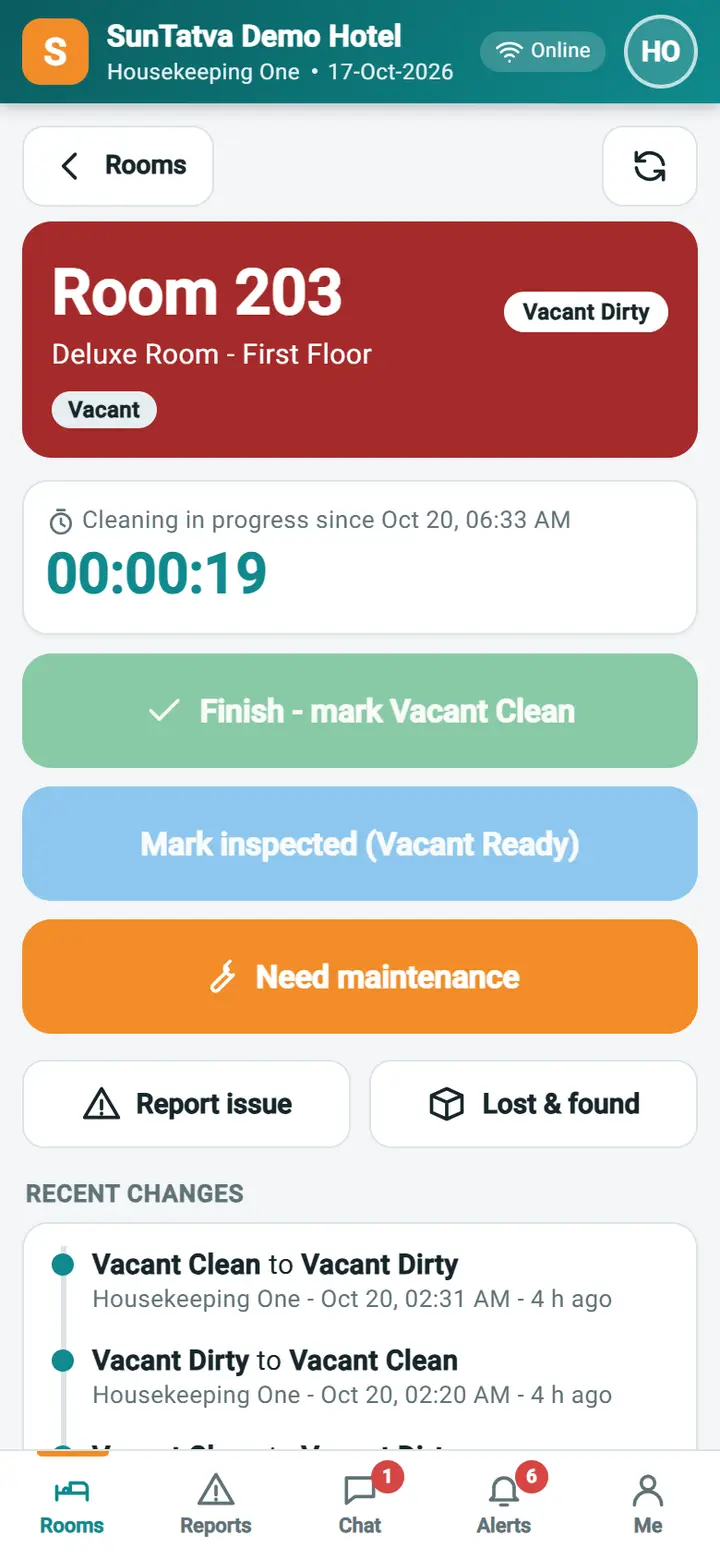
| Cleaning card | While cleaning: start time and a running hh:mm:ss timer. After cleaning: how long the last cleaning took |
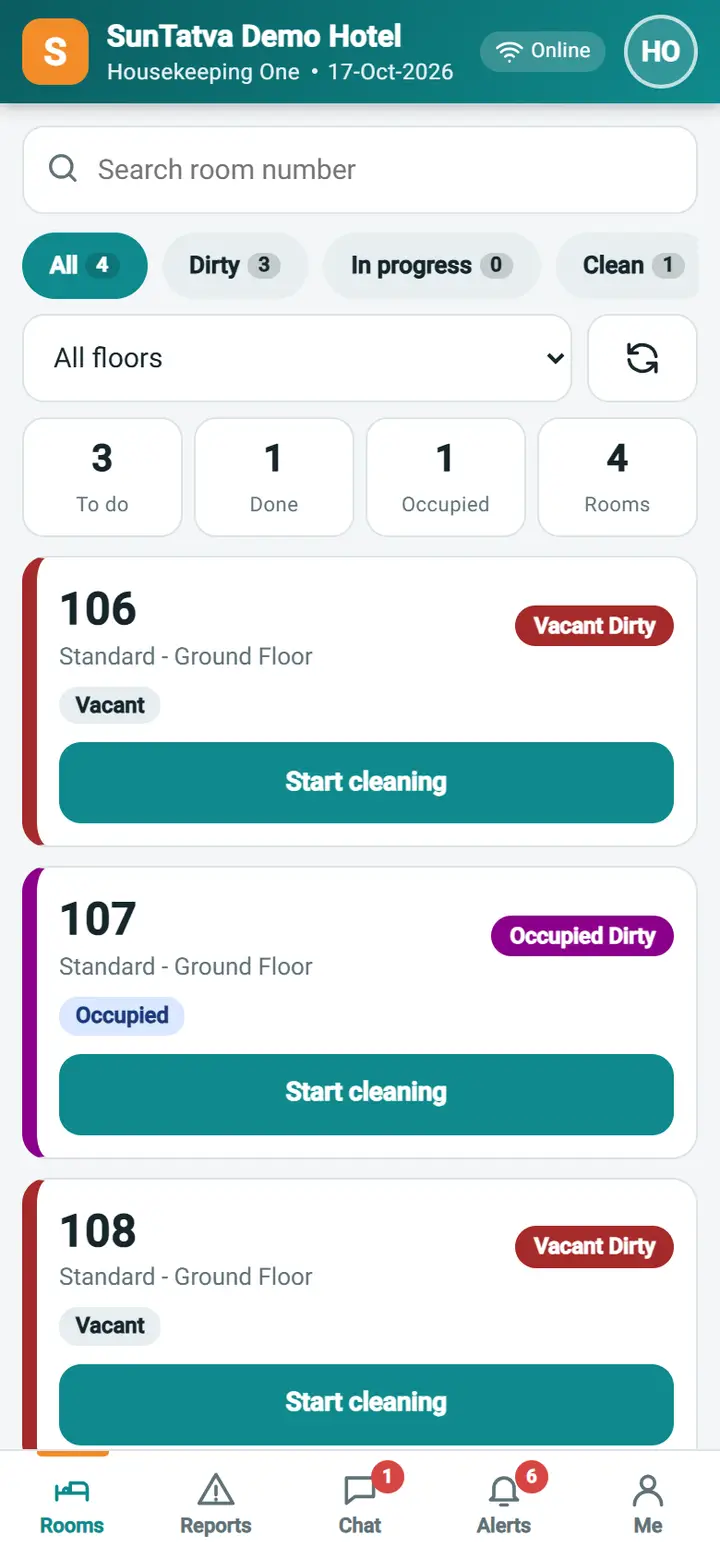
| Start cleaning | Starts the timer for a dirty room |
| Finish - mark Vacant Clean (or Occupied Clean) | Stops the timer and sets the clean status in one step |
| Mark inspected (Vacant Ready), Set Vacant Dirty and similar buttons | One per status the desk rules allow next, coloured like the status. They ask for confirmation and an optional remark |
| Guest asked: Do Not Disturb / Clear Do Not Disturb | Only for occupied rooms; sets or clears the DND of the stay |
| Need maintenance | Opens Report an issue for this room with the category Maintenance and "Room cannot be sold" switched on |
| Report issue, Lost & found | Open the report form for this room (Lost & found pre-selects the category Lost item) |
| Checklist | The housekeeping tasks of the room; tick each when done |
| Open issues in this room | Reports not yet closed; tap to open |
| Recent changes | Who changed the status, from what to what, when, and the remark |
How to clean a room
- Open the room and tap Start cleaning. The timer runs.
- Tick the checklist items as you go.
- Tap Finish - mark Vacant Clean. The room is clean and the duration is stored.
- If the hotel requires inspection, a supervisor later sets the room to Vacant Ready with Mark inspected (Vacant Ready); otherwise the button is offered to you as well.
How to change a status with a remark
- Tap the status button, for example Mark inspected (Vacant Ready) or Set Vacant Dirty.
- In the box "Set room
to ?" type a remark (optional; required only where shown) and tap Confirm, or Cancel.
Rules
- Allowed moves are the same as on the desk: Vacant Dirty to Vacant Clean or Vacant Ready; Vacant Clean to Vacant Ready or Vacant Dirty; Vacant Ready to Vacant Dirty; Occupied Dirty to Occupied Clean; Occupied Clean to Occupied Dirty. Blocked / out-of-order rooms are read-only.
- If Rooms need inspection is on, only a supervisor sees Mark inspected (Vacant Ready); a housekeeper sees only the other buttons (checked on the demo hotel).
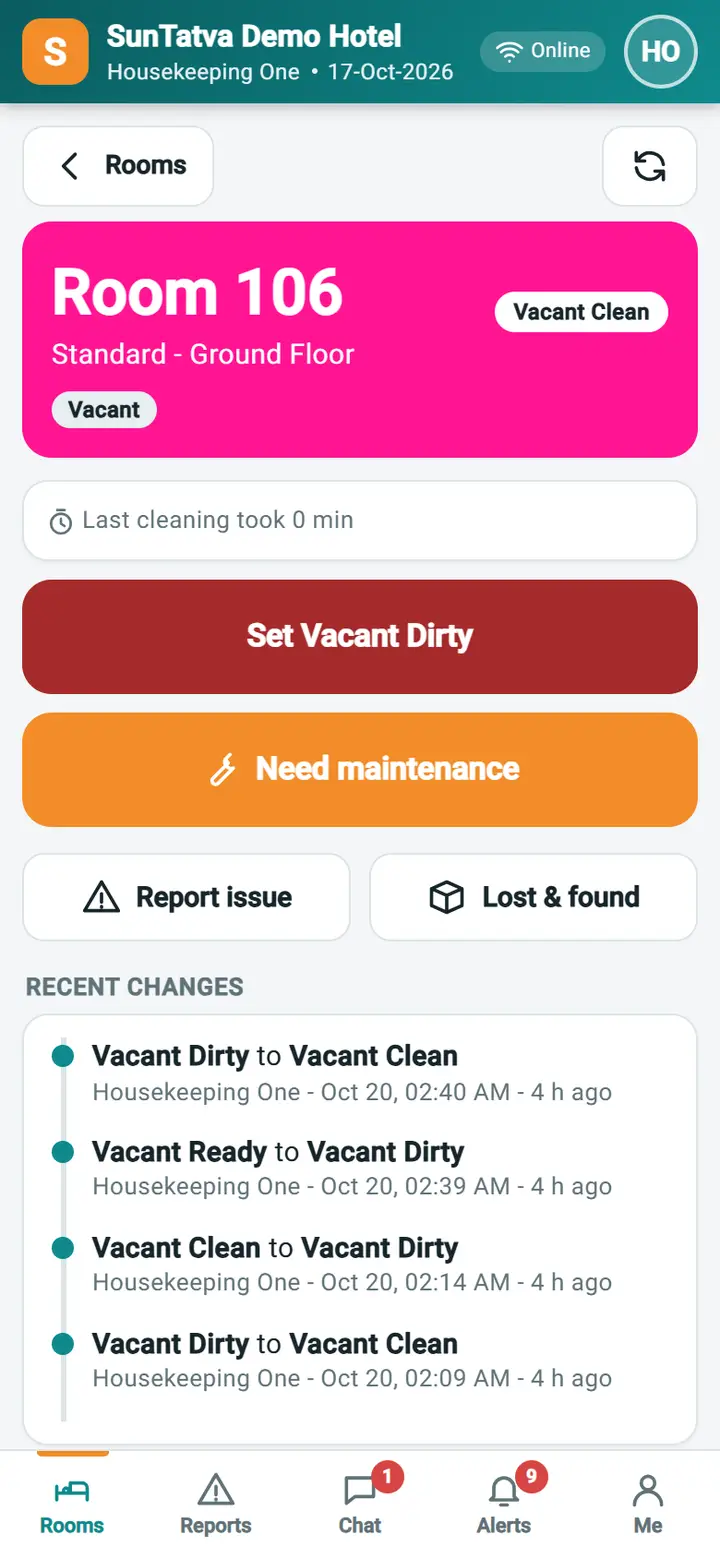
- Read-only banner: "Your account cannot change room status." (missing privilege) or "This room is read-only for you (not assigned to you, or not today)."
What happens behind the scenes
Status changes, the audit trail, the checklist and the cleaning duration are stored in the hotel database; the desk sees the same status. Open issues come from reports.
Messages you may see
| Message | Why | What to do |
|---|---|---|
| Cleaning started. The timer is running. | Start cleaning worked | Clean the room |
| Room marked |
The change was saved | None |
| Do Not Disturb set. / Do Not Disturb cleared. | DND changed | None |
| Room status changed meanwhile, refresh | The room changed since you opened it | Tap refresh |
| Only today's rooms can be changed | Hotel date differs | Contact the supervisor |
Screenshots