Housekeeping Mobile - Rooms (My rooms)
On this page
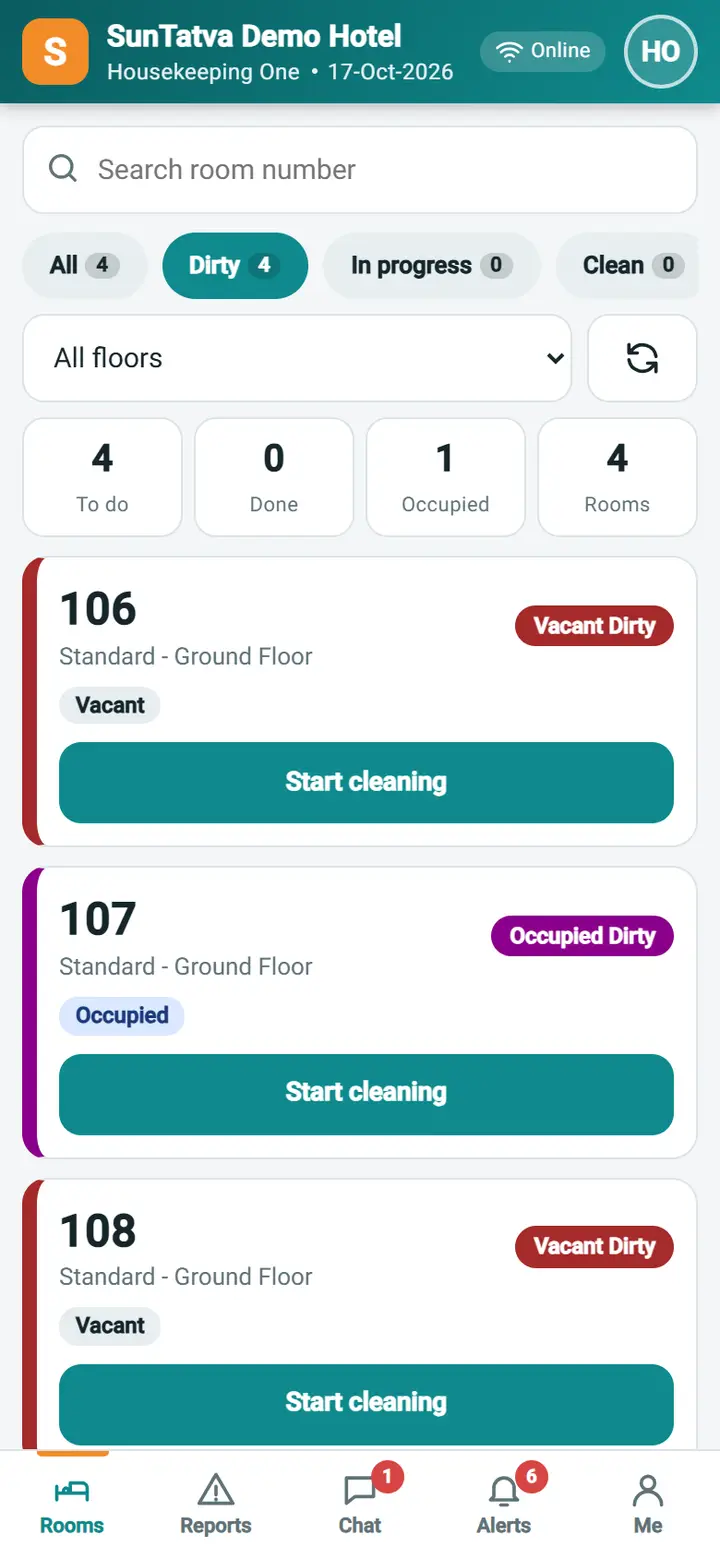
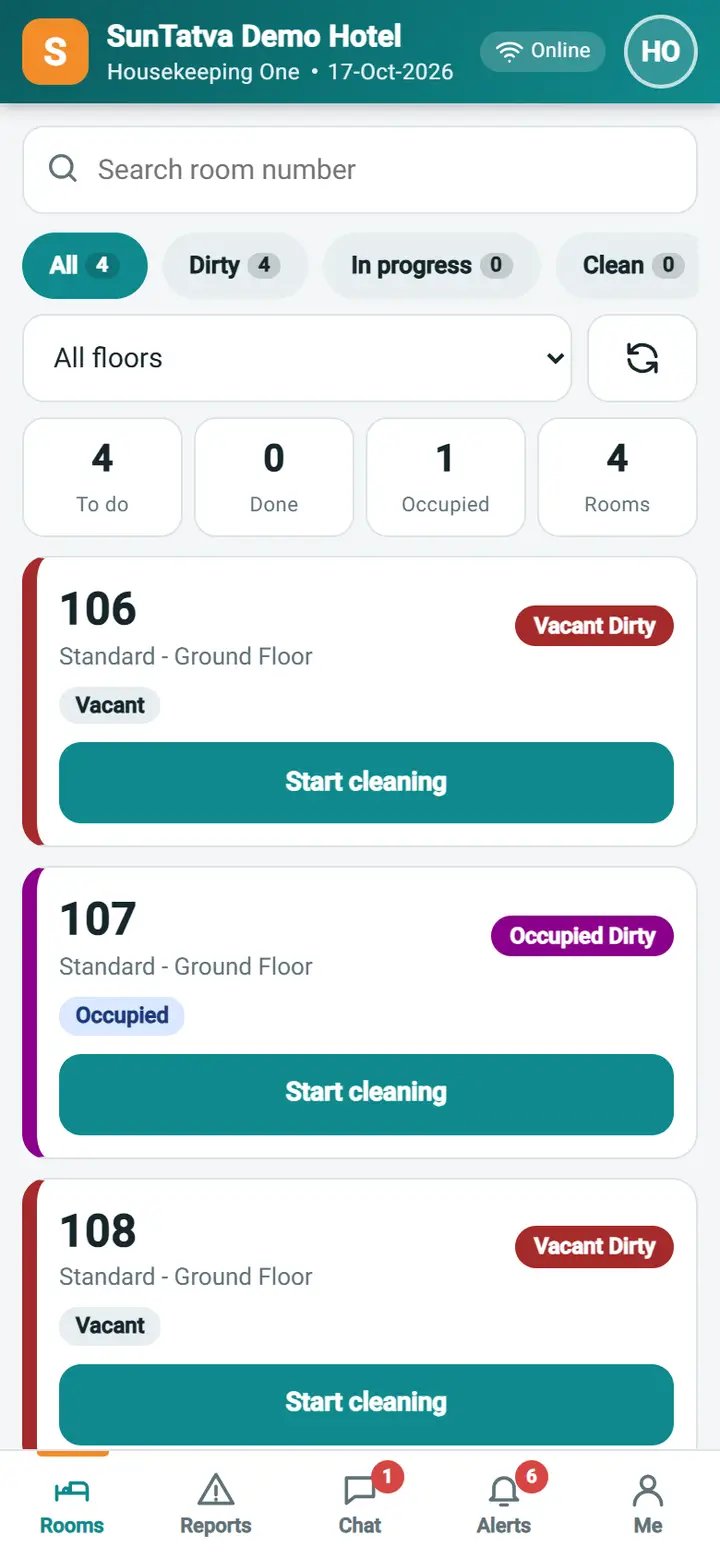
The home screen of the housekeeper. It lists today's rooms with colour, status and what is happening in the room, so the attendant knows where to go next.
Before you start
- The user has the role Housekeeper (Mobile) (or the supervisor role) and belongs to a housekeeping group with rooms assigned.
- If the user has no rooms assigned but may see all rooms, the list opens on all rooms and says "No rooms are assigned to you today, so all rooms are shown."
Screen layout
| Item | Meaning |
|---|---|
| Header | Hotel name, your name, the hotel date, Online / Offline indicator, your initials (opens Me) |
| My rooms / All rooms switch | Shown only with the privilege HK Mobile - Assign / See All Rooms |
| Search room number | Filters the list as you type |
| Chips All, Dirty, In progress, Clean, Inspected, DND, Out of order | Filter by state; the number is how many rooms match. Dirty = Vacant Dirty or Occupied Dirty not yet started; In progress = cleaning started; Clean = Vacant Clean or Occupied Clean; Inspected = Vacant Ready |
| Floor list | Appears when the rooms are on more than one floor |
| Summary tiles | To do, Done, Occupied, Rooms |
| Room card | Room number, room type and floor, status chip in the status colour, tags Vacant / Occupied, Departure today, Arrival today, DND, Priority (same-day turnover), open issues, Cleaning..., and the front-desk housekeeping note |
| Start cleaning / Mark clean on the card | Quick action for dirty rooms; Mark clean appears once cleaning has started |
How to clean a room from the list
- Tap Start cleaning on the card (or open the room first). The card shows Cleaning....
- When finished tap Mark clean. A Vacant Dirty room becomes Vacant Clean; an Occupied Dirty room becomes Occupied Clean.
- Tap the card to open Room detail for other statuses, a remark or a problem report.
How to refresh, search and filter
- Pull the list down at the top, or use the refresh button next to the floor list. The list also refreshes by itself every 45 seconds.
- Type part of a room number in Search room number.
- Tap a chip; tap All to clear.
What happens behind the scenes
The change is applied to the hotel's real room status, so Reception, the Room View and the Housekeeping screens show it immediately and the audit trail names the housekeeper. Only today's rooms can be changed; the screen shows other dates read-only.
Messages you may see
| Message | Why | What to do |
|---|---|---|
| No rooms are assigned to you for today. Ask your supervisor to assign rooms. | The user is not in a housekeeping group with rooms | Assign rooms in Housekeeping Room Assignment |
| Nothing matches this filter. | Search or chip hides all rooms | Clear the search, tap All |
| Room status changed meanwhile, refresh | Someone else changed the room | Pull to refresh and try again |
| Not your room | The room is not assigned to this user | Ask the supervisor to assign it |
Tips and FAQ
- Q: Why can't I tap Start cleaning on a clean room? A: The quick action is only offered for dirty rooms.
- Q: Why are there no guest names? A: Housekeeping sees only occupied, departure and arrival flags, for guest privacy.
Screenshots