Import Guest
On this page
Import Guest loads many guest profiles into the guest database from an Excel (.xlsx) file. Use it when you move to SunPMS from another system or when you have a mailing list of past guests. Imported guests can then be found by name on a folio and in Guest Search.
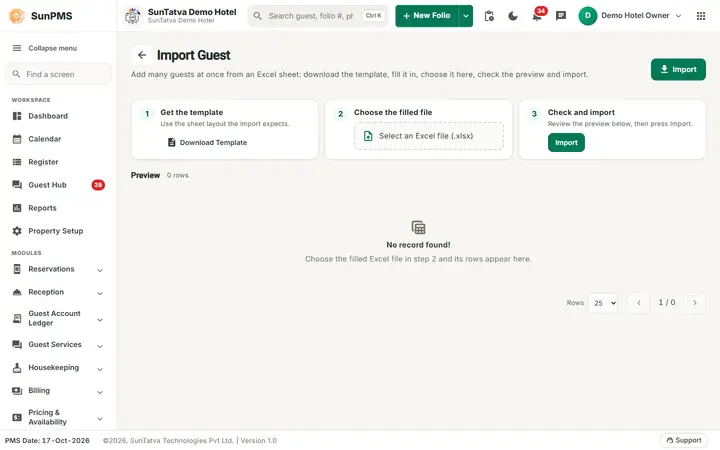
Before you start
- Prepare the file from the template (see below). The column headings must keep their exact names.
- Document types and DNR reasons you use in the file must already exist in the property (Document Type, DNR Reason); otherwise the document or the DNR flag of that row is ignored.
- Check which guest fields your property treats as mandatory (Guest Mandatory Data).
Screen layout
| Element | What it means | Rules |
|---|---|---|
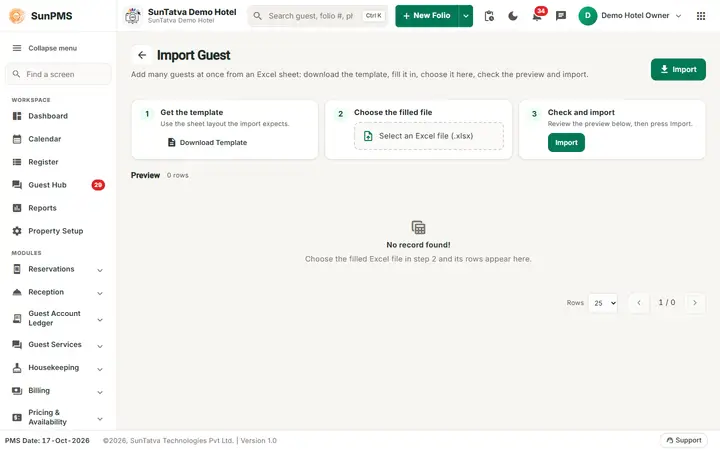
| Step 2 Choose the filled file (a dashed box Select an Excel file (.xlsx)) | Choose the file from your computer. | Only .xlsx (the file box offers.xlsx only). Any other type, such as.csv, is refused with a message and the file is cleared. Only the first sheet is read. |
| Import (in step 3 and at the top right) | Sends the file to the server. | Disabled until a valid file with data is chosen; disabled again after a successful import so the same file is not imported twice. |
| Step 1 Download Template | Downloads Import Guest Template.xlsx with the correct headings. | Headings of fields that are mandatory in Guest Mandatory Data are coloured red; the others are blue. |
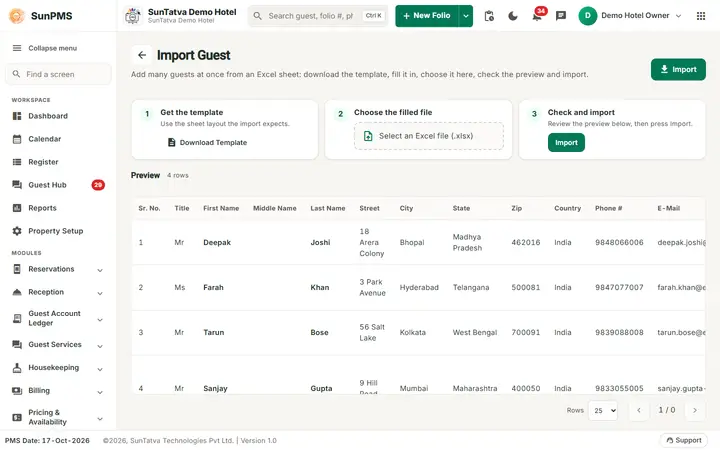
| Preview (with the row count) | Shows the file before you import. Columns: Sr. No., Title, First Name, Middle Name, Last Name, Street, City, State, Zip, Country, Phone #, E-Mail, Gender, Birth Date, Remark, DNR Reason, Company Name, Nationality, Document Type, Document #, Issued By, Issue Place. | Columns not in this list are ignored. Rows that are completely blank are dropped. Empty table shows No record found! (Choose the filled Excel file in step 2 and its rows appear here.). |
| Rows: and arrows | Rows per page and previous / next page (for example 1 / 4). | Page size options follow your property settings. |
How to import guests
- In step 1 click Download Template, open it in Excel and fill one row per guest. Leave the heading row as it is.
- In step 2 click the file box and pick your file. The preview table fills.
- Check the preview. Dates in Birth Date must be real Excel dates.
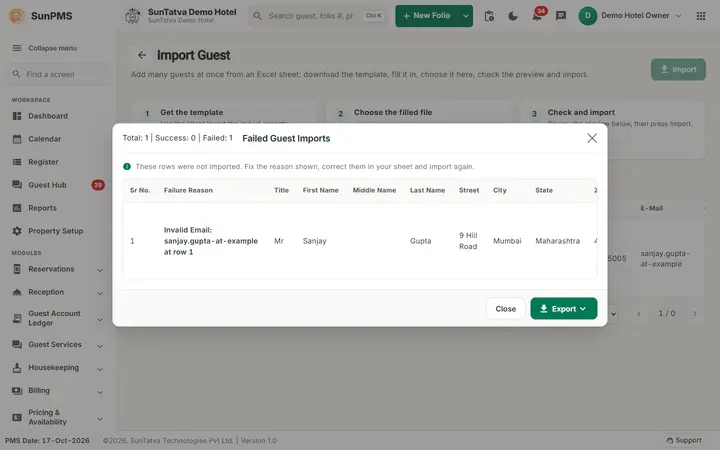
- In step 3 click Import. Result: if every row was accepted you see Guest details imported successfully. If some rows failed, the window Failed Guest Imports opens.
The Failed Guest Imports window
- The title bar shows Total: n | Success: n | Failed: n.
- The table lists each rejected row with Sr No., Failure Reason (in red) and all the columns you supplied.
- Click Export > Excel to download the failed rows as Failed Guest Imports.xlsx, correct them and import that file again. Click Close to leave.
- Rows that were accepted stay imported; fix and re-import only the failed ones, otherwise you create duplicates.
Rules the server applies to each row
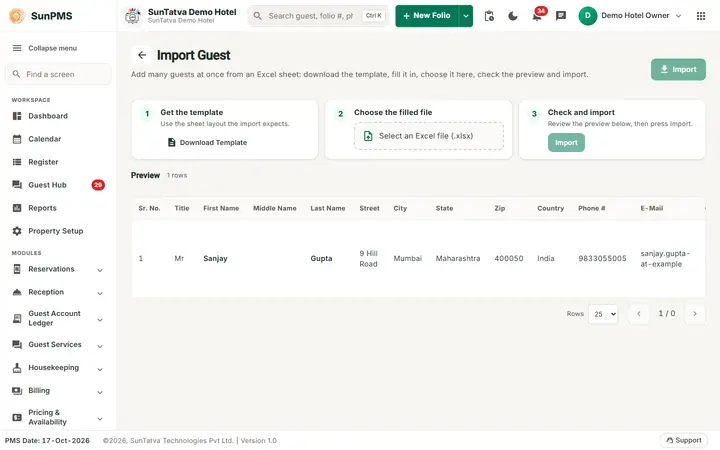
- E-Mail (if given) must look like an address (
name@example.com); otherwise the row fails with Invalid Email:at row . - Gender "Male" or "Female" (any capitals) is stored; anything else is stored as not specified.
- Document Type must match a document type name exactly, and Document # must be filled, for the document to be attached.
- DNR Reason must match a DNR reason text (capitals ignored); the guest is then marked Do Not Rent.
- The mandatory-field check that needs a signature is skipped for imports. Other mandatory fields can still reject a row; the reason is shown in the failed list.
What happens behind the scenes
- Each accepted row creates one guest profile in the property. There is no automatic merge with an existing guest, so importing the same list twice duplicates guests.
- A log of rejected rows is also written on the server for support staff.
Messages you may see
| Message (exact text) | Why it appears | What to do |
|---|---|---|
| Please upload an Excel file (.xlsx). Use Download Template for the correct format. | You chose a file that is not.xlsx (for example.csv or.xls). The file is cleared. The server gives a similar message ("Please upload an Excel file (.xlsx). CSV files are not supported.") if such a file reaches it. | Open the template with Download Template, fill it, save as.xlsx and choose it again. |
| Uploaded file is empty. | No data rows under the headings. | Fill in the template. |
| Please select Guest Details file. | Import clicked with no file. | Choose a file. |
| Guest details imported successfully. | All rows imported. | None. |
| Something went wrong. | The server refused the file. | Check the headings, try the template again, contact support. |
| Invalid Email: |
Failure reason in the failed list. | Correct the e-mail in that row. |
Tips and FAQ
- Q: The Import button is grey. A: No valid file is chosen, or the last import already succeeded. Choose the file again.
- Q: Can I import contacts or companies? A: No, only guests.
- Q: My dates look wrong in the preview. A: Format the Birth Date column as a date in Excel, not as text.
- Q: Is there a size limit? A: The screen shows no limit, but split very large files (several thousand rows) into parts.
Screenshots