
Contact Database
On this page
The Contact Database is a separate address book for people who are not (yet) guests: vendors, travel agents, VIPs, corporate contacts. Each contact has a contact category such as "Vendor" or "Travel agent". Contacts are kept apart from the guest database (Guest Search) so they do not appear when you search for a guest on a folio.
Before you start
- Decide your contact categories. You can create them from this screen with Add Contact Category; a contact cannot be saved without a category.
- Optional: companies, document types and countries are used by the filters, so they should exist in the property.
Screen layout
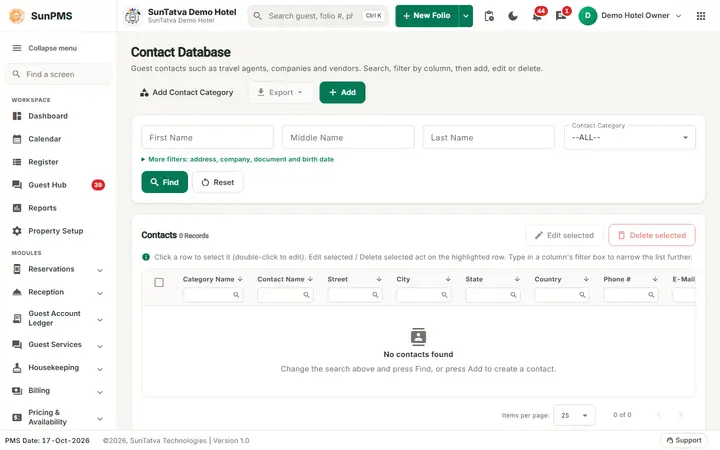
The screen with no contacts yet.
Top of the page (heading Contact Database): the link Add Contact Category, Export (menu PDF and Excel, enabled only when the list has rows) and Add.
Filter card (the first row is always shown; More filters: address, company, document and birth date opens the rest)
| Filter | What it means | Rules |
|---|---|---|
| First Name, Middle Name, Last Name | Part of the contact's name. | Free text. |
| Street, City, State, Zip, Country | Address parts; Country is a list. | |
| Company | Company linked to the contact. | Starts as None. |
| Doc. Type, Doc. # | Identity document type and number. | |
| DOB From with a tick box | Birth date filter; the date is used only when the tick box is on. | Starts on the PMS date, tick box off. |
| Contact Category | Category filter. | Starts as --ALL--. |
| Find | Runs the search. | |
| Reset | Clears every filter, goes back to page 1 and searches again. |
List columns: a tick box (select), Category Name, Contact Name, Street, City, State, Country, Phone #, E-Mail, Birth Date. The tick box in the header selects every row on the page. Column headings sort the list and carry a small filter. The foot of the list shows paging.
Contacts bar (above the list, with the record count): Edit selected and Delete selected (enabled only when the list has rows). A help line explains: click a row to select it (double-click to edit); the column filter boxes narrow the list further. On a phone the rows become cards.
How to add a contact
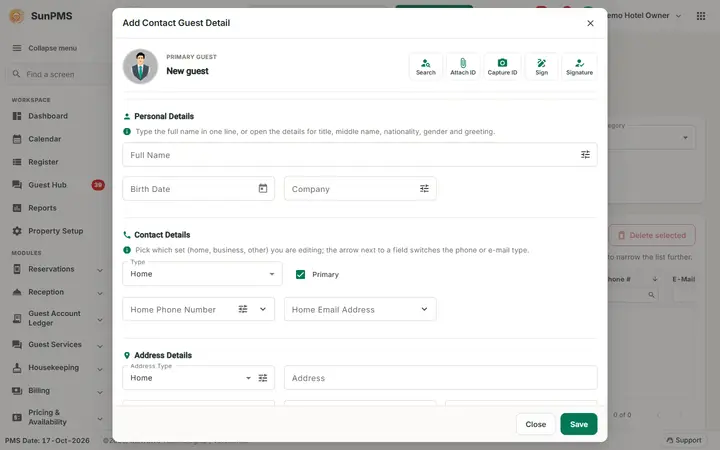
The window opened by Add.
- Click Add (top right). The window Add Contact Guest Detail opens. It is the same guest form used on a folio (name, address, phone, e-mail, document, company and so on, see Guest details and documents) with a Contact Category choice.
- Fill in the details.
- Click Save. Close leaves without saving. Result: the contact is saved and appears in the list after the next Find.
How to edit a contact
- Tick the row you want (one row only).
- Click Edit selected (or double-click the row). The window title is Edit Contact Guest Detail.
- Change the details and click Save. If nothing is ticked the message Please select contact guest. appears.
How to delete contacts
- Tick one or more rows.
- Click Delete selected and answer Yes to Are you sure you want to permanently delete the selected record(s)?. Result: the contacts are removed for good and the list refreshes. With nothing ticked: Please select item(s) to delete!.
How to manage contact categories
- Click Add Contact Category. The window Contact Category lists existing categories with columns Short Name, Contact Category Name, Description and edit and delete icons.
- Click Add Contact Category inside the window to add one: fields Short Name, Category Name (shown as Contact Category Name in the list) and Description.
- Click Save (stay in the window) or Save & Close.
- To change a category click its pencil icon; to remove it click the bin icon.
How to export
Click Export and choose PDF or Excel. The file contains the columns shown in the list for the current filters, all pages.
What happens behind the scenes
- Contacts are stored in their own table. They are not guests, have no folio and are not counted in guest reports.
- A category that still has contacts cannot be deleted.
Messages you may see
| Message (exact text) | Why it appears | What to do |
|---|---|---|
| Please select contact guest. | Edit selected with no row selected. | Tick one row. |
| Please select item(s) to delete! | Delete selected with no row ticked. | Tick rows first. |
| Are you sure you want to permanently delete the selected record(s)? | Delete confirmation. | Yes or No. |
| Please enter Short Name. | Category Short Name empty. | Enter it. |
| Please enter Contact Category Name. | Category Name empty. | Enter it. |
| Category Added Successfully / Category Updated Successfully | Category saved. | None. |
| Contact Category deleted successfully. | Category removed. | None. |
| ContactCategory(c) |
Contacts still use the category. | Move or delete those contacts first. |
Tips and FAQ
- Q: I added a contact and it is not in the list. A: Click Find to refresh, and check the Contact Category filter is --ALL--.
- Q: Can I turn a contact into a guest? A: No. Create the guest on a folio or import it (Import Guest).
- Q: Can I import contacts from Excel? A: The import screen loads guests, not contacts.