Lost & Found
On this page
Lost & Found is the property's register of items guests say they lost (Lost Item tab) and items staff found (Found Item tab), with the room where it happened, who reported or claimed it, and whether the item was returned or discarded. Housekeeping adds found items; the front desk adds lost-item complaints and closes the case when the item goes back to the guest.
Before you start
- Buildings, floors and rooms exist (Property Configuration); they fill the Building, Floor and Room drop-downs. Rooms are listed only when active.
- You can open the Guest menu. No other privilege is checked on this screen.
Screen layout
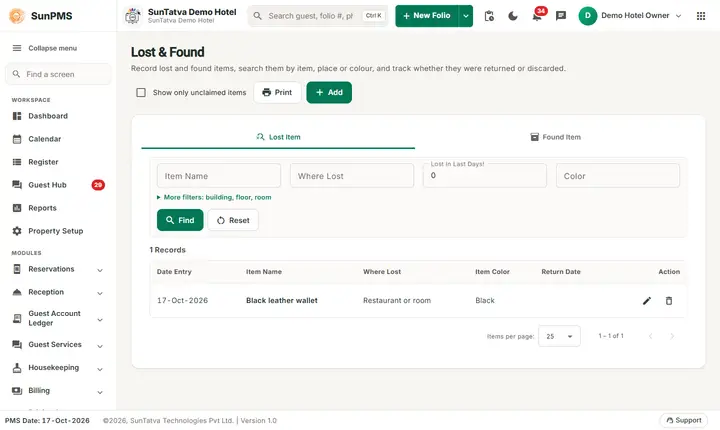
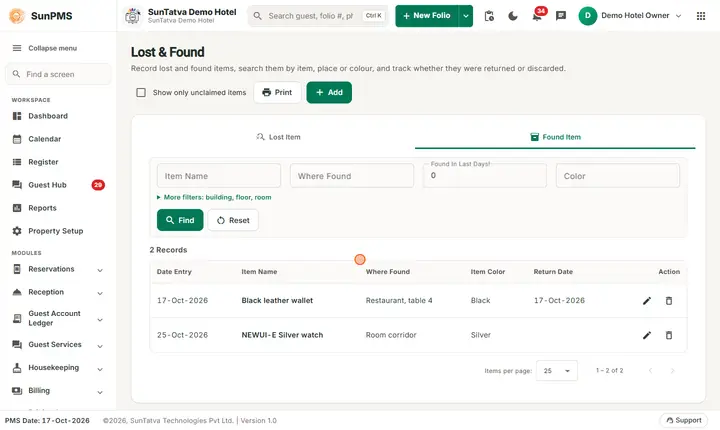
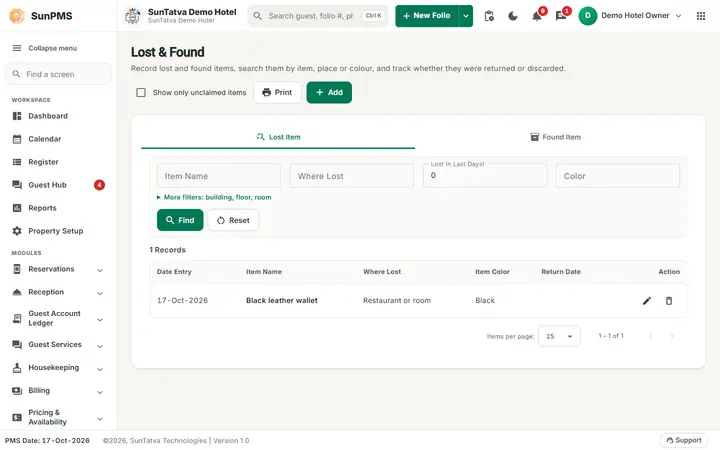
At the top right of the page: the tick box Show only unclaimed items (hides items that already have a Return By or Discard By), Print and Add. Below them two tabs, Lost Item and Found Item. Each tab has the same search row and its own list. The text in brackets is used on the Found tab.
| Filter / button | What it means | Rules |
|---|---|---|
| Item Name | Part of the item name. | Free text. |
| Where Lost (Where Found) | Part of the place description. | Free text. |
| Lost In Last Days! (Found In Last Days!) | Only items entered in the last N days. | Whole numbers only, up to 9 digits. 0 means no limit. |
| Color | Item colour. | Free text. |
| More filters: building, floor, room (a link under the search row) | Opens Building, Floor, Room to narrow by location. Choosing a building loads its floors; choosing a floor loads its rooms. | Optional. |
| Find | Runs the search with the filters. | |
| Reset | Clears the filters of the current tab. |
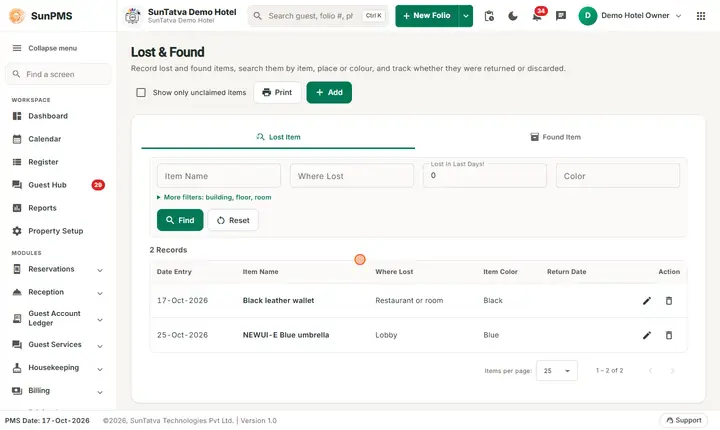
List columns: Action (edit pencil, delete bin), Date Entry, Item Name, Where Lost / Where Found, Item Color, Return Date. Under the list: the number of Records and the page selector. Click a row to highlight it.
The list shows the Records count and an Items per page selector with the page arrows. On a phone the rows become cards with Edit and Delete buttons.
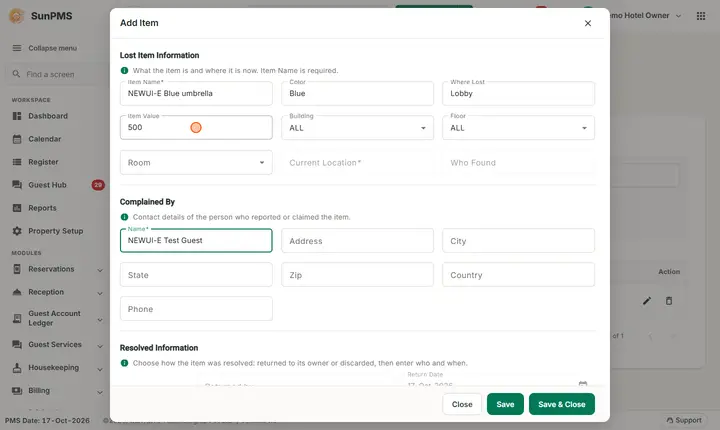
The Add / Edit window
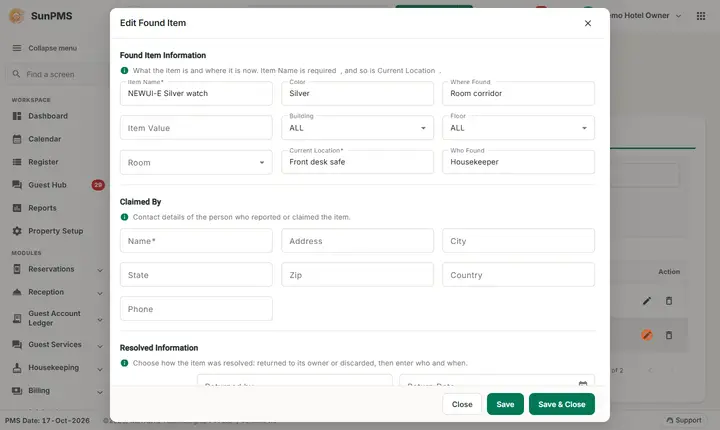
The title is Add Item, Edit Lost Item or Edit Found Item.
| Section / field | What it means | Rules |
|---|---|---|
| Section Lost Item Information / Found Item Information | The item itself. | |
| Item Name | What the item is. | Required. |
| Color | Colour. | Optional. |
| Where Lost / Where Found | Place description. | Optional. |
| Item Value | Estimated value. | Free text. |
| Building, Floor, Room | Where the item was lost or found. | Optional. |
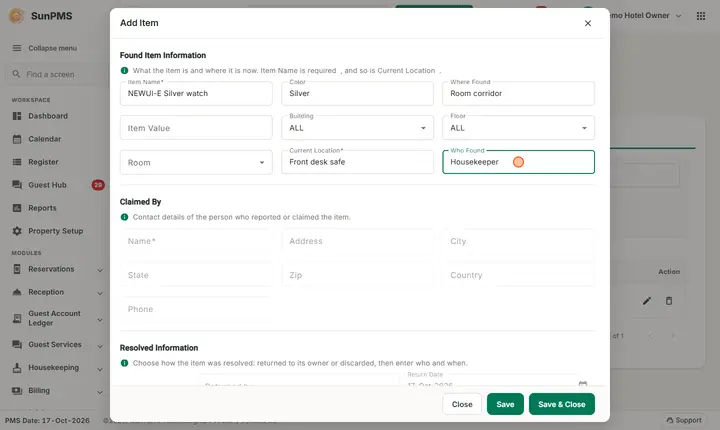
| Current Location | Where the found item is kept now (for example "Front desk safe"). | Required for found items. Disabled on the Lost tab. |
| Who Found | Staff member who found it. | Disabled on the Lost tab. |
| Section Complained By (lost) / Claimed By (found) | The guest. Fields Name, Address, City, State, Zip, Country, Phone. | Name required for lost items. For a new found item these fields are disabled; they open when you edit the item (when somebody claims it). |
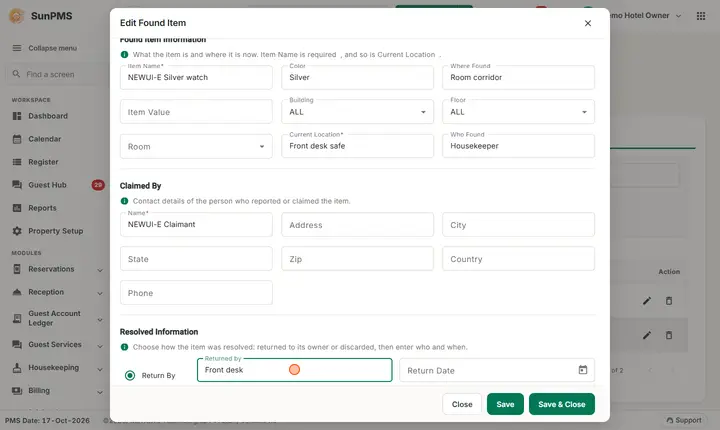
| Section Resolved Information | How the case ended: Return By (name box Returned by and Return Date) or Discard By (name box Discarded by and Discard Date). | Choose one option; the other pair is disabled. Dates default to the PMS date. Disabled until you edit an existing item. |
| Save | Saves and keeps the window open with cleared fields for the next item. | |
| Save & Close | Saves and closes the window. | |
| Close | Closes without saving. |
How to record a lost item
- Open the Lost Item tab and click Add.
- Enter Item Name, Color, Where Lost, Item Value and, if known, the room.
- In Complained By enter the guest Name and contact details.
- Click Save & Close. Result: Lost data saved and the item appears in the list.
How to record a found item
- Open the Found Item tab and click Add.
- Enter Item Name, Color, Where Found, the room, Current Location and Who Found.
- Click Save & Close. Result: Found data saved.
How to close a case (item returned or discarded)
- Find the item (use Find) and click the pencil.
- Fill Claimed By (found items) with the guest's details.
- In Resolved Information choose Return By, type who collected it and check Return Date; or choose Discard By with Discard Date.
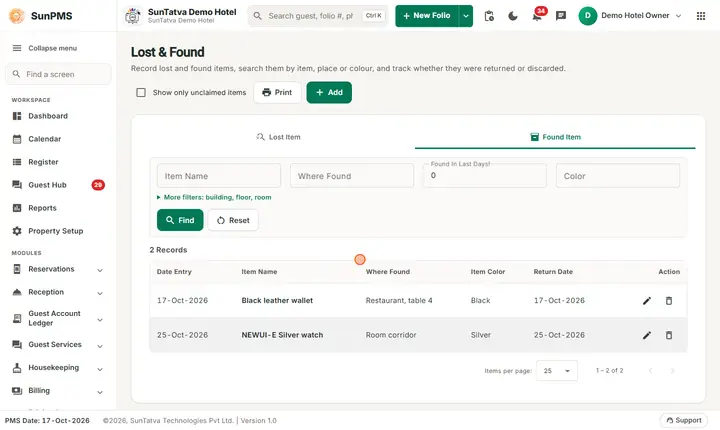
- Click Save & Close. Result: Lost data updated or Found data updated; the item now shows its Return Date and disappears from Show only unclaimed items.
How to edit, delete, search and print
- Edit: click the pencil, change fields, Save & Close.
- Delete: click the bin and answer Yes to Are you sure you want to delete this?. Result: Lost data deleted or Found data deleted.
- Search: set filters and click Find; Reset to start again.
- Print: click Print (enabled when the list has rows). A PDF of the items that match the current filters opens in a new tab; allow pop-ups.
What happens behind the scenes
- Entries belong to the property only; they are not linked to a folio or housekeeping task.
- Deleting removes the record from the list for everyone.
Messages you may see
| Message (exact text) | Why it appears | What to do |
|---|---|---|
| Please enter item name. | Item Name empty. | Type the item. |
| Please enter name. | Lost tab: Name under Complained By is empty. | Enter the guest's name. |
| Please enter current location. | Found tab: Current Location empty. | Say where the item is kept. |
| Lost data saved / Lost data updated / Lost data deleted | Success on the Lost tab. | None. |
| Found data saved / Found data updated / Found data deleted | Success on the Found tab. | None. |
| Are you sure you want to delete this? | Delete confirmation. | Yes or No. |
Tips and FAQ
- Q: I cannot type the guest's address on a new found item. A: The claimant fields open only when you edit the item; add the details when the guest claims it.
- Q: How do I list only items still waiting for an owner? A: Tick Show only unclaimed items.
- Q: What is "Date Entry"? A: The date the record was created.
- Q: Does the guest get an e-mail? A: No, the screen only records and prints.
Screenshots