Measurement Unit
On this page
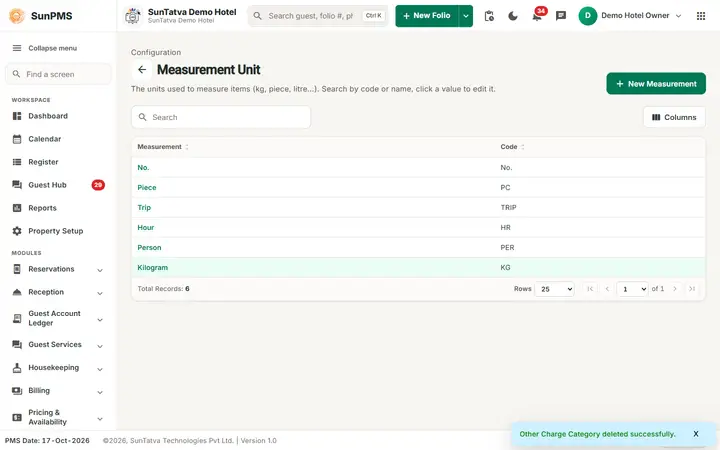
Measurement Unit is a small master list of the units in which an item can be counted: No. (number of pieces), Kg, Litre and so on. A new property starts with one unit, No. The list is meant for items sold in the Other Charges master (Other Charges).
Before you start
- Nothing is required first. Decide which units your hotel really needs; most hotels only use No.
Screen layout (list)
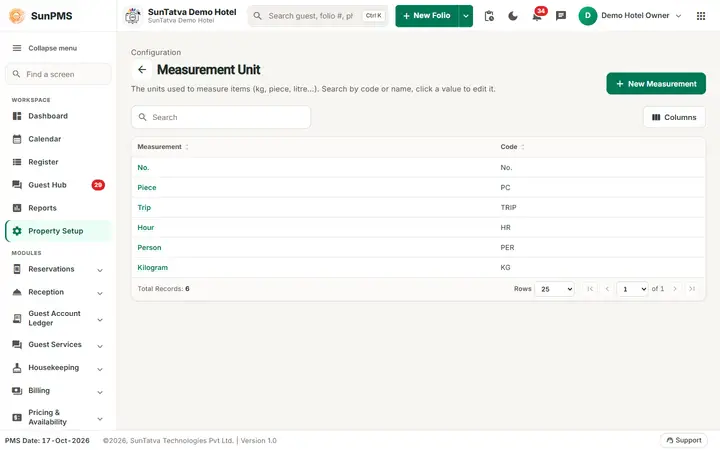
This screen follows the common master layout described in Property Setup (section "Master screens: one pattern"): a header with the back arrow, the title, a one-line explanation and the main button on the right; a Search box and a Columns button above a sortable table; a footer with Total Records, Rows and page buttons; and an add / edit window with Delete (left, only when editing), Cancel and Save. Specific to this screen:
Title Measurement Unit with the line "The units used to measure items (kg, piece, litre...). Search by code or name, click a value to edit it."
| Element | What it means | Rules |
|---|---|---|
| Search box | Searches the list. | |
| Back arrow, Columns | Back to Property Setup; choose the visible columns. | |
| New Measurement | Opens the add window. | |
| Measurement | Unit name, shown as a highlighted link. | Click to edit. |
| Code | Short code. |
Screen layout (add / edit window)
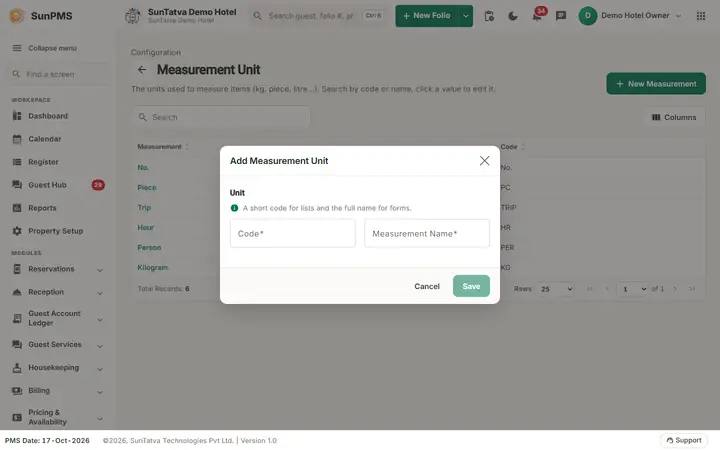
The title is Add Measurement Unit or Edit Measurement Unit.
| Field | What it means | Rules |
|---|---|---|
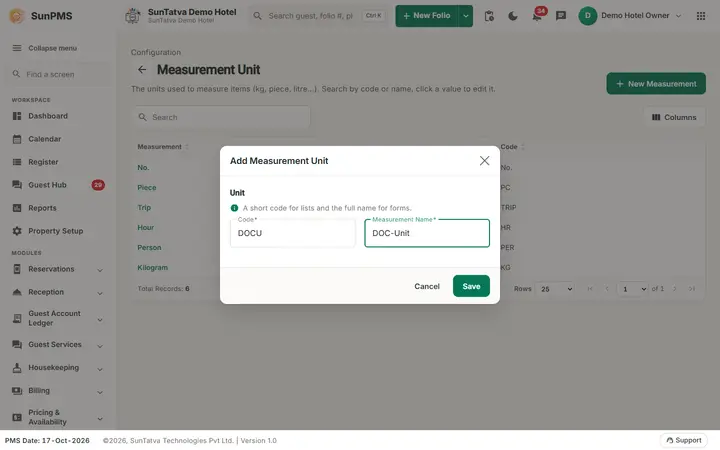
| Code | Short code of the unit (for example NO, KG). | Required. Short: the maximum is the property's short-name length. |
| Measurement Name | Full name (for example Kilogram). | Required, at most 100 characters, must be unique. |
| Save | Saves. The window stays open with an empty form so you can add the next unit. | Disabled until the form is valid. |
| Cancel | Closes the window. | |
| Delete | Removes the unit. | Shown only when editing. |
How to add a unit
- Click New Measurement.
- Type Code and Measurement Name (window section Unit: "A short code for lists and the full name for forms."). The unit is created active.
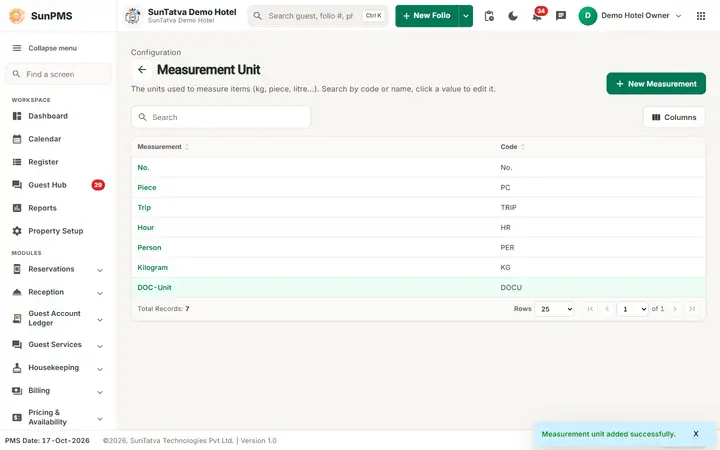
- Click Save. Result: Measurement unit added successfully. and the list updates.
How to edit a unit
Click the unit name, change the fields and click Save. The window has no Active tick box; to stop using a unit use Delete. Message: Measurement unit updated successfully.
How to delete a unit
- Click the unit name to open it.
- Click Delete and answer Yes to "Are you sure want to delete this Measurement Unit?". Result: Measurement Unit deleted successfully. The unit is marked inactive and leaves the list (the screen lists active units only).
What happens behind the scenes
- The Other Charges edit window has a measurement field in the program, but it is hidden and not saved in this version, so units do not currently change any folio, invoice or report.
- Deleting is a soft delete: the record stays in the database as inactive.
Messages you may see
| Message (exact text) | Why it appears | What to do |
|---|---|---|
| Please enter Code. | Code empty. | Type a code. |
| Please enter Measurement Name. | Measurement Name empty. | Type a name. |
| Record Already Exist. | The name or code is already used. | Use another name. |
| Measurement unit added successfully. / Measurement unit updated successfully. / Measurement Unit deleted successfully. | Success. | None. |
| Are you sure want to delete this Measurement Unit? | Delete confirmation. | Yes or No. |
Tips and FAQ
- Q: Do I need to add units? A: No; the default No. is enough for most properties.
- Q: Why does a unit I add show nowhere? A: Units are not used on folios in this version (see above).
- Q: I cannot find a unit I deleted. A: The screen lists active units only; a deleted unit stays in old records but is not listed. Create the unit again if you need it.
Screenshots