Redo Transaction
On this page
Redo Transaction is the other half of Undo Transaction. It lists the folios that were undone and lets you either Redo them (bring them back as normal checked-out folios) or Delete them for good. Use it when a folio was undone by mistake, or once you are sure an undone folio is really not needed.
Before you start
- Your role has Access to redo transaction and the Undo/Redo feature is on (Feature Setting).
- Undone folios are kept in an archive; they are not part of reports, room history or the register until redone.
- The room of the folio must still exist and be active, otherwise the folio cannot be redone.
Screen layout
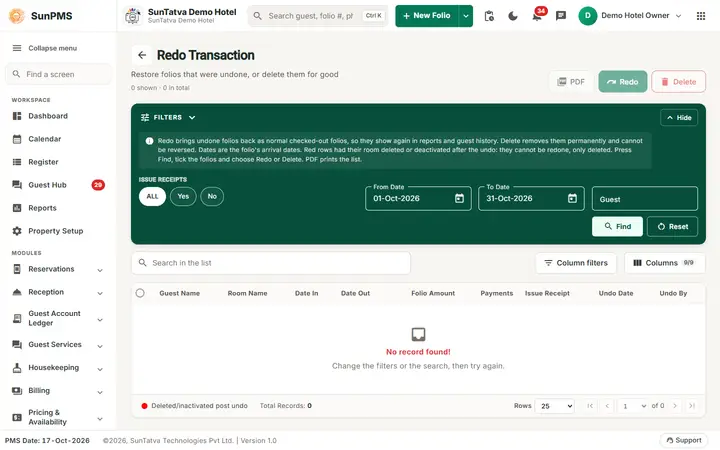
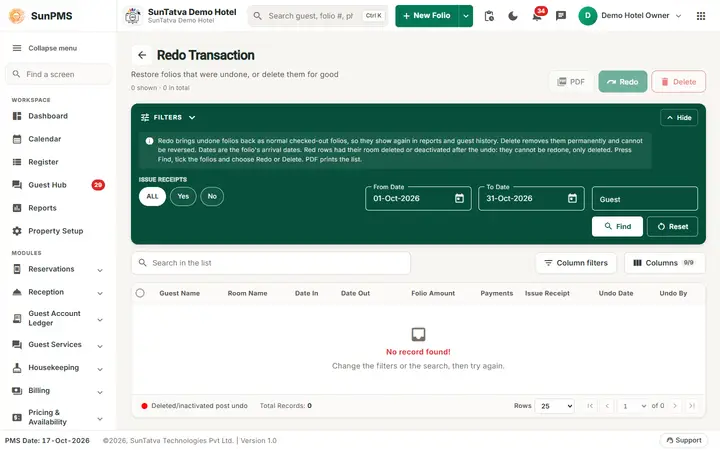
The page title is Redo Transaction with a back arrow and the line "Restore folios that were undone, or delete them for good", and a count "N shown · M in total". The buttons PDF, Redo and Delete sit at the top right. A dark Filters band holds the search filters (it collapses with Hide and returns with Show filters); its note says "Redo brings undone folios back as normal checked-out folios... Delete removes them permanently and cannot be reversed. Dates are the folio's arrival dates." Under it are a search box "Search in the list", Column filters, a Columns picker, the table and paging.
Filters
| Filter | What it means | Rules |
|---|---|---|
| From Date, To Date (heading "Arrival dates") | Range for the folio's arrival date (Date In), not the date it was undone. | Default is the first to last day of the PMS month. A From date later than To date moves the To date. |
| Issue Receipts | Chips ALL, Yes, No to filter on whether a receipt was issued. | Default ALL. |
| Guest | Part of the guest's name. One word matches first, middle or last name; two words match first name or last name. | Optional. |
| Find / Reset | Search / restore the default dates and clear the guest, then search again. |
List columns: a tick box, Guest Name, Room Name, Date In, Date Out, Folio Amount, Payments, Issue Receipt (Yes/No), Undo Date, Undo By. The header tick box selects all selectable rows. Column headings can be filtered. Totals of all folio amounts and of the selected ones are shown.
Legend: red dot Deleted/inactivated post undo. A red line means the folio's room was deleted or deactivated after the undo. Its tick box is disabled and it is skipped by the header tick box, so it cannot be redone (it can still be deleted).
Buttons:PDF, Redo, Delete. They are disabled until a search has returned a list.
How to redo (restore) folios
- Open Utility > Redo Transaction in the left menu, set the dates (the arrival dates of the folios) and click Find.
- Tick the folios, or use the header tick box.
- Click Redo and answer Yes to "Are you sure you want to perform Redo operation for the selected record(s)?". Result (when the secondary database is provisioned): Redo Transaction Successfully. The folio is again a normal checked-out folio and it leaves this list. It shows again in the register, reports and guest history.
How to delete undone folios permanently
- Find and tick the folios.
- Click Delete and confirm "Are you sure you want to permanently delete selected record(s)?". Result: Redo Transaction Deleted Successfully. The archived copy is removed. This cannot be reversed.
How to print
Click PDF to get a PDF list of the folios on screen.
What happens behind the scenes
- Undo moves the whole folio (stay, daily rates and taxes, discounts, guests, payments, documents) to an archive; Redo copies it back unchanged and removes the archive copy.
Messages you may see
| Message (exact text) | Why it appears | What to do |
|---|---|---|
| Please select record(s) to Redo! | Redo with nothing ticked. | Tick at least one folio. |
| No Data selected for Delete! | Delete with nothing ticked. | Tick at least one folio. |
| Are you sure you want to perform Redo operation for the selected record(s)? | Redo confirmation. | Yes or No. |
| Are you sure you want to permanently delete selected record(s)? | Delete confirmation. | Yes only if you are certain. |
| Redo Transaction Successfully. | Folios restored. | None. |
| Redo Transaction Deleted Successfully. | Folios deleted. | None. |
| (error text from the server) | Processing stops at the first failing folio. Earlier ones are already done. | Contact support with the guest name and dates. |
Tips and FAQ
- Q: I undid a folio yesterday but cannot find it. A: The dates filter the arrival date. Widen From Date and To Date to include the folio's Date In.
- Q: A line is red and cannot be ticked. A: Its room was deleted or deactivated after the undo. Re-activate the room, or choose Delete if the folio is no longer needed.
- Q: Who undid this folio? A: See Undo By and Undo Date in the list.
- Q: Can I redo a folio after deleting it? A: No. Delete is permanent.
Known problem on the demo hotel
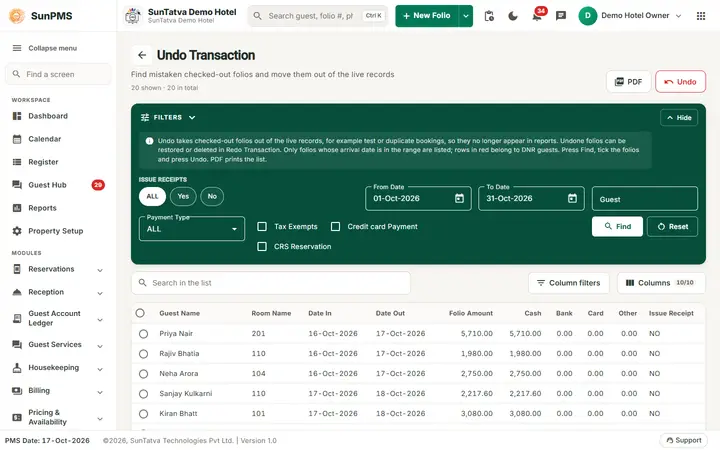
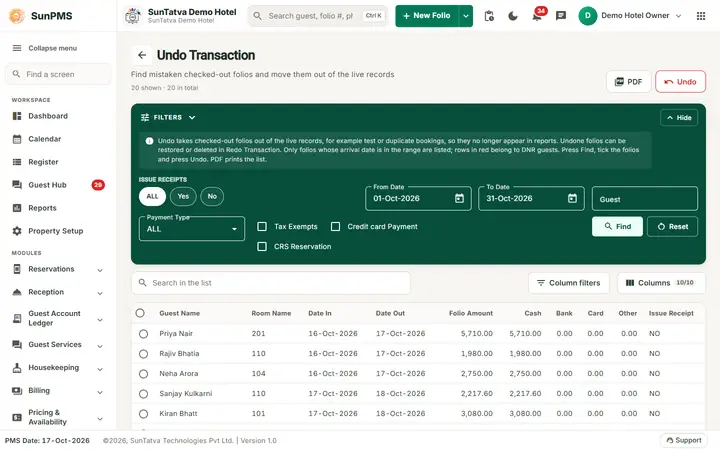
Now that checked-out folios exist, the list of the Undo Transaction screen is filled. Clicking Undo and answering Yes shows Something wrong, Please try again. and the folio stays unchanged. The reason is not the folio: Undo copies it to the secondary database, and the demo hotel has no secondary database connection stored in SunAuth (the server log says Host can't be null). Undo and Redo work only on a property whose secondary database is provisioned. For support: check databasedetail.secondaryconnectionstring of the group property in the SunAuth database.
Screenshots