Import Reservation
On this page
Loads many reservations from an Excel or CSV file, for example when migrating from another system or loading a travel agent's list.
File format
Allowed files:.xlsx,.xls,.csv (first sheet). Column headings must be exactly:
OTABookingID, FolioNo, BookingDate, CompanyName, BusinessSource, GuestName, Arrival, Departure, RoomType, RateType, Adult, Child, Pet, RatePerNight, TotalCharges, GuestAddress, GuestCountry, GuestCity, GuestState, GuestZipCode, GuestMobileNo, GuestPhoneNo, GuestFaxNo, GuestEmail, Nationality, Gender, DocumentType, DocumentNo, Remark.
Dates must be real Excel dates. RoomType, RateType and BusinessSource must match names in your masters. If FolioNo is empty the system generates one with your folio numbering rules. Payment columns are not imported.
Screen layout
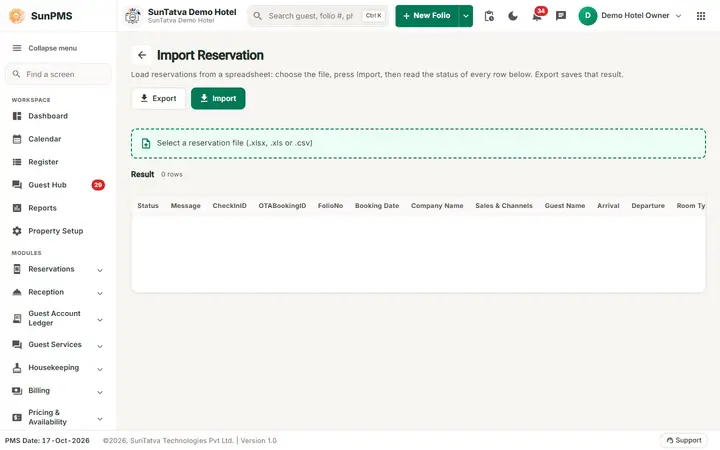
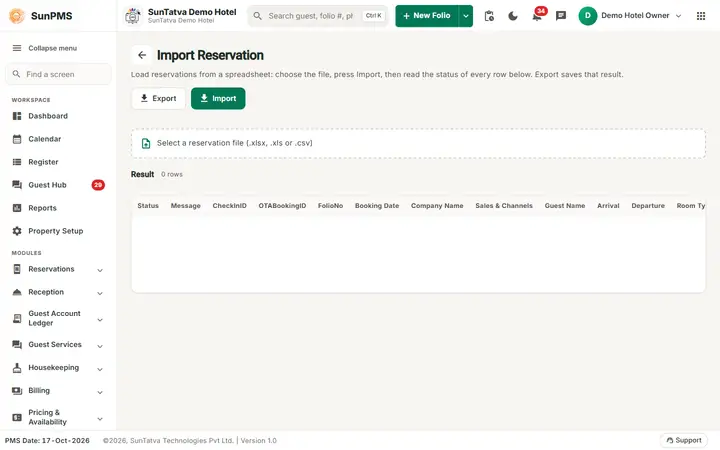
The page title is Import Reservation with a back arrow and the line "Load reservations from a spreadsheet: choose the file, press Import, then read the status of every row below. Export saves that result." The buttons Export and Import follow the description. Under the header a drop box reads "Select a reservation file (.xlsx,.xls or.csv)" (an x button clears the chosen file). The card Result shows a count "N rows" and the result grid (see Screen columns).
How to import
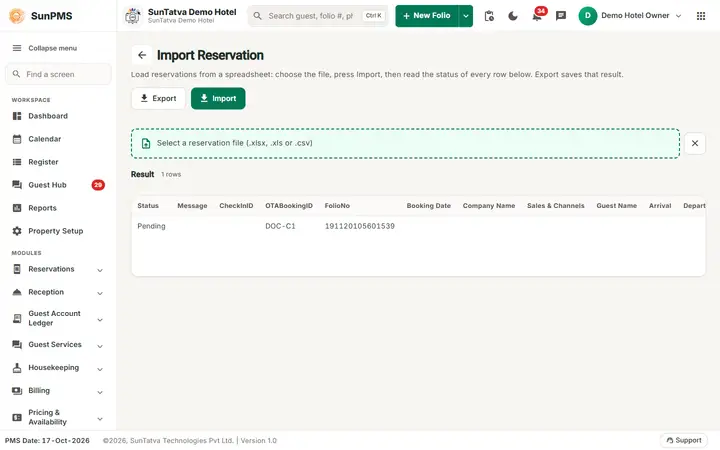
- Open Utility > Import Reservation in the left menu and click the file box to select the file. The grid fills with the rows, each with Status Pending.
- Click Import. Rows are sent one by one.
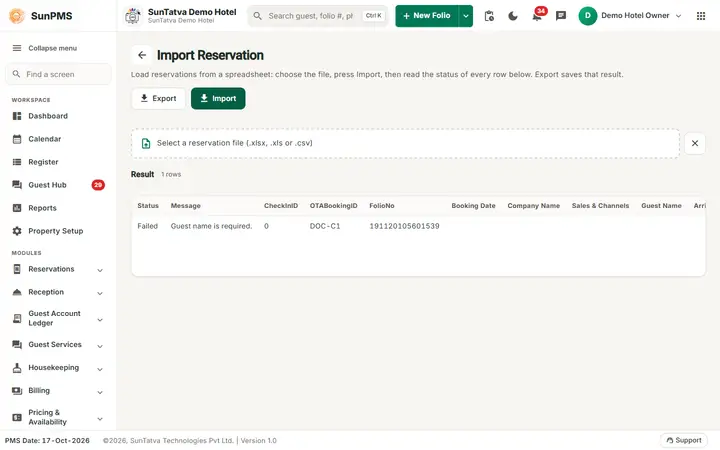
- Watch Status (Success / Failed) and Message. On success CheckInID shows the new reservation id.
- Click Export to download the result sheet (needs a loaded file).
Row checks (row fails with the message)
- Arrival date or Departure date is invalid. / Arrival date should be less than Departure date.
- Booking date is invalid.
- Guest name is required. / Room Type is required.
- Invalid EmailId.
- Past date reservation not allowed. (earliest date is the PMS date when audited transactions are locked, else the minimum allowed date)
- Future date reservation not allowed. (beyond the "future reservation years" setting)
- Invalid folio number. (must contain a digit) Server failures (unknown room type, no availability, and so on) come back in Message.
Messages you may see
| Message (exact text) | Why it appears | What to do |
|---|---|---|
| Invalid file extension. Only.xlsx,.xls and.csv files are allowed. | Wrong file type. | Save as Excel or CSV. |
| Please select Reservation file. | Import or Export clicked with no file. | Choose a file first. |
| No reservation data found. | Sheet empty or headings wrong. | Check the headings listed above. |
Screen columns
The grid shows the columns Status, Message, CheckInID, OTABookingID, FolioNo, Booking Date, Company Name, Sales & Channels, Guest Name, Arrival, Departure, Room Type, Rate Type, Adult, Child, Pet, Rate Per Night, Total Charges, Total Payment, Payment Type, Guest Address, Guest Country, Guest City, Guest State, Guest Zip Code, Mobile No, Phone No, Fax No, Email, Nationality, Gender, Document Type, Document No, Remark. The payment columns exist in the grid but the payments in the file are not posted; add payments on the folio afterwards.
Tips and FAQ
- Q: Should I import everything at once? A: No. Import a small batch first; the page imports row by row and does not stop at errors, so check the Failed rows and re-import only those.
- Q: Do imported bookings block rooms? A: Yes. They are normal reservations and count in availability.
- Q: I imported twice by mistake. A: Cancel the duplicate reservations from Search Reservation; the import does not detect duplicates.
- Q: Where do I fix a failed row? A: Correct it in the Excel file (use Export to get the result sheet), and import the corrected rows again.
Screenshots