
Open a property in SunPMS
On this page
Clicking a property card signs you into SunPMS for that property, with no second login.
Watch: Open the property in SunPMS
Before you start
- Logged in; the Sun PMS card, the right group and the property are shown.
- The property is licensed to your account's group.
How to open
- Select the SunPMS pill.
- Select the group.
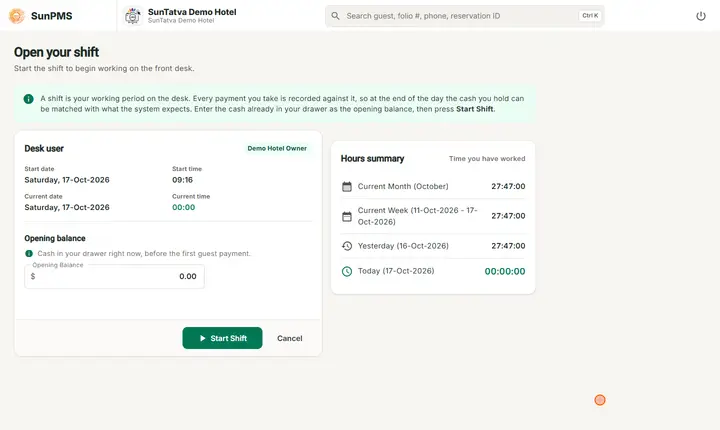
- Click the property card (not Licences). Result: the browser moves to SunPMS and shows the first screen (dashboard or calendar, or the shift screen).
What happens behind the scenes
- The portal makes sure it holds the pass for this app and group.
- It writes short-lived cookies (about one minute, on the shared root domain) holding the session and the property.
- It opens SunPMS with
?propertyID=<id>. - SunPMS reads the cookies into its own storage, clears older data, loads the property, privileges and settings, and removes the cookies.
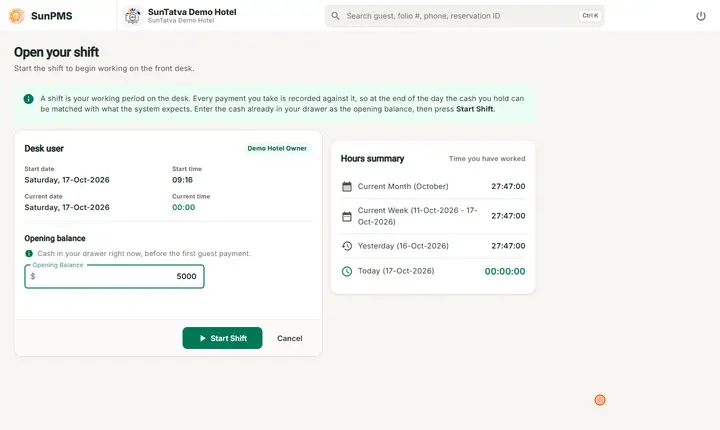
- If the Shift feature is on and no shift is open, you land on Shift details first (Watch: start a shift).
- If you open SunPMS directly with no session, you are sent back to the portal landing page.
Messages you may see
| Message (exact text) | Why it appears | What to do |
|---|---|---|
| Could not open this property. Please try again. | Pass could not be fetched. | Click again. |
| Your IP is not allowed to access this property | IP whitelist blocks you. | See IP whitelist. |
Tips and FAQ
- Q: I get sent back to the portal. A: The cookies expired or are blocked, or the apps are on different domains. Click the card again; if it repeats, tell support.
- Q: Can I bookmark SunPMS? A: Yes, but you still need an active session; otherwise you return to the portal.