Desk User Activity Report
On this page
The Desk User Activity Report counts, day by day, what front desk users did: reservations made and cancelled, check-ins, check-outs, and the money they received, with the ADR of the rooms they checked in.
Purpose
Review the work and the cash handling of the desk staff for a period.
Who uses it
- Owner and manager: staff performance.
- Accountant: collections by user and by payment category.
About this report on screen
Every report page has an About this report bar under its header (button Explain / Hide). It explains the report in plain words:
- Summary: What each desk user did: check-ins, check-outs, bookings and money taken.
- What this report shows: Per user and date: checked in, checked out, new and cancelled reservations, ADR, and payments by cash, card, bank and other, with the sales & channel.
- How to read it:
- Pick All to compare users, or one user to see their activity only.
Columns explained (the same text shows on the help icon next to a column title):
| Column | Meaning |
|---|---|
| Reserved (New) | Reservations made that day. |
| Reserved (Cancel) | Reservations cancelled that day. |
| Bank | Payments by bank transfer or other bank payment types. |
| Sales & Channel | Where the booking came from: direct, a booking site, a travel agent, a company... |
| Other Charges | Charges other than room rent (food, laundry, extra bed...). |
| ADR | Average Daily Rate: room revenue divided by the number of room nights sold. |
Before you start
- With ALL the counts, the money columns and the ADR cover all users, so the ALL figures equal the sum of the single users. Choose one user to see only that person.
Step by step
- Click Reports in the left menu (or press Ctrl+K and type the report name). The report library opens at
#/reports. - Choose the category Daily Reports (or type in the search box) and click the card Desk User Activity ("Front desk user logs"). You can also open
#/report/desk-user-activitydirectly. - The report opens and runs once with its default criteria, so you already see data. Under Report criteria set From Date, To Date, Select Desk User as you need (in a date calendar, Working Date jumps to the current business date).
- Click Show to run it again with the new criteria. The line under Results tells how many rows are shown.
- Choose a user in Select Desk User to see the counts.
- Read the result as a Table or as Cards (switch at the top right). Columns shows or hides columns and lets you drag them into another order; click a column title to sort. Hide criteria / Show criteria folds the criteria away; on a tablet or phone it folds by itself after Show and leaves a one-line summary.
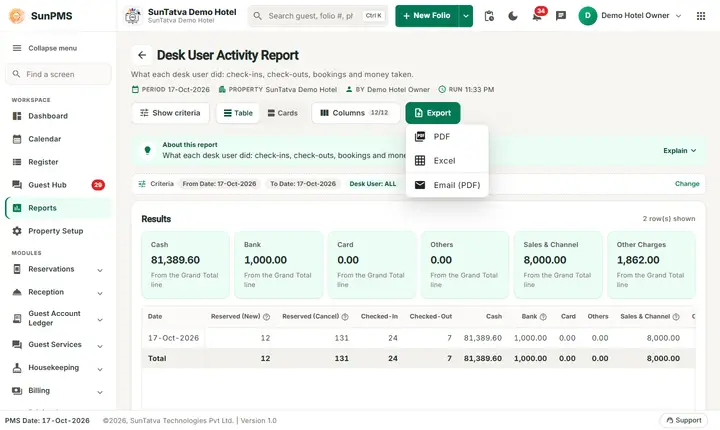
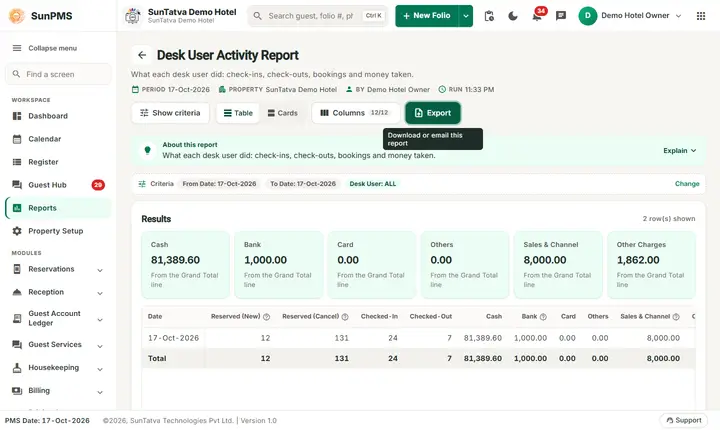
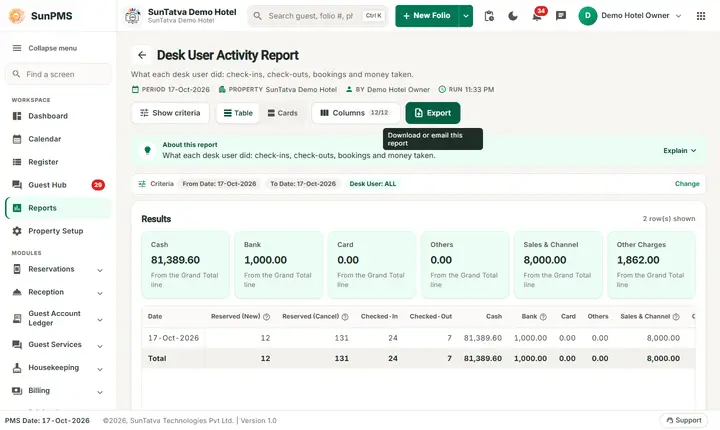
- Click Export and choose PDF, Excel or Email (PDF). The button is always in the header but stays disabled until the report has rows.
Filters
| Filter | Meaning | Default / rules |
|---|---|---|
| From Date, To Date | First and last day of the period. | Both the PMS date. The date picker cannot go before the first PMS date of the hotel. A To Date earlier than the From Date is moved up to the From Date automatically. |
| Select Desk User | One user or ALL. | ALL (or yourself if you have only the basic shift privilege). |
Columns
| Column | Meaning and how it is calculated |
|---|---|
| Date | One row per day of the period. |
| Reserved (New) | Reservations created by the user on that day (not counting cancelled ones). |
| Reserved (Cancel) | Reservations of the user cancelled that day. |
| Checked-In | Folios the user checked in on that day (by arrival date). |
| Checked-Out | Folios the user checked out on that day. |
| Cash, Bank, Card, Others | Payments received that day, by category of payment type, for the selected user (all users with ALL). |
| Sales & Channel | Amount posted to Sales & Channels (direct billing) by the user, less deletions. |
| Other Charges | Other charges posted that day. |
| ADR | Rent of the rooms the user (or all users) checked in that day divided by the number of those room-nights (rent above 0 only). The Total row shows the ADR of the whole period (total rent / total room-nights). |
Totals and grouping
One row per day and a Total row that adds the counts and money columns; its ADR is the total rent divided by the total room-nights. With ALL users every column adds every user, so the ALL Total row equals the sum of the Total rows of the single users. Checked-In counts only guests who really checked in (the folio is in check-in status) on that date, not reservations that only have that arrival date. The ADR is not a sum: it is the total rent divided by the total room-nights, so it is the same as the single user only when one user did all the check-ins.
How to read an example
For 16 and 17 October 2026 with ALL users the Total row shows 55 new reservations, 126 reservations made in the period that are now cancelled, 34 check-ins, 7 check-outs, Cash 123,319.60, Sales & Channel 16,000.00 and Other Charges 4,072.00. With the user Demo Hotel Owner selected the new reservations, check-ins, check-outs and Other Charges are the same, and the other desk users show zeros, because the owner user entered almost all the data. (The counts of the demo hotel change while test reservations are made and cancelled; ALL always equals the sum of the single users.) Reserved (Cancel) counts reservations made on that date that are now cancelled, not cancellations done on that date.
Figures are from the demo hotel on 19-Oct-2026 and change as demo data changes. Your own figures will of course differ.
Common questions it answers
- Who made the most reservations and check-ins?
- How much cash did each user receive?
- What was the average rate of the rooms a user checked in?
Troubleshooting
| What you see | Why and what to do |
|---|---|
| All counts are 0 but there was activity | ALL now counts every user. If a single user shows 0, that user did not reserve, check in or check out in the period. |
| ALL shows more than the user I picked | Other users also worked in the period. The sum of all single users equals ALL (checked 19-Oct-2026). |
| A user is missing in the list | Only active users of the property are listed; users with the basic privilege see only themselves. |
| Export is greyed out | The report has no rows (No record found!), so there is nothing to export. Change the criteria and click Show. |
| You are signed out when the report opens | Your role does not have the privilege of this report. The screen checks the privilege when the address is opened and logs you out if it is missing. |
Messages you may see
| Message | Why it appears | What to do |
|---|---|---|
| No record found! | The report found nothing for the date or filters you chose. | Check the date (the first PMS date of the hotel is the earliest you can pick), the desk user and the other filters, then click Show. |
| Email sent successfully. | You chose Export > Email (PDF). The server built the PDF and handed it to the mail service. | Nothing. If the mail does not arrive, check the e-mail address of the property and the e-mail settings. |
Related reports
Screenshots