Daily Rate Change Report
On this page
The Daily Rate Change Report lists the stays where the rate charged to the guest differs from the rate on your rate card for that room type and date. It exposes discounts and manual overrides made at the front desk.
Purpose
Control unauthorised discounting and find rate mistakes: for each affected stay it shows what was charged, what the rate card says and the difference.
Who uses it
- General manager and revenue manager: rate discipline.
- Owner: audit of discounts.
About this report on screen
Every report page has an About this report bar under its header (button Explain / Hide). It explains the report in plain words:
- Summary: Rooms whose rate was changed at the desk, with the difference.
- What this report shows: Each rate change between From Date and To Date: the rate offered, the actual rate charged, the variation, who changed it and who checked the guest out.
- How to read it:
- Variation = actual rate - rate offered. A negative value means the guest paid less than offered.
Columns explained (the same text shows on the help icon next to a column title):
| Column | Meaning |
|---|---|
| Rate Offered | The rate shown to the guest at booking. |
| Actual Rate | The rate actually charged. |
| Variation | Actual rate - rate offered. Negative = the guest paid less than offered. |
Before you start
- A rate card (Rate Manager) must exist for the room type and date, otherwise nothing can be compared.
Step by step
- Click Reports in the left menu (or press Ctrl+K and type the report name). The report library opens at
#/reports. - Choose the category Daily Reports (or type in the search box) and click the card Daily Rate Change ("Rate change on date"). You can also open
#/report/daily-rate-changedirectly. - The report opens and runs once with its default criteria, so you already see data. Under Report criteria set From Date, To Date as you need (in a date calendar, Working Date jumps to the current business date).
- Click Show to run it again with the new criteria. The line under Results tells how many rows are shown.
- Read the result as a Table or as Cards (switch at the top right). Columns shows or hides columns and lets you drag them into another order; click a column title to sort. Hide criteria / Show criteria folds the criteria away; on a tablet or phone it folds by itself after Show and leaves a one-line summary.
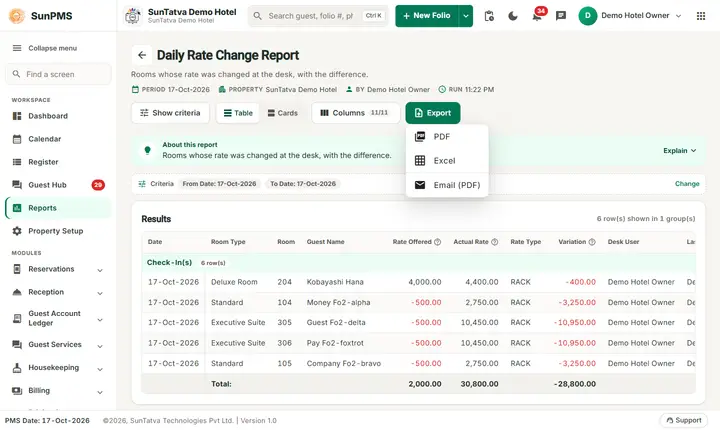
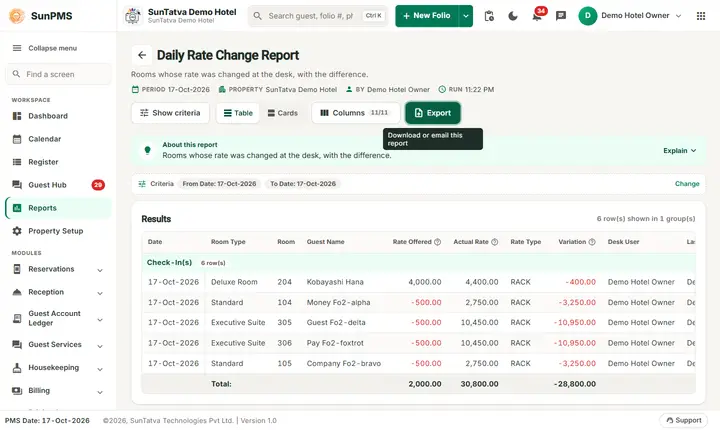
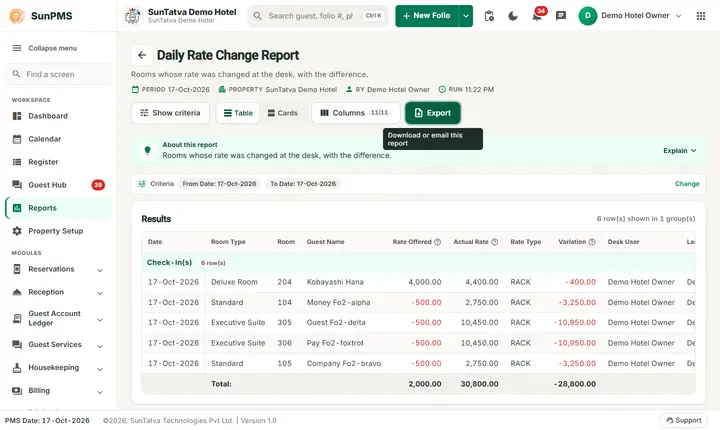
- Click Export and choose PDF, Excel or Email (PDF). The button is always in the header but stays disabled until the report has rows.
Filters
| Filter | Meaning | Default / rules |
|---|---|---|
| From Date, To Date | The first and last day of the period; the room assignments that start in the period are compared. | Both the PMS date. The date picker cannot go before the first PMS date of the hotel. A To Date earlier than the From Date is moved up to the From Date automatically. |
Columns
| Column | Meaning and how it is calculated |
|---|---|
| Date | The rate date (first night of the room assignment). |
| Room Type, Room, Guest Name | Where the guest stays (the guest name is shown last name first). |
| Rate Offered | The rate charged to the guest for that night (the folio's daily rate). |
| Actual Rate | The rate on the rate card (rate plan) for that room type and date. |
| Rate Type | The rate plan used on the folio. |
| Variation | Rate Offered - Actual Rate. A negative number is a discount. |
| Desk User | The user who created the folio. |
| Last Updated By | The user who changed the folio last. |
| Check Out By | The user who checked the guest out (blank while in house). |
Totals and grouping
Groups Check-In(s) and Reservation(s), each with a Total: line for Rate Offered, Actual Rate and Variation. Only the first night of every room assignment is compared, so a stay with one rate for many nights appears once.
How to read an example
For 16 to 17 October the report shows 3 lines in Check-In(s), for example room 204 (Kobayashi Hana, Deluxe Room): Rate Offered 4,000.00, Actual Rate 4,400.00, Rate Type RACK, Variation -400.00. The guest pays 400 less than the rate card. The Total: line adds the three columns, here Variation -1,200.00.
The numbers come from the SunTatva Demo Hotel on the day this page was written; your own figures will of course differ.
Common questions it answers
- Who was given a discount on the room rate?
- How much did the discounts cost?
- Which user created or changed the folio?
- Is any rate above the rate card?
Troubleshooting
| What you see | Why and what to do |
|---|---|
| A discounted stay is missing | The report compares only the first night of each room assignment, and only rates that differ from the card on that date. |
| Everything is empty | No folio in the period has a rate different from the card, which is good news. |
| Export is greyed out | The report has no rows (No record found!), so there is nothing to export. Change the criteria and click Show. |
| You are signed out when the report opens | Your role does not have the privilege of this report. The screen checks the privilege when the address is opened and logs you out if it is missing. |
Messages you may see
| Message | Why it appears | What to do |
|---|---|---|
| No record found! | The report found nothing for the date or filters you chose. | Check the date (the first PMS date of the hotel is the earliest you can pick), the desk user and the other filters, then click Show. |
| Email sent successfully. | You chose Export > Email (PDF). The server built the PDF and handed it to the mail service. | Nothing. If the mail does not arrive, check the e-mail address of the property and the e-mail settings. |
Related reports
- Room Type Rate Change: changes to the rate card itself.
- Daily Report.
Screenshots