Sales and Channel ADR Report
On this page
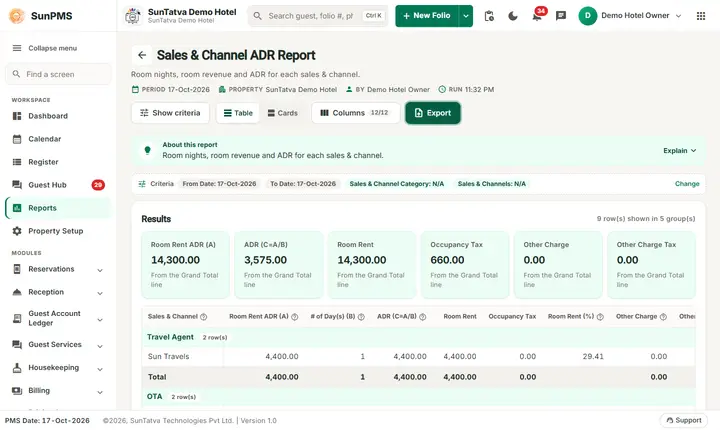
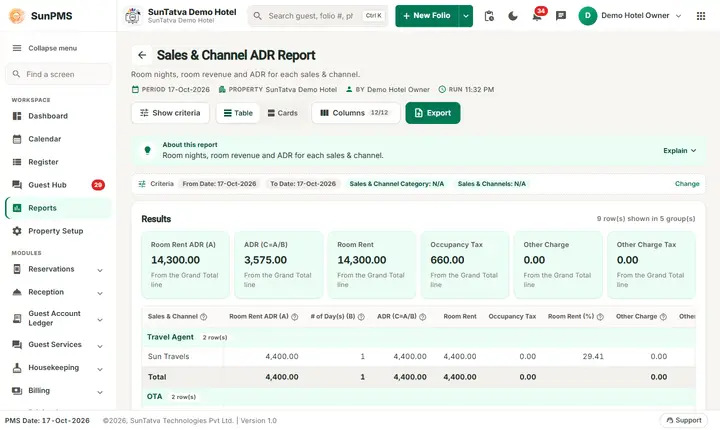
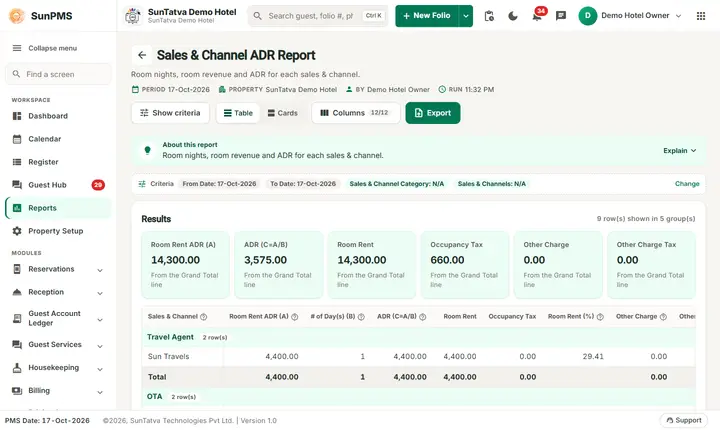
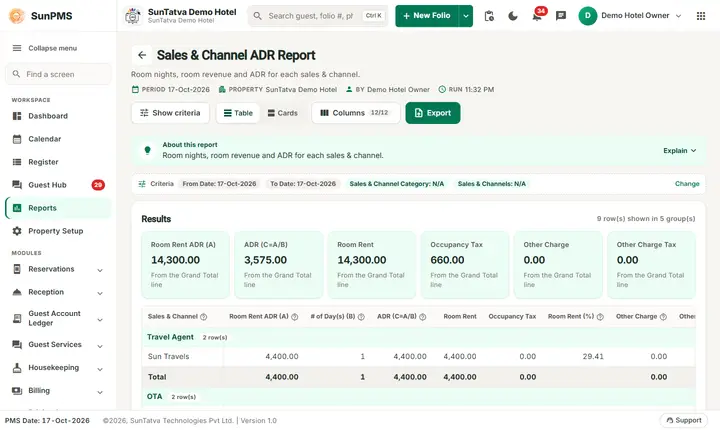
The Sales & Channel ADR Report (screen title Sales & Channel ADR Report) shows the average daily rate you obtain from each Sales & Channel, such as Booking.com or a travel agent, grouped by channel category, with the share of rent and other charges and a grand total.
Purpose
Find out which channels bring the best average price, and how much revenue each brings in a period.
Who uses it
- Revenue manager: channel mix and pricing.
- Sales manager: agent and company production.
- Owner: dependence on commission channels.
About this report on screen
Every report page has an About this report bar under its header (button Explain / Hide). It explains the report in plain words:
- Summary: Room nights, room revenue and ADR for each sales & channel.
- What this report shows: Per sales & channel (grouped by category) between From Date and To Date: room nights, room rent, ADR, other charges with their tax, total rent and each channel's share in %.
- How to read it:
- ADR (C=A/B) = Room Rent ADR (A) divided by # of Day(s) (B).
- The % columns show the share of each channel in the total of all channels.
- Each category ends with a Total line; the last line is the Grand Total.
- Good to know:
- Pick a Sales & Channel Category to see only that category, then a single channel if you need one.
Columns explained (the same text shows on the help icon next to a column title):
| Column | Meaning |
|---|---|
| Sales & Channel | Where the booking came from: direct, a booking site, a travel agent, a company... |
| Room Rent ADR (A) | The room rent used to work out ADR. |
| # of Day(s) (B) | Room nights sold. |
| ADR (C=A/B) | ADR = Room Rent ADR (A) divided by the room nights (B). |
| Room Rent (%) | This line's share of all room rent (with tax). |
| Other Charge | Charges other than room rent (food, laundry, extra bed...). |
| Other Charge Tax | Tax on the other charges. |
| Other Charge (%) | This line's share of all other charges (with tax). |
| Total Rent (%) | This line's share of the total. |
Before you start
- Reservations must carry a Sales & Channel. Reservations without one are not listed.
- The demo bookings with channels are mostly in the future (24 to 29 October) and two on 16 and 17 October (a no-show), so use a wide date range.
Step by step
- Click Reports in the left menu (or press Ctrl+K and type the report name). The report library opens at
#/reports. - Choose the category Daily Reports (or type in the search box) and click the card Sales & Channel ADR ("ADR by Sales & Channel type"). You can also open
#/report/sales-channel-adrdirectly. - The report opens and runs once with its default criteria, so you already see data. Under Report criteria set From Date, To Date, Sales & Channel Category, Sales & Channels as you need (in a date calendar, Working Date jumps to the current business date).
- Click Show to run it again with the new criteria. The line under Results tells how many rows are shown.
- Pick a Sales & Channel Category first, and then a Sales & Channels entry, to narrow the list.
- Read the result as a Table or as Cards (switch at the top right). Columns shows or hides columns and lets you drag them into another order; click a column title to sort. Hide criteria / Show criteria folds the criteria away; on a tablet or phone it folds by itself after Show and leaves a one-line summary.
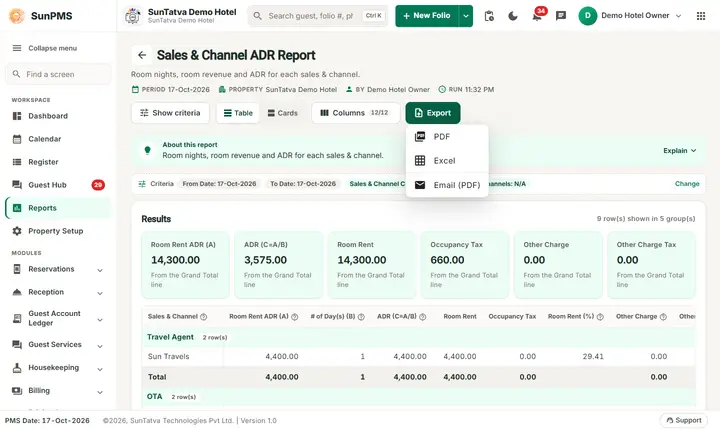
- Click Export and choose PDF, Excel or Email (PDF). The button is always in the header but stays disabled until the report has rows.
Filters
| Filter | Meaning | Default / rules |
|---|---|---|
| From Date, To Date | First and last day of the period (by stay night). | Both the PMS date. The date picker cannot go before the first PMS date of the hotel. A To Date earlier than the From Date is moved up to the From Date automatically. |
| Sales & Channel Category | One category (Web Reservation, Travel Agent, Corporate...). Choosing a category fills the next list. | N/A = all categories. |
| Sales & Channels | One channel of that category. | N/A = all channels. If the category has no channel the message "No Sales & Channels available for this category." appears. |
Columns
| Column | Meaning and how it is calculated |
|---|---|
| Sales & Channel | The channel name. |
| Room Rent ADR (A) | Room rent of the nights that count for ADR (non-ADR units such as complimentary or house-use rooms are left out). |
| # of Day(s) (B) | Number of room-nights (plus the days of no-show and cancel rent that was kept). |
| ADR (C=A/B) | A divided by B. 0 when there are no days. |
| Room Rent | All room rent of the channel including no-show and cancel rent. |
| Occupancy Tax | Tax on that rent (title from settings). |
| Room Rent (%) | The channel's share of the grand total of rent and tax. |
| Other Charge, Other Charge Tax | Other charges of the channel's folios and their tax. |
| Other Charge (%) | The channel's share of all other charges. |
| Total Rent | Room Rent + Occupancy Tax + Other Charge + Other Charge Tax. |
| Total Rent (%) | The channel's share of the grand total. |
Totals and grouping
Grouped by channel category, with a Total line per category and a Grand Total at the end. The grand total ADR is the total room rent for ADR divided by the total number of room-nights.
How to read an example
On the PMS date alone the report can show only a Grand Total of 0, because no folio of that day has a Sales & Channel. For 16 to 31 October 2026: Booking.com (category Web Reservation) has room rent 16,400.00 over 4 nights, so ADR = 16,400.00 / 4 = 4,100.00, with other charges 1,000.00. Sun Travels (Travel Agent) has 9,400.00 over 3 nights = 3,133.33. MakeMyTrip (OTA) has 4,400.00 over 1 night, Zenith Software Ltd (Corporate) 2,750.00 over 1 night and Royal Weddings (Wedding Planner) 2,750.00 over 1 night. The Grand Total is 35,700.00 over 10 nights, ADR 3,570.00. Booking.com's share of the total rent is 44.37 %.
The numbers come from the SunTatva Demo Hotel on the day this page was written; your own figures will of course differ.
Common questions it answers
- Which channel gives the highest ADR?
- How much revenue did each channel bring?
- What share of our rent depends on Booking.com or agents?
- How much other-charge revenue do channel guests add?
Troubleshooting
| What you see | Why and what to do |
|---|---|
| Only Grand Total 0.00 is shown | No reservation with a channel falls in the dates. Widen the dates, and check that the booking has a Sales & Channel. |
| The channel list shows N/A only | The category you chose has no channel defined. Add channels in Sales & Channels set-up. |
| ADR is lower than the rate card | No-show and cancel rent adds days at a lower or zero rent; look at the Room Rent ADR (A) and # of Day(s) (B) columns. |
| Export is greyed out | The report has no rows (No record found!), so there is nothing to export. Change the criteria and click Show. |
| You are signed out when the report opens | Your role does not have the privilege of this report. The screen checks the privilege when the address is opened and logs you out if it is missing. |
Messages you may see
| Message | Why it appears | What to do |
|---|---|---|
| No record found! | The report found nothing for the date or filters you chose. | Check the date (the first PMS date of the hotel is the earliest you can pick), the desk user and the other filters, then click Show. |
| No Sales & Channels available for this category. | The category you chose has no sales and channel records. | Choose another category, or add channels in the Sales & Channels set-up. |
| Email sent successfully. | You chose Export > Email (PDF). The server built the PDF and handed it to the mail service. | Nothing. If the mail does not arrive, check the e-mail address of the property and the e-mail settings. |
Related reports
- Sales & Channel Aging: what the direct-billed channels still owe.
- Monthly Sales & Channel reports.
Screenshots