FAS Settings
On this page
Connects the PMS to an external Financial Accounting System (FAS) so daily revenue and, optionally, statistical data are posted to the accounting package. At present the choice is M3 Accounting Systems (or N/A for none). The page title reads FAS Setting.
Before you start
- The FAS Accounting licence must be active for the property; only then does the menu show FAS Settings (see 90-licences).
- Get the Client ID, Client Secret Key, Property Code, Customer short name and Source System from the accounting provider.
Screen layout
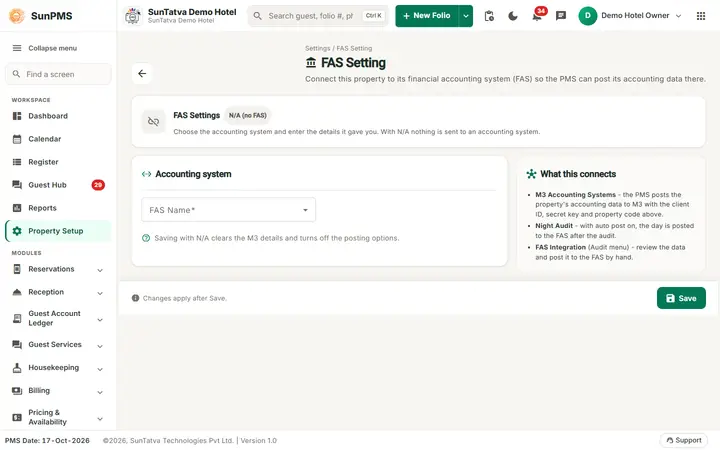
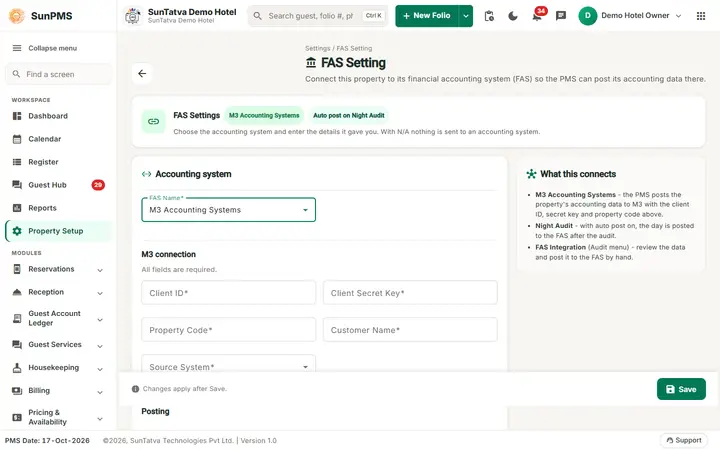
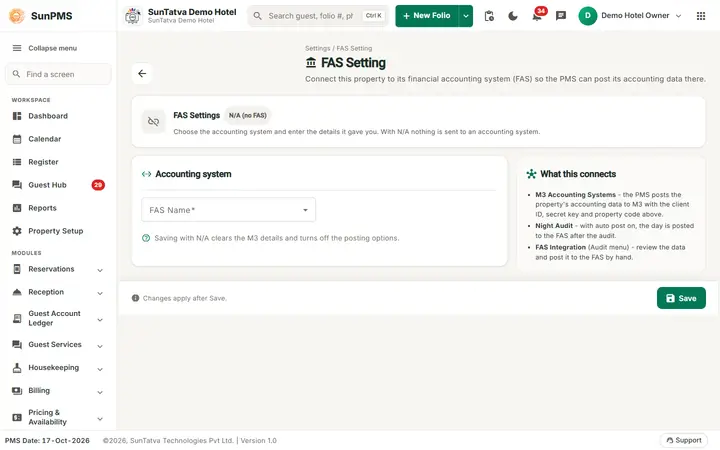
The page header shows the small heading "Settings / FAS Setting", the title FAS Setting, a description and a back arrow to the Property Setup hub. The top card FAS Settings shows M3 Accounting Systems or N/A (no FAS) and the sentence "Choose the accounting system and enter the details it gave you. With N/A nothing is sent to an accounting system." The cards are Accounting system (FAS Name; "Saving with N/A clears the M3 details and turns off the posting options"), M3 connection ("All fields are required"), Posting (two switches) and What this connects (M3 posting, Night Audit, and FAS Integration in the Audit menu to review and post by hand). The bottom bar says "Changes apply after Save." and holds Save.
| Field | Meaning | Rules |
|---|---|---|
| FAS Name | N/A or M3 Accounting Systems (setting FAS_ACCOUNTING_SYSTEM, default 0 = none). | Required |
| Client ID | M3 client id | Required for M3 |
| Client Secret Key | Secret key | Required for M3 |
| Property Code | Property code in M3 | Required for M3 |
| Customer Name | Customer short name | Required for M3 |
| Source System | PMS or POS | Required for M3 |
| Post Statistical Data To FAS | Also send statistics (rooms sold, occupancy) | Default off |
| Auto Post To FAS on Night Audit | When on, the Night Audit offers "Auto Post To FAS" and posts the day to the FAS after the audit | Default off |
| Save | ||
| The M3 fields appear only when M3 Accounting Systems is chosen. |
How to configure
- Open Property Setup in the left menu and click the FAS Settings card (group FAS Settings, shown when FAS is enabled).
- Choose FAS Name = M3 Accounting Systems and fill the fields.
- Turn on the posting options you want.
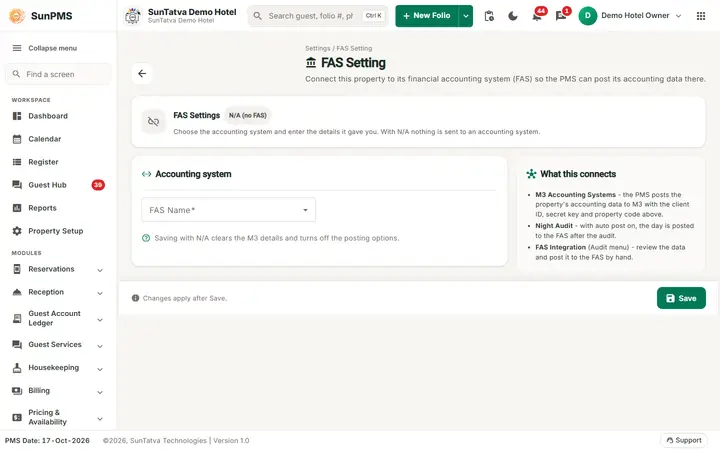
- Click Save. Result: "FAS Settings Updated." If FAS Name is N/A, the M3 fields and both posting options are cleared on save.
What happens behind the scenes
After a night audit, if Auto Post To FAS on Night Audit is on, the FAS integration service posts the day's accounting data (and statistics when ticked) to M3. When off, posting is done manually from the audit/accounting screens.
Messages you may see
| Message | Why | What to do |
|---|---|---|
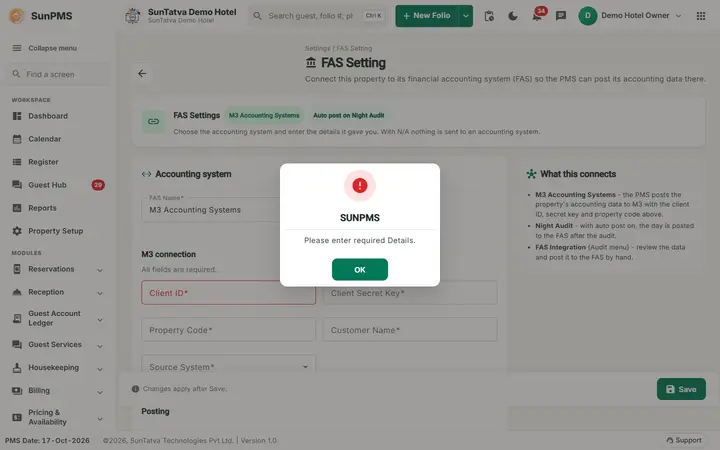
| Please enter required Details. | An M3 field is empty | Fill all fields |
| Something went wrong. | Loading settings failed | Reload |
| FAS Settings Updated. | Saved | - |
Tips and FAQ
- Q: I do not see FAS Settings. A: FAS Accounting is not licensed/enabled for the property.
Screenshots