Policy
On this page
The Cancellation Policy screen attaches a cancellation policy to a room type and rate type pair for the online booking engine (CRS). It is only meaningful when your property is connected to the CRS.
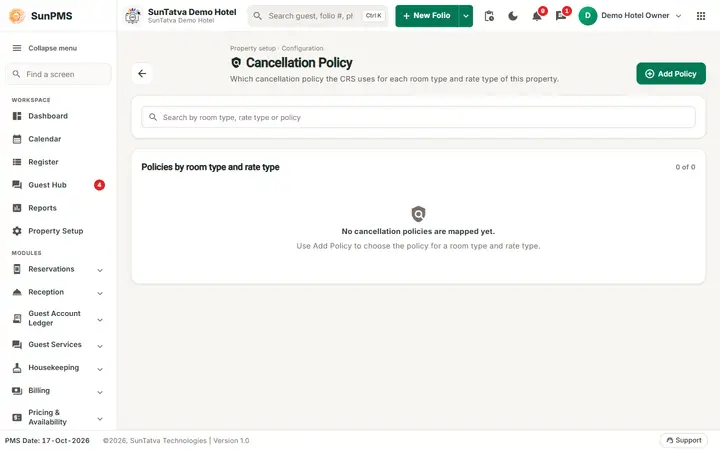
Before you start
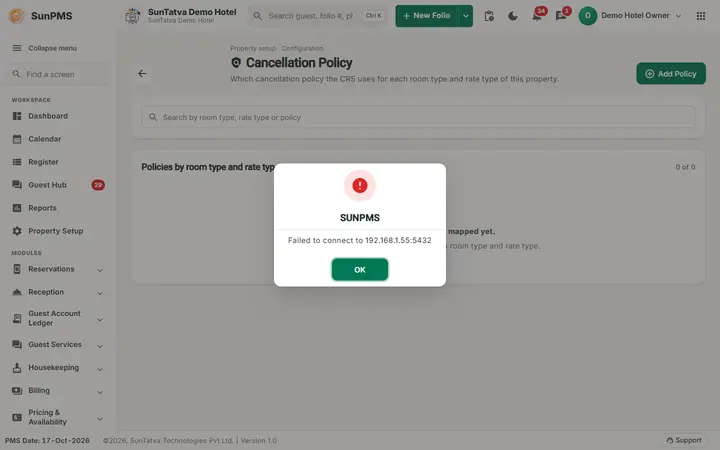
- The property must be CRS-enabled. Otherwise, as in the screenshot of a new property, a message box "SUNPMS - Crs not enable." appears when you open the page and the list stays empty.
- Room types and rate types must exist.
Screen layout
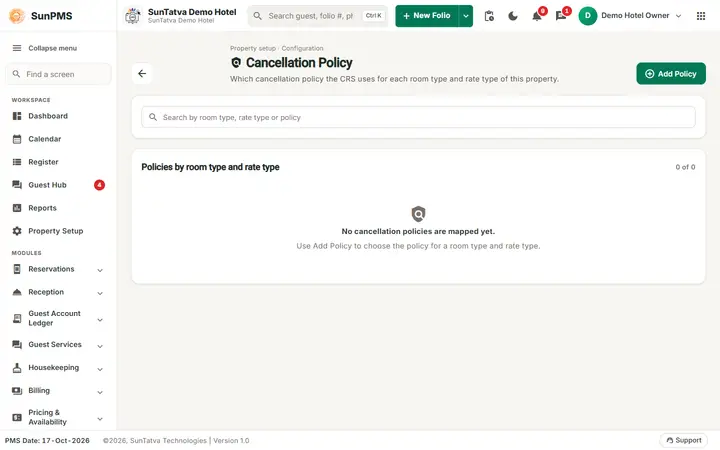
- Header: the back arrow, the small grey line "Property setup · Configuration", the title Cancellation Policy, the line "Which cancellation policy the CRS uses for each room type and rate type of this property." and the button Add Policy (top right).
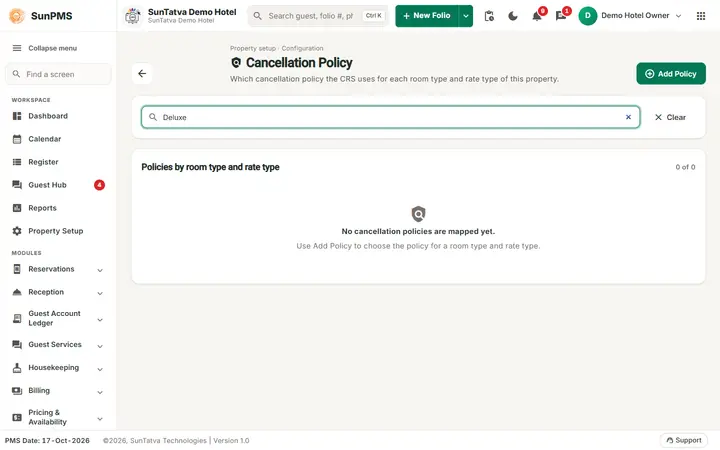
- A search box (Search by room type, rate type or policy, with Clear) and the section Policies by room type and rate type with a count such as "0 of 0". The table has the columns Room Type, Rate Type and Policy (name). With no policy it shows "No cancellation policies are mapped yet. Use Add Policy to choose the policy for a room type and rate type."; when the search matches nothing it offers Clear search.
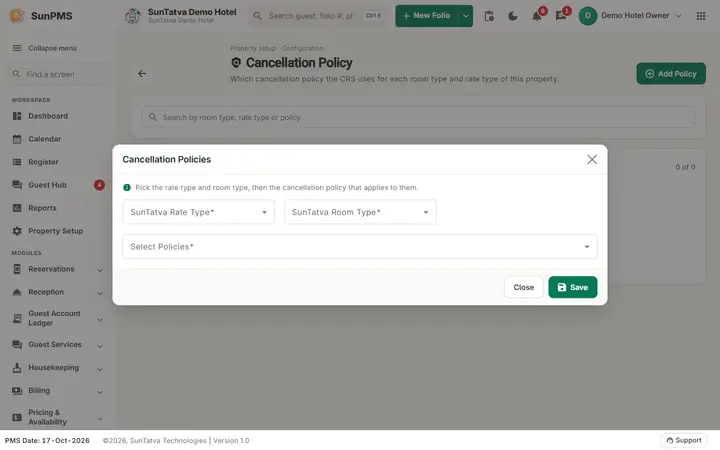
- Add window "Cancellation Policies" ("Pick the rate type and room type, then the cancellation policy that applies to them."): SunTatva Rate Type, SunTatva Room Type and Select Policies (all required drop-downs), Close and Save.
How to add a policy
- Click Add Policy.
- Choose the SunTatva Rate Type, the SunTatva Room Type and Select Policies.
- Click Save. "Created Policies Successfully".
What happens behind the scenes
The choice is sent to the CRS so guests booking online see the cancellation terms. Non-CRS properties never reach this step.
Messages you may see
| Message | Why | What to do |
|---|---|---|
| Crs not enable. | Property is not linked to a CRS | Nothing to configure; ask SunTatva to enable CRS if needed |
| Please select Roomtype / Please select Ratetype / Please select at least one Policy | Missing choice | Select the item |
| Created Policies Successfully | Saved |
Tips and FAQ
- Q: Why is this screen empty? A: CRS is not enabled.
- Q: Can I edit or delete a policy here? A: No edit/delete controls are shown on the list in this version.
Screenshots