E-Mail Templates
On this page
An e-mail template is the body text (with guest and stay details filled in automatically) that SunPMS sends or prints when something happens, such as a reservation confirmation or a check-in. You design the text in a rich-text editor, drag in merge fields, and decide for which events it is used.
Before you start
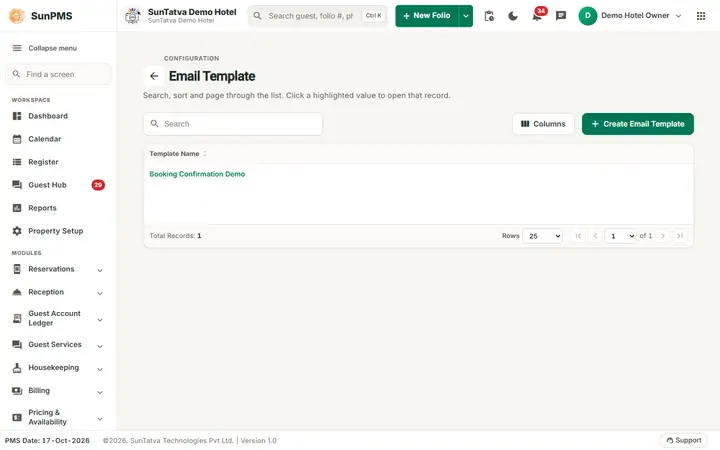
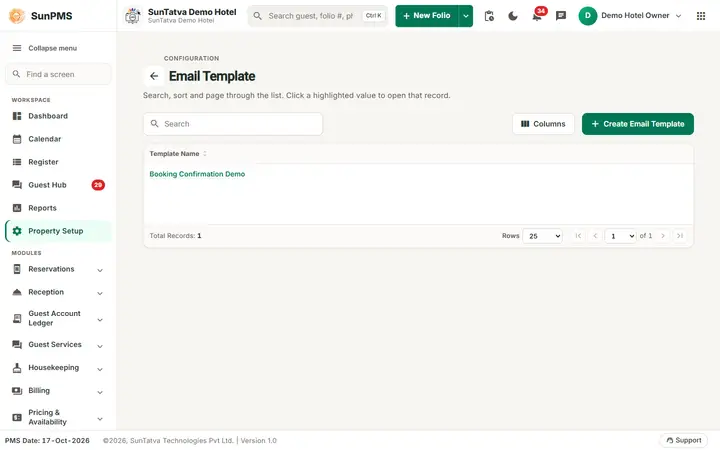
- New properties have no templates ("No record found!").
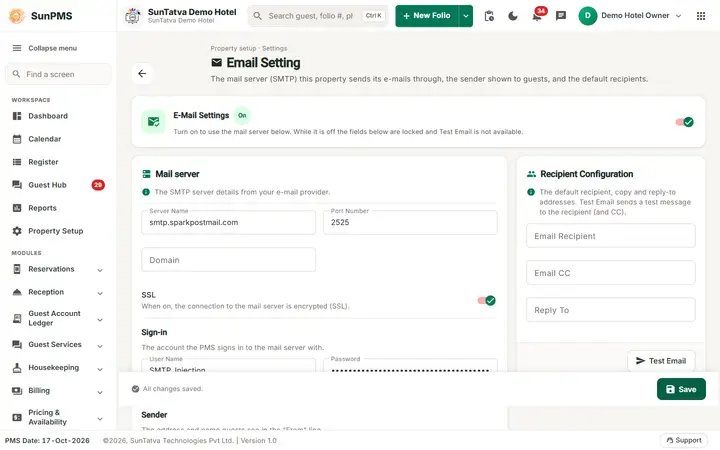
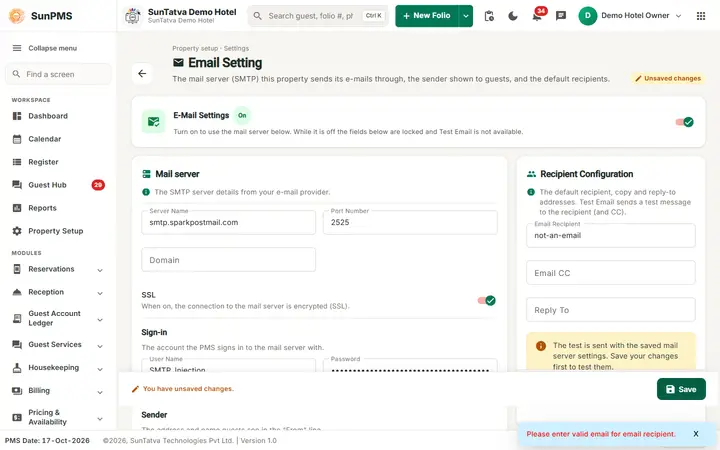
- E-mail sending itself is set up in Property Setup > Configuration > Email Setting; this screen only holds the content and rules.
Screen layout
List: back arrow and title Email Template (small grey line CONFIGURATION above it), Create Email Template (top right), Search, Columns, one column Template Name (click to open) and the usual footer with pagination.
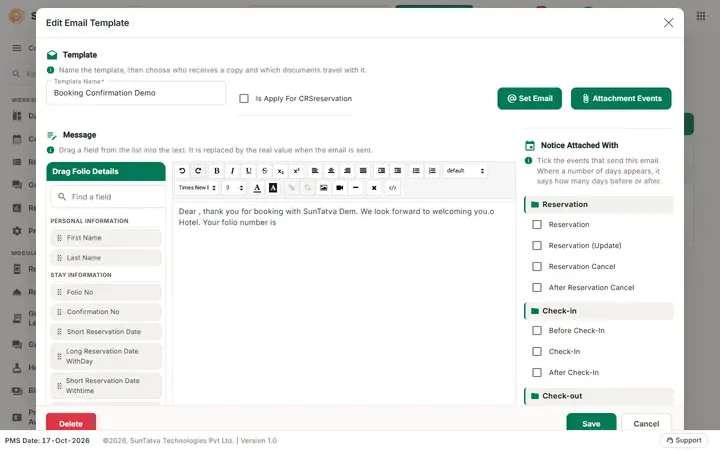
Edit window ("Create / Edit" template). It has three sections: Template ("Name the template, then choose who receives a copy and which documents travel with it."), Message ("Drag a field from the list into the text. It is replaced by the real value when the email is sent.") and Notice Attached With ("Tick the events that send this email. Where a number of days appears, it says how many days before or after."):
| Control | Meaning | Rules |
|---|---|---|
| Template Name | Name | Required (max name length) |
| Is Apply For CRSreservation | Use the template for reservations that come from the CRS / OTA | |
| Set Email | Opens "Set CC and BCC Emails": type an address, click Add; trash icon removes; OK keeps them | Each address must look like name@example.com, else "Enter Valid Email Address" |
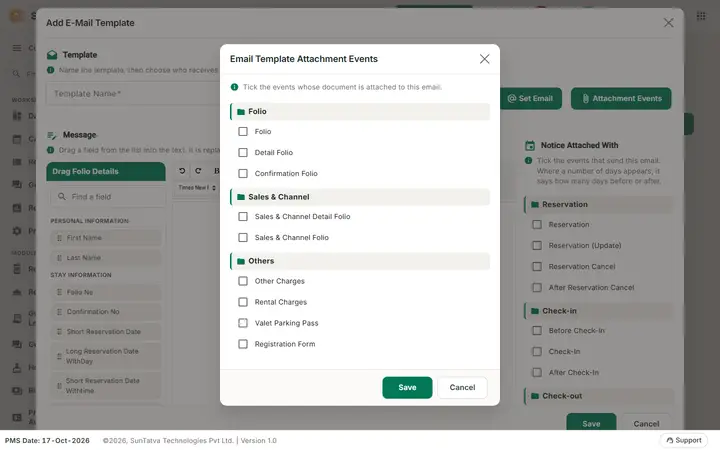
| Attachment Events | Opens "Email Template Attachment Events": tick the notices/documents attached to the e-mail (grouped by category: Folio, Sales & Channel and Others; the category Sales & Channel holds the events Sales & Channel Detail Folio and Sales & Channel Folio) | Save closes the window and keeps the ticked events; they are stored with the template when you click the main Save (there is no separate save) |
| Drag Folio Details (field palette beside the editor, with a Find a field search box) | Groups: Personal Information (First Name, Last Name), Stay Information (Folio No, Confirmation No, reservation / date-in / date-out in short and long forms, No of Nights, Total Adult/Child/Pet), Room Information (Room No, Room Type, Smoking, Non Smoking, Pet Friendly, Handicapped), Charges Payment Information (ADR, Total Rental, Total Tax, Total OtherCharge, Total SaleTax, Total Discount, Total Auth, Total Amount, Balance Amount), System Information (current date, PMS date) | Drag an item into the editor; it becomes a placeholder replaced when sent |
| Editor | Rich text body | |
| Notice Attached With | Events grouped by category (Reservation, Check-In, Group, Registration Form, Guest Report, E-Mail Body, SignaturePad). Tick the box to send the template as e-mail for that event; a number box (days) appears for timed events | If another template already uses that event you are asked "Are you sure want to replace this Email-Event?" |
| Save / Cancel / Delete | Delete only when editing |
How to create a template
- Click Create Email Template.
- Enter Template Name.
- Write the text; drag merge fields where needed.
- Optionally Set Email (CC/BCC) and Attachment Events (tick the events, click Save in that window; they are stored when you save the template).
- Tick the events under Notice Attached With.
- Click Save: "E-Mail Template added successfully."
How to edit / delete
Click the name, change, Save ("E-Mail Template updated successfully."). Delete and confirm "Are you sure want to delete this Template?" -> "Template deleted successfully."
What happens behind the scenes
At each event the system looks up the template ticked for it, fills the merge fields from the reservation and sends the e-mail (or prints) with CC/BCC. One event can use only one template for e-mail; replacing moves it. The attachment event Sales & Channel Folio attaches the Sales & Channel invoice PDF; Sales & Channel Detail Folio attaches a PDF headed "Sales & Channel detail".
Messages you may see
| Message | Why |
|---|---|
| Please enter Template Name. | Name empty |
| Enter Valid Email Address | Bad CC/BCC address |
| Are you sure want to replace this Email-Event? | Event already used by another template |
Tips and FAQ
- Q: My placeholder shows literally. A: Drag it from the list rather than typing it.
Screenshots