Hotel Statistics Report
On this page
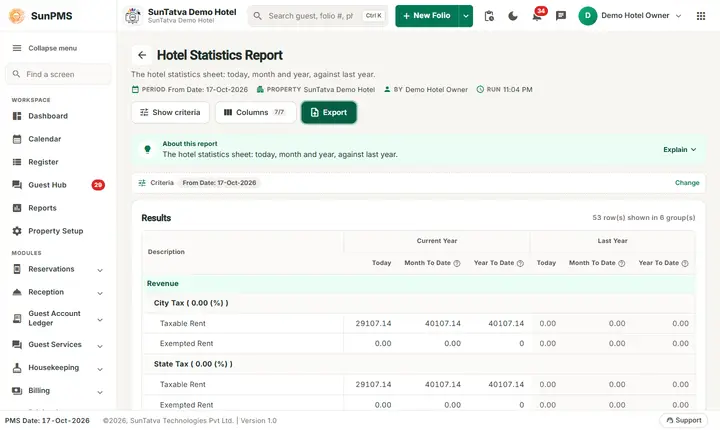
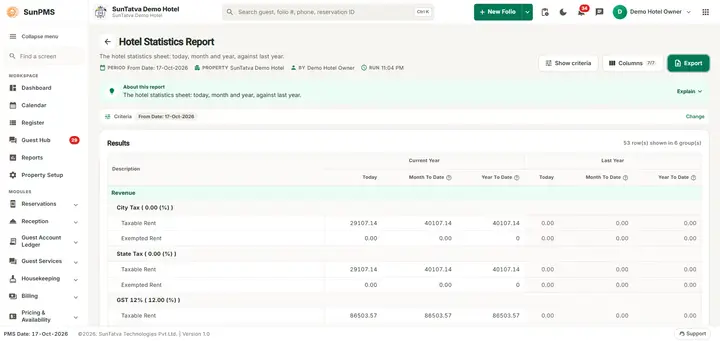
The Hotel Statistics Report is a one-page management summary for the date you choose. It has a column Description and two blocks, Current Year and Last Year, each with Today, Month To Date and Year To Date. The sections are Revenue, Room Statistics, Occupancy Statistics, Today's Activity, Guest Statistics and Forecasting.
Purpose
Give the owner or general manager every headline number of the hotel in one view, and compare this year with last year, without opening several reports.
Who uses it
General managers and owners; revenue and front office managers; accountants for revenue totals.
About this report on screen
Every report page has an About this report bar under its header (button Explain / Hide). It explains the report in plain words:
- Summary: The hotel statistics sheet: today, month and year, against last year.
- What this report shows: Occupancy, guest, revenue and forecasting figures for the chosen date, month-to-date and year-to-date, with the same figures for last year.
- How to read it:
- Read across a line to compare this year (left) with last year (right).
- "w/o Complimentary & House" leaves out free and house-use rooms.
Before you start
- Run it after night audit. The From Date is the as-of date and decides Today, Month To Date (1st of its month to that date) and Year To Date (1 January to that date).
- Last Year figures need data of last year in the same property.
- You need the privilege Monthly_Report_MonthlyHotelStatisticsReport (Property Setup > User & Access > Assign Report Privileges). Without it the card is not shown on the Reports screen and a direct address signs you out.
Step by step
- Click Reports in the left menu (or press Ctrl+K and type the report name). The report library opens at
#/reports. - Choose the category Monthly Reports (or type in the search box) and click the card Hotel Statistics ("Hotel-wide monthly data"). You can also open
#/report/monthly-hotel-statisticsdirectly. - The report opens and runs once with its default criteria, so you already see data. Under Report criteria set From Date as you need (in a date calendar, Working Date jumps to the current business date).
- Click Show to run it again with the new criteria. The line under Results tells how many rows are shown.
- Choose From Date (the only filter). The report starts with the PMS date.
- Read the result as a Table or as Cards (switch at the top right). Columns shows or hides columns and lets you drag them into another order; click a column title to sort. Hide criteria / Show criteria folds the criteria away; on a tablet or phone it folds by itself after Show and leaves a one-line summary.
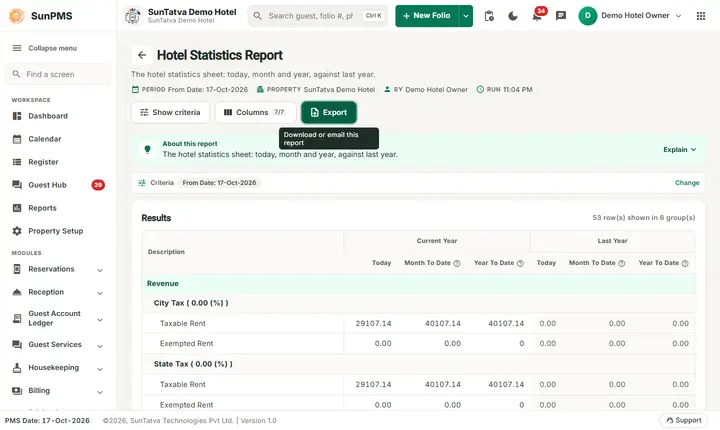
- Click Export and choose PDF, Excel or Email (PDF). The button is always in the header but stays disabled until the report has rows.
Filters
| Filter | What it does | Default |
|---|---|---|
| From Date | The as-of date of the report. The calendar greys out days before the property start date (16-Oct-2026). There is no To Date. | PMS date |
The Columns button in the header opens a panel: untick a column to hide it, drag the grip icon to reorder. Hidden columns are also left out of PDF and Excel. If you hide every column, Export is disabled.
Columns
| Column | Meaning and how it is calculated |
|---|---|
| Description | Name of the figure. Section headings (Revenue, Room Statistics...) and sub-headings are in bold rows. |
| Current Year > Today | The figure for the chosen date. |
| Current Year > Month To Date | From the 1st of the month of the chosen date to the chosen date (counts are the sum of the days; percentages, ADR and RevPAR are calculated from the period totals, for example occupancy = room nights sold / room nights available). |
| Current Year > Year To Date | From 1 January of the chosen year to the chosen date. |
| Last Year > Today / Month To Date / Year To Date | The same three figures for the same dates one year earlier. |
Totals and grouping
No totals; the figures are grouped in sections: Revenue (taxable and exempt rent per tax, Room Revenue, Other Charge Revenue, Miscellaneous Income, Total Revenue, Miscellaneous Expense), Room Statistics (Total Room, V/Maint Room, Total Available To Sell, Checked-In, Reserved, Stay Over, Total Occupied, Complimentary and House), Occupancy Statistics (occupancy % of total and of available rooms, ADR, ADR without complimentary and house, RevPAR), Today's Activity (arrivals, departures, no shows, reservations made and cancelled, room nights), Guest Statistics (adults, children, in-house guests, averages per room and per adult) and Forecasting (arrivals, departures and % occupied for tomorrow, next 7 days and next 31 days). The sub-heading rows are not figures.
How to read an example
Run with From Date 16-Oct-2026:
- Revenue: Room Revenue 0 today and 0 month to date; Total Revenue 0.
- Room Statistics: Total Room 0, V/Maint Room 0, Total Available To Sell 0, Total Occupied Room 0.
- Occupancy Statistics: Occupancy % of Total Room 0, ADR 0, RevPAR 0.
- Today's Activity: Total Arrival 0, Departures 0; Guest Statistics: Total In-House Guests 0.
- Forecasting: % Room Occupied for Tomorrow 0.
- Last Year columns: Room Revenue 0 (the demo hotel has no data from last year).
Common questions it answers
- What are today's occupancy, ADR and RevPAR?
- How is this month and this year doing against last year?
- How many arrivals, departures and in-house guests do we have?
- What is the forecast for tomorrow and the next week?
Troubleshooting
| Problem | Cause and what to do |
|---|---|
| Last Year columns are all 0 | The property has no data for the previous year (new property or first year with the PMS). |
| Occupancy % differs between sections | The report shows both % of Total Room (all rooms) and % of Total Available Room (without V/Maint rooms). |
| I cannot choose a date before the property start | The calendar greys out days before the property start date. |
Messages you may see
| Message | Why it appears | What to do |
|---|---|---|
| Email sent successfully. | You chose Email (PDF). | Check the property mailbox. The message appears even if the mail server refuses the mail. |
Export, print and e-mail
- PDF is built in the browser and opens in a new tab (allow pop-ups). If the property has no uploaded logo the PDF is simply drawn without it.
- Excel downloads Hotel Statistics Report.xlsx: property name, print date, report name and date range, then the visible columns and the same rows.
- Email (PDF) has the server mail the PDF to the property e-mail address and shows "Email sent successfully." at once, even if delivery fails.
- The Export button is always in the report header; it is disabled (grey) until the result has at least one row.
Related reports
- Monthly Statistics - day by day KPIs
- Monthly Room Sold
- Yearly Room Sold Report
- [MTD/YTD Comparision] - a period and the year to date against last year, line by line(../yearly/yearly-mtd-ytd-comparision.md)
- Monthly Reports - tax, charges, sales and channels, statistics (group page)
- Report finder
Screenshots