
Special Request Report
On this page
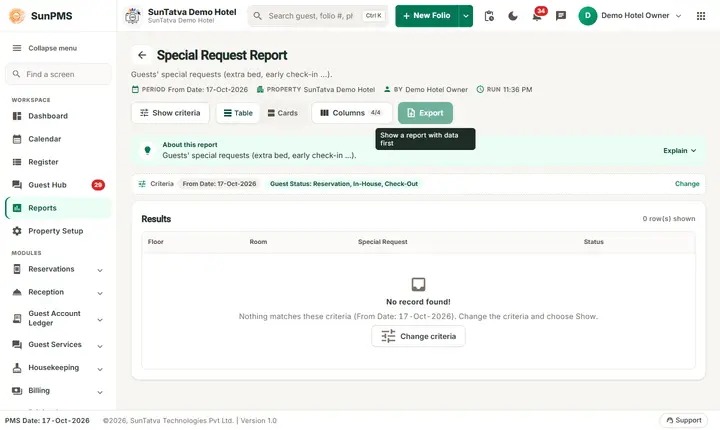
The Special Request Report lists the special requests typed on reservations and folios (for example "high floor, quiet room away from the lift") for the guests of a chosen day, with floor and room, so that housekeeping and the front desk can prepare the room before the guest arrives.
Purpose
- Prepare rooms according to guest requests (floor, pillows, cot, quiet room).
- Give housekeeping the day's list of notes per room.
- Check that a promised request is attached to the stay.
Who uses it
Housekeeping supervisors and the front office manager each morning; guest relations for VIP preparation.
About this report on screen
Every report page has an About this report bar under its header (button Explain / Hide). It explains the report in plain words:
- Summary: Guests' special requests (extra bed, early check-in...).
- What this report shows: Special requests of guests for the chosen date with room, floor and the guest's status.
- How to read it:
- Pick at least one guest status: reservation, in-house or checked out.
- Good to know:
- The guest name column is hidden when the property hides guest names on housekeeping reports.
Before you start
- You need the privilege Special_Request_Report.
- The request text must be entered in the Special Request field of the reservation or folio.
- The stay must have a room assigned. Reservations that have only a room type (no room number yet) are not listed.
- The column Guest Name is shown only when the setting Display Guest Name on Housekeeping Report (DISPLAY_GUESTNAME_HOUSEKEEPINGREPORT, in Display Setting) is on. On the demo hotel it is off, so the report has only the columns Floor, Room, Special Request and Status.
Step by step
- Click Reports in the left menu (or press Ctrl+K and type the report name). The report library opens at
#/reports. - Choose the category Housekeeping Reports (or type in the search box) and click the card Special Request ("Guest special requests overview"). You can also open
#/report/special-request-reportdirectly. - The report opens and runs once with its default criteria, so you already see data. Under Report criteria set From Date, Guest Status as you need (in a date calendar, Working Date jumps to the current business date).
- Click Show to run it again with the new criteria. The line under Results tells how many rows are shown.
- Open Guest Status and tick the groups you want: Reservation, In-House, Check-Out (all three are ticked by default). At least one must stay ticked.
- Read the result as a Table or as Cards (switch at the top right). Columns shows or hides columns and lets you drag them into another order; click a column title to sort. Hide criteria / Show criteria folds the criteria away; on a tablet or phone it folds by itself after Show and leaves a one-line summary.
- Click Export and choose PDF, Excel or Email (PDF). The button is always in the header but stays disabled until the report has rows.
Filters
| Filter | Meaning | Rules and default |
|---|---|---|
| From Date | The day to prepare. Reservations and in-house guests whose stay covers this day; checked-out guests who left on this day. | Default PMS date. |
| Guest Status | Reservation (booked, not arrived, confirmed or unconfirmed), In-House (checked in, not checked out), Check-Out (checked out on that date). | Default all three. If none is ticked: Select atleast one Guest status. |
Columns
| Column | Meaning |
|---|---|
| Floor | Floor of the room. |
| Room | Room number (heading follows ROOM_TITLE). |
| Guest Name | The primary guest. Hidden unless the display setting is on. |
| Special Request | The request text. |
| Status | Reservation, InHouse or Check-Out. |
Totals and grouping
Grouped by building (heading Building Name:...). No totals.
How to read an example
| Floor | Room | Special Request | Status |
|---|---|---|---|
| (floor of the room) | (room number) | High floor, quiet room away from the lift. Arriving late after 11 pm - please keep the room ready. | Reservation |
Common questions it answers
- Which rooms need a special preparation tomorrow?
- Which in-house guests asked for something (extra bed, quiet room)?
- Which requests were left on guests who have just checked out?
Export, print and e-mail
Export is offered only when the report has lines. It behaves as in the other reports: Excel, Email (PDF) with Email sent successfully., and PDF (PDF opens also without a logo since 19-Oct-2026).
Troubleshooting
- The Room and Floor cells are empty. The reservation has no room assigned yet; assign a room in the reservation to see it here.
- The Guest Name column is missing. Turn on Display Guest Name on Housekeeping Report in Display Setting.
- Select atleast one Guest status. Open Guest Status and tick at least one entry.
- The in-house guest's request is missing. The request must be saved in the Special Request field of the folio, and the folio must be checked in and not checked out.
Messages you may see
| Message | Why | What to do |
|---|---|---|
| Select atleast one Guest status. | No Guest Status ticked. | Tick at least one. |
| No record found! | No request for the date and statuses. | Change date or statuses. |
Related reports
House Keeping Summary, Arrival, Housekeeping and custom reports overview.