
Guest Vehicle Detail Report
On this page
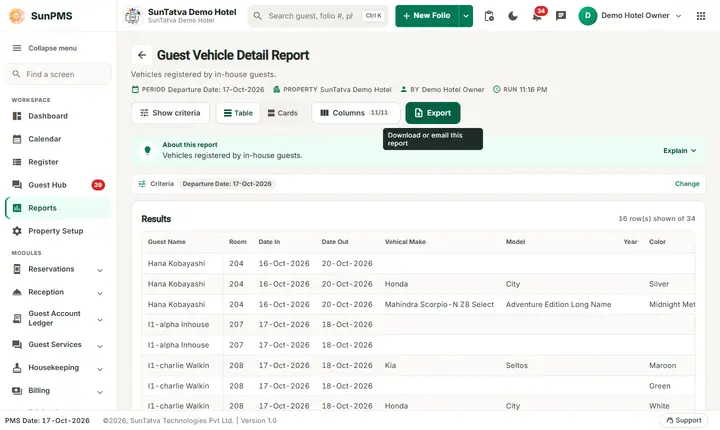
The Guest Vehicle Detail Report lists the vehicles of the guests who are in the hotel on a chosen date: guest, room, arrival and departure, make, model, year, colour, licence plate, state and remark. Security and the parking attendant use it to know whose car is in the car park.
Purpose
- Identify the owner of a car (blocked driveway, lights left on, damage).
- Keep a register of the vehicles on the premises for security.
- Check how many parking places are needed.
Who uses it
Security supervisors, the parking or valet staff, the front desk, and the manager on duty.
About this report on screen
Every report page has an About this report bar under its header (button Explain / Hide). It explains the report in plain words:
- Summary: Vehicles registered by in-house guests.
- What this report shows: For guests staying on the chosen date: room, vehicle make, model, colour, year, licence plate and state.
- How to read it:
- Useful for the car park and for security checks.
Before you start
- You need the privilege Guest_Vehical_Detail.
- The vehicle must be recorded on the guest profile (guest detail, vehicle section), for example when the guest checks in online or the desk enters the licence plate.
- The report lists guests of checked-in stays only. A vehicle of a guest who has only a reservation is not listed until check-in.
Step by step
- Click Reports in the left menu (or press Ctrl+K and type the report name). The report library opens at
#/reports. - Choose the category Guest Reports (or type in the search box) and click the card Guest Vehicle Detail ("Vehicle info of guests"). You can also open
#/report/guest-vehical-detaildirectly. - The report opens and runs once with its default criteria, so you already see data. Under Report criteria set From Date as you need (in a date calendar, Working Date jumps to the current business date).
- Click Show to run it again with the new criteria. The line under Results tells how many rows are shown.
- Read the table. Hide columns under Columns if you need to.
- Read the result as a Table or as Cards (switch at the top right). Columns shows or hides columns and lets you drag them into another order; click a column title to sort. Hide criteria / Show criteria folds the criteria away; on a tablet or phone it folds by itself after Show and leaves a one-line summary.
- Click Export and choose PDF, Excel or Email (PDF). The button is always in the header but stays disabled until the report has rows.
Filters
| Filter | Meaning | Rules and default |
|---|---|---|
| From Date | The date on which the guest must be in house: the stay is listed when this date is between Date In and Date Out. | Default PMS date. A single date, there is no To Date. |
Columns
| Column | Meaning |
|---|---|
| Guest Name | First and last name of the guest who owns the vehicle record. |
| Room | Room of the stay. |
| Date In | Arrival date of the stay. |
| Date Out | Planned departure date. |
| Vehical Make | Maker of the vehicle (the heading is spelled "Vehical" on screen). |
| Model | Model. |
| Year | Model year. |
| Color | Colour. |
| License | Licence plate number. |
| State | State or region of the plate. |
| Remark | Free text noted with the vehicle. |
Totals and grouping
No grouping and no totals. Lines are ordered by the guest. A guest with two vehicles has two lines; a guest of several overlapping stays can appear once for each stay.
How to read an example
On the demo hotel the report is empty on 17-Oct-2026 ("No record found!"). Four guests of the demo have vehicle details stored (for example a Hyundai Creta, plate MH 02 AB 4321, state Maharashtra, on the reservation of Karan Bhatia and two other reservations arriving 17-Oct, and a Renault Clio on a reservation for November), but all of them are still reservations, not checked in, so none appears. When one of these guests is checked in, a line appears for every date between Date In and Date Out with the guest name, the room and the vehicle data exactly as stored (make Hyundai, model Creta, license MH 02 AB 4321, state Maharashtra).
Common questions it answers
- Whose car is the red Hyundai Creta MH 02 AB 4321?
- How many vehicles are on the premises tonight?
- Which guests have parking needs tomorrow (run the report with tomorrow's date)?
Export, print and e-mail
When there are lines, Export offers PDF, Excel and Email (PDF) as in the other guest reports. With an empty result the Export button is not shown (nothing to export). The e-mail and Excel behaviour is the same as in Guest List; PDF opens also on a property without a logo since 19-Oct-2026.
Troubleshooting
- No record found! No checked-in guest with a stored vehicle is in the house on that date. Check the date, that the guest has checked in, and that the vehicle was saved on the guest profile.
- The vehicle I typed at reservation is missing. The guest is still a reservation; the report lists checked-in stays only.
- The same car appears twice. The guest has two overlapping stays, or the vehicle was entered twice.
- I cannot find the report. You need the privilege Guest_Vehical_Detail; ask the administrator.
Messages you may see
| Message | Why | What to do |
|---|---|---|
| No record found! | No vehicle of an in-house guest on the date. | Change the date or check in the guest. |