ADR Chart
On this page
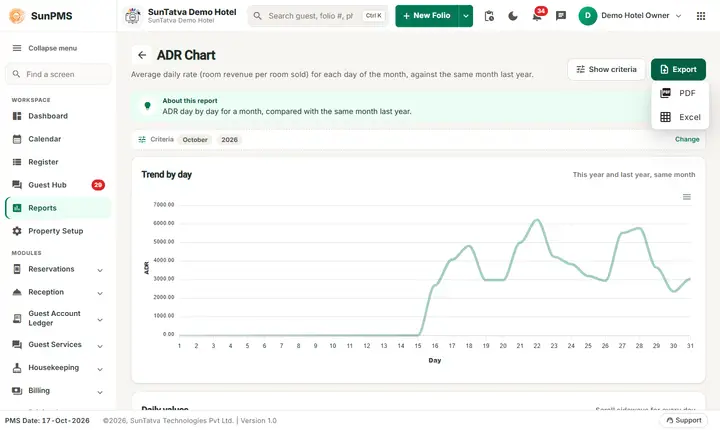
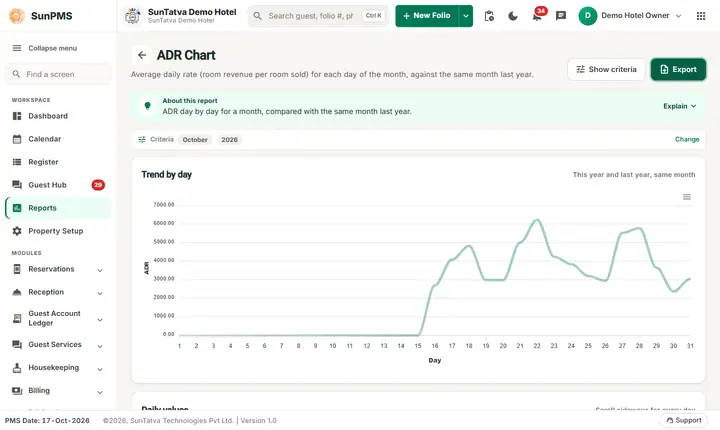
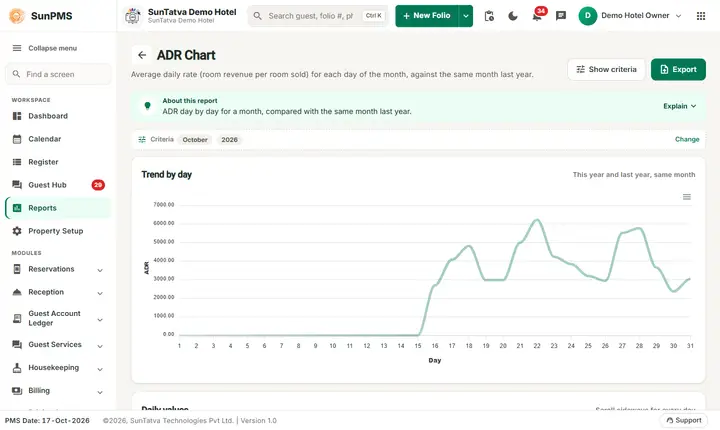
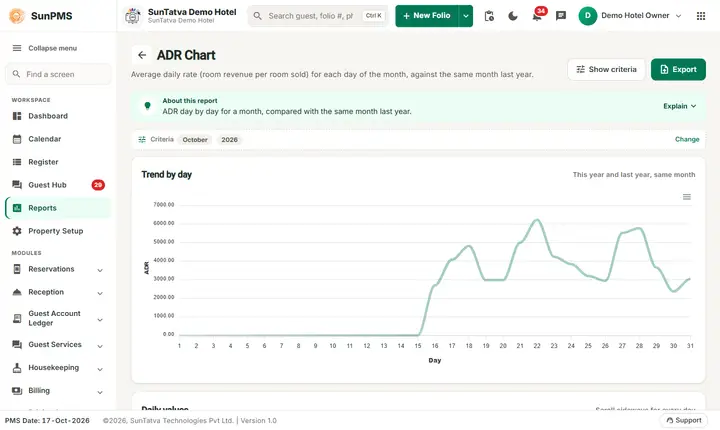
The ADR Chart shows, for every day of one month, the average daily rate (room rent divided by rooms sold) as a table and a line graph. A second line shows the same month of the previous year when it has data.
Purpose
See how your rate moved during a month and compare with last year, to judge pricing and the effect of discounts.
Who uses it
- Revenue manager: price and occupancy trends.
- Owner and general manager: monthly performance and year-on-year comparison.
About this report on screen
Every report page has an About this report bar under its header (button Explain / Hide). It explains the report in plain words:
- Summary: ADR day by day for a month, compared with the same month last year.
- What this report shows: A line per year with the average daily rate of each day of the chosen month, and the values in a table under the chart.
- How to read it:
- ADR = room revenue / rooms sold. A higher line means a better average price.
Before you start
- Future days use reservations, past days use the stays that happened. A month without stays is all zeros.
- Only rent counts (before tax).
Step by step
- Click Reports in the left menu (or press Ctrl+K and type the report name). The report library opens at
#/reports. - Choose the category Charts (or type in the search box) and click the card Average Daily Rate(ADR) ("Daily average revenue per sold room"). You can also open
#/chart/average-daily-ratedirectly. - The report opens and runs once with its default criteria, so you already see data. Under Report criteria set From Month, Year as you need (in a date calendar, Working Date jumps to the current business date).
- Click Show to run it again with the new criteria. The line under Results tells how many rows are shown.
- Read the result as a Table or as Cards (switch at the top right). Columns shows or hides columns and lets you drag them into another order; click a column title to sort. Hide criteria / Show criteria folds the criteria away; on a tablet or phone it folds by itself after Show and leaves a one-line summary.
- Click Export and choose PDF, Excel or Email (PDF). The button is always in the header but stays disabled until the report has rows.
Filters
| Filter | Meaning | Default / rules |
|---|---|---|
| From Month | The month (January to December). | The month of the PMS date. |
| Year | The year: the current year and the ten before. | The current year. |
Columns
| Column | Meaning and how it is calculated |
|---|---|
| Year | First column: the month and year of the row, for example "October-2026". A second row for the same month of the previous year appears only when that month has data. |
| 1... 31 | One column per day of the month. Value = room rent of the day (before tax) / rooms sold that day, rounded to 2 decimals; 0 when no room was sold. |
Totals and grouping
No totals. The graph draws the same values as lines (x axis "Day", y axis "ADR"); the previous year is a second line.
How to read an example
For October 2026 the table has one row with the values of days 1 to 31. Days 1 to 15 are 0.00 because the hotel started on 16-Oct-2026. Day 16 shows 2,692.00 and the highest value, 6233.33, is on day 22. ADR is higher than RevPAR on the same day because ADR divides by the sold rooms only.
For September 2026 all days are 0.00.
The numbers come from the SunTatva Demo Hotel on the day this page was written; your own figures will of course differ.
Common questions it answers
- What was our average rate on each day of the month?
- Is the rate higher or lower than the same month last year?
- Which days had the highest ADR?
Troubleshooting
| What you see | Why and what to do |
|---|---|
| The last year line is missing | The same month of last year has no data (the hotel is new). |
| The chart is all zeros | No room was sold in that month. Check the month and year. |
| ADR here differs from the Daily Summary | The chart rounds each day; the Daily Summary shows the same formula for the day, month and year. Compare the same day. |
| Export is greyed out | The report has no rows (No record found!), so there is nothing to export. Change the criteria and click Show. |
| You are signed out when the report opens | Your role does not have the privilege of this report. The screen checks the privilege when the address is opened and logs you out if it is missing. |
Messages you may see
| Message | Why it appears | What to do |
|---|---|---|
| No record found! | The month has no data (the chart stays empty). | Choose another month. |
| You are signed out when the report opens | Your role does not have the privilege of this report. The screen checks the privilege when the address is opened and logs you out if it is missing. | Ask an administrator to add the privilege to your role (Settings > Roles). |
Related reports
- RevPAR Chart and Occupancy chart.
- Daily Summary: ADR for the day, month and year.
- Monthly Hotel Statistics.
Screenshots