Monthly Tax Exempt Claim Report
On this page
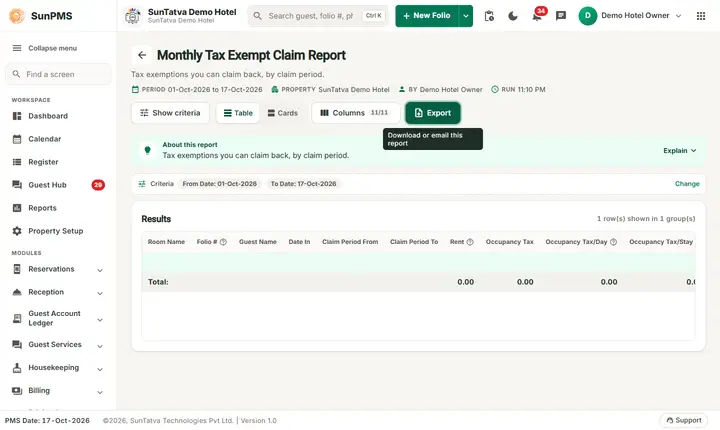
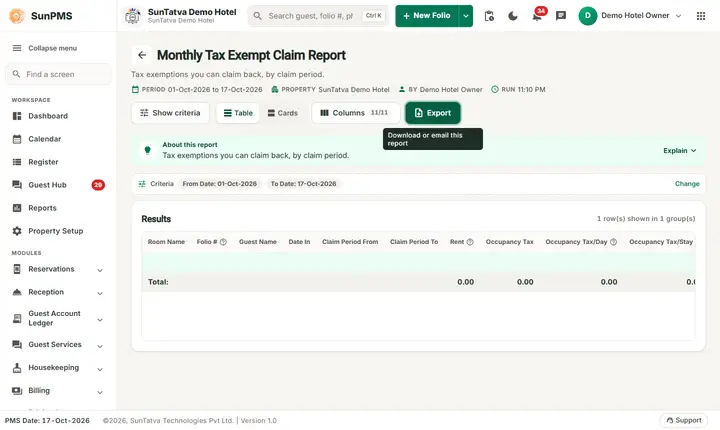
The Monthly Tax Exempt Claim Report has one line per tax-exempt stay: Room Name, Folio #, Guest Name, Date In, the Claim Period From and To, the Rent, the Occupancy Tax exempted, split into Occupancy Tax/Day and Occupancy Tax/Stay, and the Payment received on the folio. Lines are grouped by Sales & Channel (N/A when there is none) with a Total per group.
Purpose
Prepare the documents needed to claim exempted occupancy tax: which stays, for which period, how much rent and how much tax per day and per stay.
Who uses it
Accountants and the finance manager; the group or company that is entitled to the exemption.
About this report on screen
Every report page has an About this report bar under its header (button Explain / Hide). It explains the report in plain words:
- Summary: Tax exemptions you can claim back, by claim period.
- What this report shows: Each exempt stay with the claim period, rent, occupancy tax per day and per stay, and the payment.
- How to read it:
- Occupancy Tax/Stay is the tax that would have been charged for the whole stay.
- Good to know:
- Include No-Show/Cancel also lists no-show and cancellation rent.
- From Date starts on the 1st of the current business month; change it for any other period.
Columns explained (the same text shows on the help icon next to a column title):
| Column | Meaning |
|---|---|
| Folio # | The stay's folio number. |
| Rent | Room rent (without other charges). |
| Occupancy Tax/Day | Occupancy tax for one night. |
| Occupancy Tax/Stay | Occupancy tax for the whole stay. |
Before you start
- The stay must have exempted tax (tax-exempt folio or Sales & Channel account).
- Use together with Monthly Tax Exempt, which lists the individual nights.
- You need the privilege Monthly_Report_MonthlyTaxExemptClaimReport (Property Setup > User & Access > Assign Report Privileges). Without it the card is not shown on the Reports screen and a direct address signs you out.
Step by step
- Click Reports in the left menu (or press Ctrl+K and type the report name). The report library opens at
#/reports. - Choose the category Monthly Reports (or type in the search box) and click the card Monthly Tax Exempt Claim ("Claimed tax exemptions"). You can also open
#/report/monthly-tax-exempt-claimdirectly. - The report opens and runs once with its default criteria, so you already see data. Under Report criteria set From Date, To Date, Include No-Show/Cancel as you need (in a date calendar, Working Date jumps to the current business date).
- Click Show to run it again with the new criteria. The line under Results tells how many rows are shown.
- Set From Date and To Date; tick Include No-Show/Cancel to add exempted reservations that did not stay.
- Read the result as a Table or as Cards (switch at the top right). Columns shows or hides columns and lets you drag them into another order; click a column title to sort. Hide criteria / Show criteria folds the criteria away; on a tablet or phone it folds by itself after Show and leaves a one-line summary.
- Click Export and choose PDF, Excel or Email (PDF). The button is always in the header but stays disabled until the report has rows.
Filters
| Filter | What it does | Default |
|---|---|---|
| From Date | First day of the period. The calendar greys out days before the property start date (16-Oct-2026 on the demo hotel); the Working Date button sets the PMS date. | First day of the PMS month |
| To Date | Last day of the period; it cannot be before From Date. A date after the PMS date is accepted (stays booked for those days then show their rent, nothing is paid yet). | PMS date |
| Include No-Show/Cancel | When ticked, no-show and cancelled reservations are added to the stays. | Not ticked |
The Columns button in the header opens a panel: untick a column to hide it, drag the grip icon to reorder. Hidden columns are also left out of PDF and Excel. If you hide every column, Export is disabled.
Columns
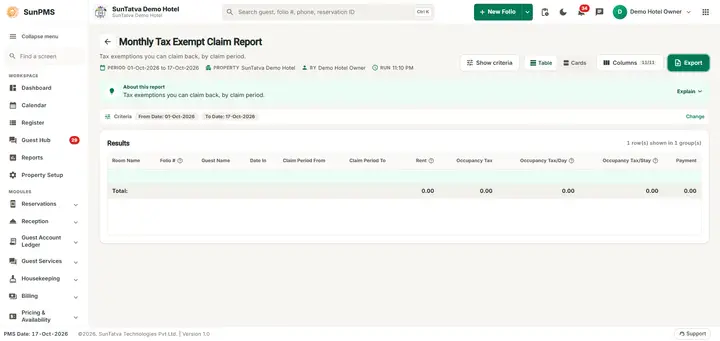
| Column | Meaning and how it is calculated |
|---|---|
| (group heading) | Sales & Channel of the folio, or N/A (hidden column used for grouping). A Total line closes each group. |
| Room Name | Room of the folio. |
| Folio # | Folio number. |
| Guest Name | Primary guest. |
| Date In | Check-in date. |
| Claim Period From | First day with exempted tax in the range. |
| Claim Period To | Last day with exempted tax in the range. |
| Rent | Rent of the exempted nights (each night counted once). |
| Occupancy Tax | Total tax exempted for the stay. |
| Occupancy Tax/Day | Part of the exempted tax that is charged per day. |
| Occupancy Tax/Stay | Part of the exempted tax that is charged once per stay. |
| Payment | Total payments received on the folio. |
Totals and grouping
Grouped by Sales & Channel, a Total line per group, and at the end Total: adding Rent, Occupancy Tax, tax per day, tax per stay and Payment.
How to read an example
On the demo hotel, run for 16-Oct-2026 to 17-Oct-2026: only the Total: line is shown, Occupancy Tax 0, because no stay had exempted tax.
Illustration with made-up numbers: group N/A, line 201 | 161020090257234 | Guest A | 16-Oct-2026 | 16-Oct-2026 | 17-Oct-2026 | Rent 8,000.00 | Occupancy Tax 960.00 | Tax/Day 960.00 | Tax/Stay 0.00 | Payment 8,000.00.
Common questions it answers
- Which stays do we claim exempted tax for, and for which period?
- How much exempted tax is per day and how much per stay?
- What did these guests pay?
Troubleshooting
| Problem | Cause and what to do |
|---|---|
| Empty although a tax-exempt guest stayed | The nights are outside the range or the rate is zero. Check the dates. |
| Claim Period To is after the report range | The claim period is limited to the dates of the range; widen To Date to include the full stay. |
| No-show not listed | Tick Include No-Show/Cancel. |
Messages you may see
| Message | Why it appears | What to do |
|---|---|---|
| No record found! | The service returned no rows for the filters. | Change the dates or filters and click Show. |
| Email sent successfully. | You chose Email (PDF). | Check the property mailbox. The message appears even if the mail server refuses the mail. |
Export, print and e-mail
- PDF is built in the browser and opens in a new tab (allow pop-ups). If the property has no uploaded logo the PDF is simply drawn without it.
- Excel downloads Monthly Tax Exempt Claim Report.xlsx: property name, print date, report name and date range, then the visible columns and the same rows.
- Email (PDF) has the server mail the PDF to the property e-mail address and shows "Email sent successfully." at once, even if delivery fails.
- The Export button is always in the report header; it is disabled (grey) until the result has at least one row.
Related reports
- Monthly Tax Exempt - night by night list
- Monthly Tax Detail
- Monthly Sales & Channels
- Monthly Reports - tax, charges, sales and channels, statistics (group page)
- Report finder
Screenshots