
How to connect SunPMS with SunParking, SunPOS and SunHardware
On this page
Who: the owner (main user) of the groups. Time: about one minute per link. Before you start: the hotel group and the other app's group must have the same owner in SunAuth (the owner is an active main user of both groups), and the licence for the integration (for example Parking Integration or Hardware Integration) must be active.
Every integration page works the same way. It shows a status chip (Connected, Not connected or Needs attention), the groups and properties of your own account by name, and one main button.
From SunPMS (hotel side)
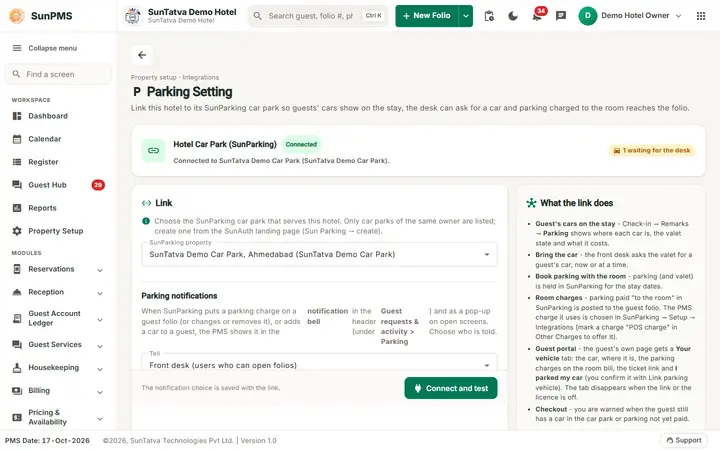
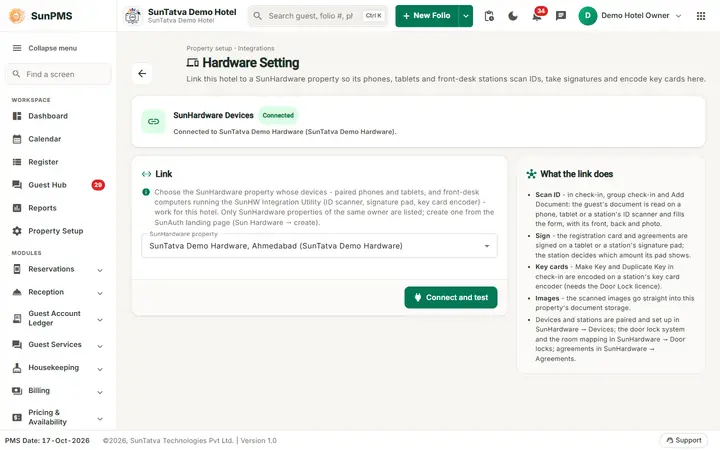
- Open Property Setup > Configuration > Parking Setting (or Hardware Setting).
- The list shows only the car parks (or hardware properties) of your owner account. If there is exactly one, it is already selected.
- Press Connect and test. SunPMS saves its side, SunParking or SunHardware saves the reverse side, and the page tests the connection with SunAuth. The page then says "Connected to
( )". - To remove the link choose Not linked and press Disconnect. Both sides are cleared.
From SunParking
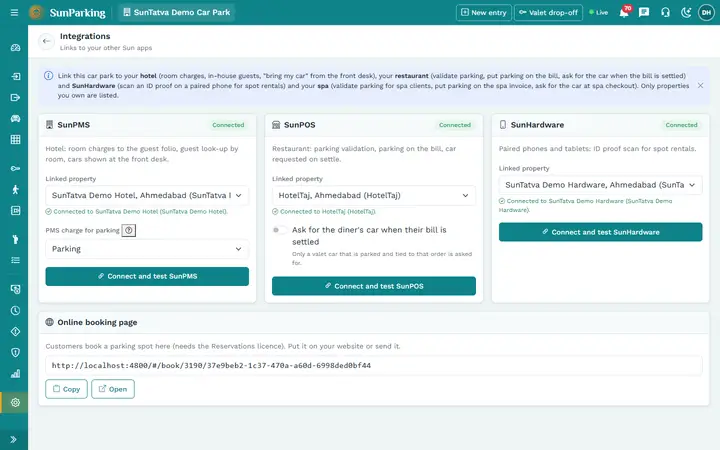
Open Setup, Integrations. Each app (SunPMS hotel, SunPOS restaurant, SunHardware) is a card. Pick the property (pre-selected when there is only one) and press Connect and test. The card turns Connected and shows the name of the other property; Needs attention shows the reason, for example that the two groups do not share an owner.
From SunPOS
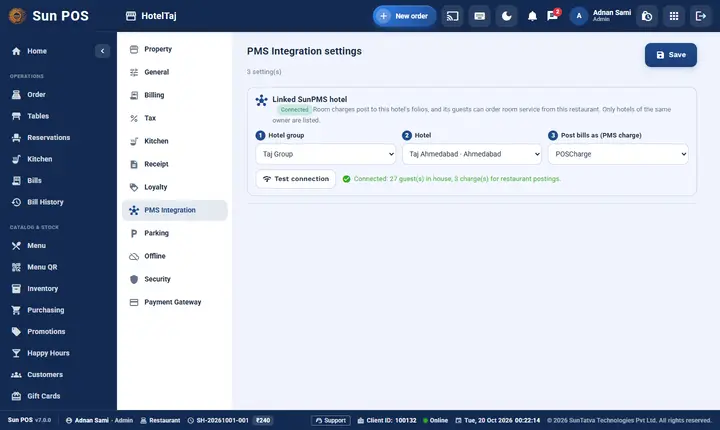
Open Settings, PMS Integration (hotel group, hotel, charge) or Settings, Parking (car park) and press Save. Test connection shows the result. Pick the group first, then the hotel; a single hotel group is pre-selected.
From SunHardware
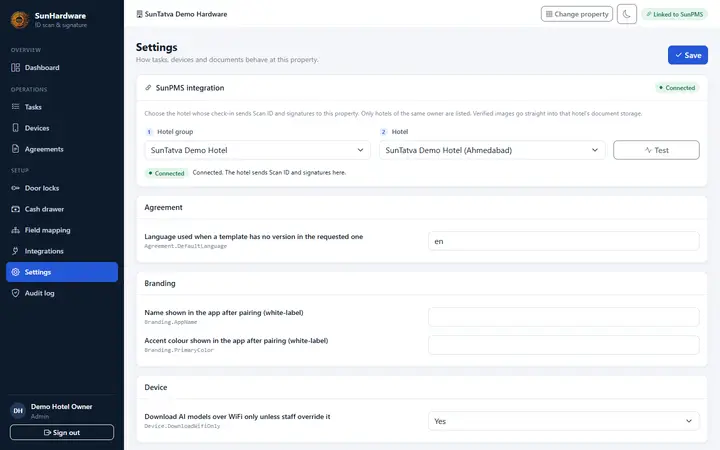
Open Settings, SunPMS integration, choose the hotel group and hotel, and press Save; Test checks the link.
If a list is empty or says "Needs attention"
Read "Integration groups or properties do not load" in the troubleshooting chapter. In short: the person signed in must be an owner (main user) of the current group, and the other group must have the same owner. Each person sees only the groups of their own owner account.
Messages you may see
| Message | Why | What to do |
|---|---|---|
| Connected to |
The test with SunAuth worked | None |
| Needs attention | SunAuth refused, often because the groups do not share an owner | Read the reason on the card, then Integration groups do not load |
| The POS group and the PMS group must belong to the same owner | The two groups have no common owner | Ask the owner to be an active main user of both groups |
| No linked groups found for your account | You are not an owner of both groups | Ask the owner to connect, or to add you as main user |
Tips and FAQ
- Q: Who can connect the apps? A: The owner (active main user) of the groups; each person sees only the groups of their own owner account.
- Q: How do I remove a link? A: In SunPMS choose Not linked and press Disconnect; both sides are cleared.
- Q: The page lists only one property. A: When there is exactly one candidate it is pre-selected; just press Connect and test.